
Your team's WhatsApp messages
Check and approve the three messages KonvoLead sends your sales team.
WhatsApp only lets a business start a conversation with a message Meta has approved. The messages to your team (the handoff, the morning visit list and the same-day visit alert) are such messages, so each needs Meta's approval before it can be sent.
Where to find them
Open Sales team and click Their WhatsApp messages.
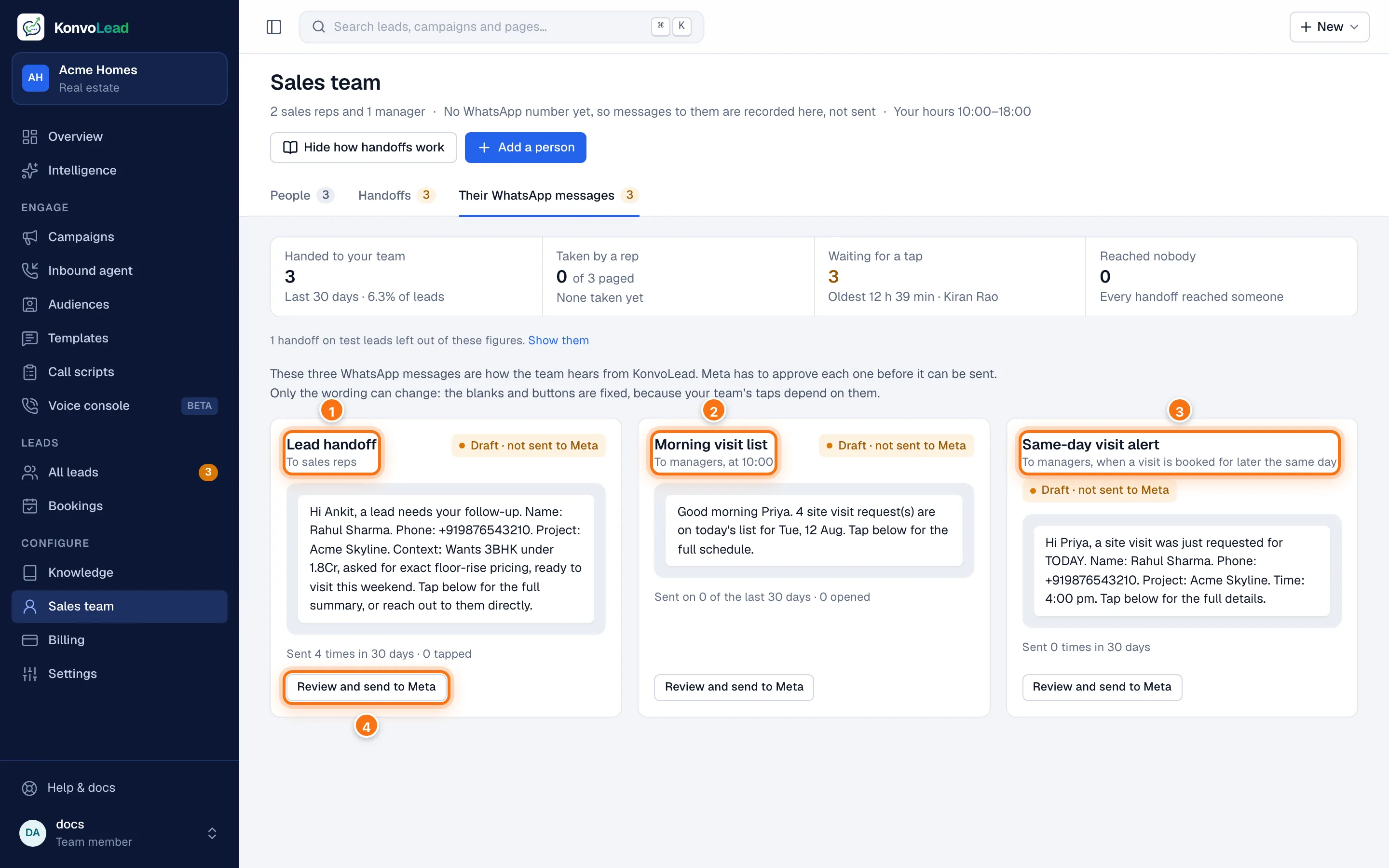
- Lead handoff, to sales reps, with Send full summary and Not available.
- Morning visit list, to managers at opening time, with Send full report.
- Same-day visit alert, to managers when a visit is booked for later the same day, with Send full details.
- The next step for each one: Set up team messages, Review and send to Meta, Open in Templates or Edit wording in Templates.
Each card shows the message as your team sees it, where it stands (for example Draft · not sent to Meta), and how often it was sent and tapped in the last 30 days.
Getting them approved
- Click Review and send to Meta on a message. It opens on Templates.
- Read the wording, change it if you like, and save. Saving is what sends it to Meta for approval, even if you changed nothing. If your WhatsApp number isn't connected yet, your wording is kept and you're told why it couldn't be sent.
- Do the same for the other two.
While Meta reviews a message you can't change it. Once it is Approved, it can be sent. See Message templates.
What you can change
Only the wording: the body and the footer. The blanks and the buttons are fixed, because KonvoLead fills each blank by its position and recognises your team's taps by the exact button text.
If you never set them up
The first time a lead is handed over, the handoff message is created and sent to Meta by itself. Approving them early just means your first real handoff isn't waiting on Meta.