
Adding sales reps and managers
Add the people who take leads over from the agent and who get the day's site visits.
Your sales team is reached on WhatsApp. They don't sign in to the dashboard. There are two roles:
- Sales reps take handoffs, one at a time, in turn.
- Managers get the morning visit list.
A person is on the team once, either as a rep or as a manager.
The Sales team page
Open Sales team in the menu, under Configure.
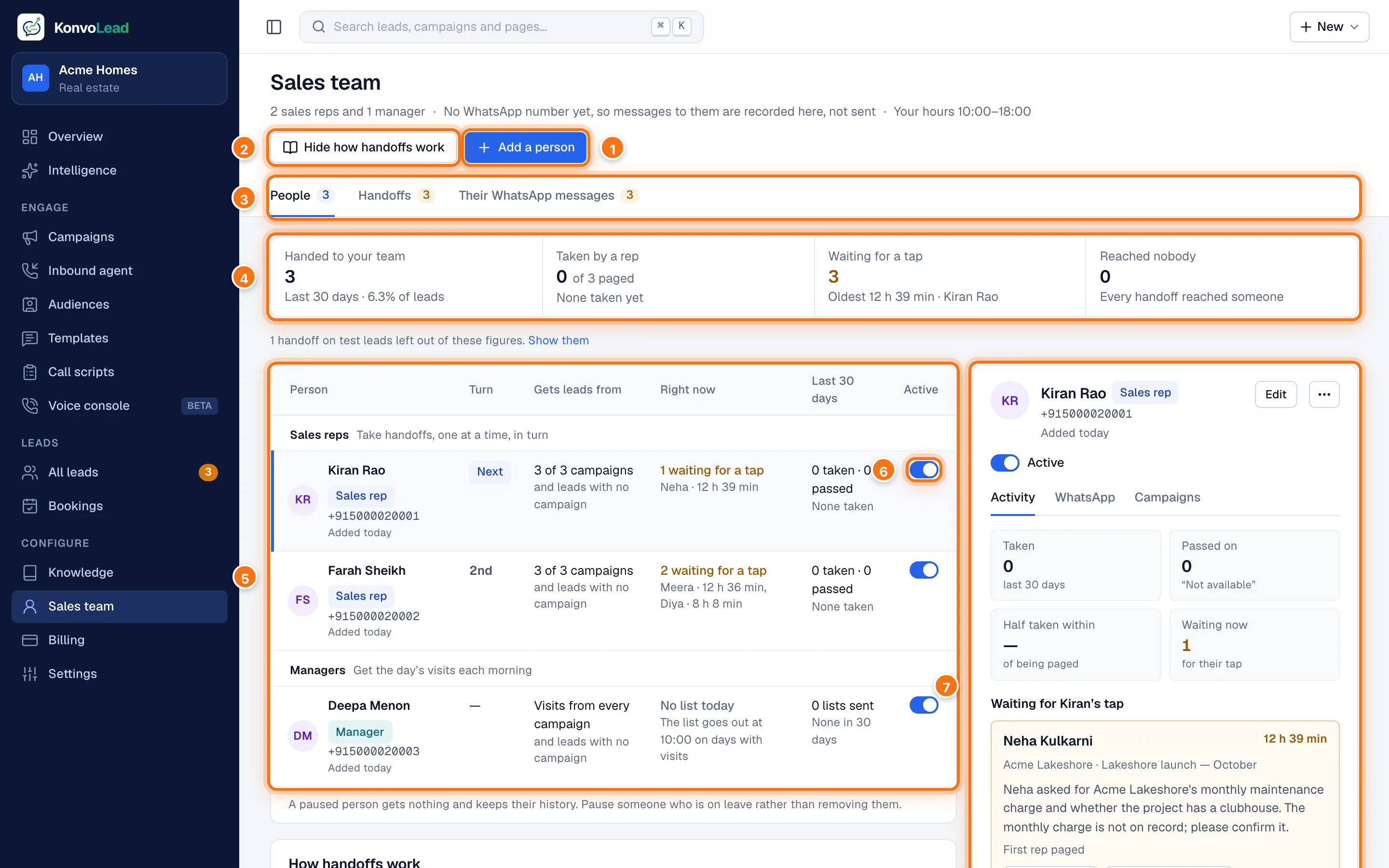
- Add a person. See below.
- How handoffs work shows or hides a short summary of the rules at the bottom of the page.
- People, Handoffs (see How handoffs reach your team) and Their WhatsApp messages (see Your team's WhatsApp messages).
- The last 30 days: how many leads were Handed to your team, how many a rep took, how many are Waiting for a tap, and how many Reached nobody. Handoffs on test leads are left out; Show them includes them.
- Each person, in columns: Turn (who is next), Gets leads from (which campaigns they take leads from), Right now (what is waiting on them) and Last 30 days (what they did).
- Active: switch someone off while they're on leave. A paused person gets nothing and keeps their history.
- The person you clicked. See Each person.
The line under the title says how many reps and managers you have, your business hours, and, until a WhatsApp number is connected, that messages to them are recorded here rather than sent.
Add someone
- Click Add a person.
- Fill in the form, then click Add to team.
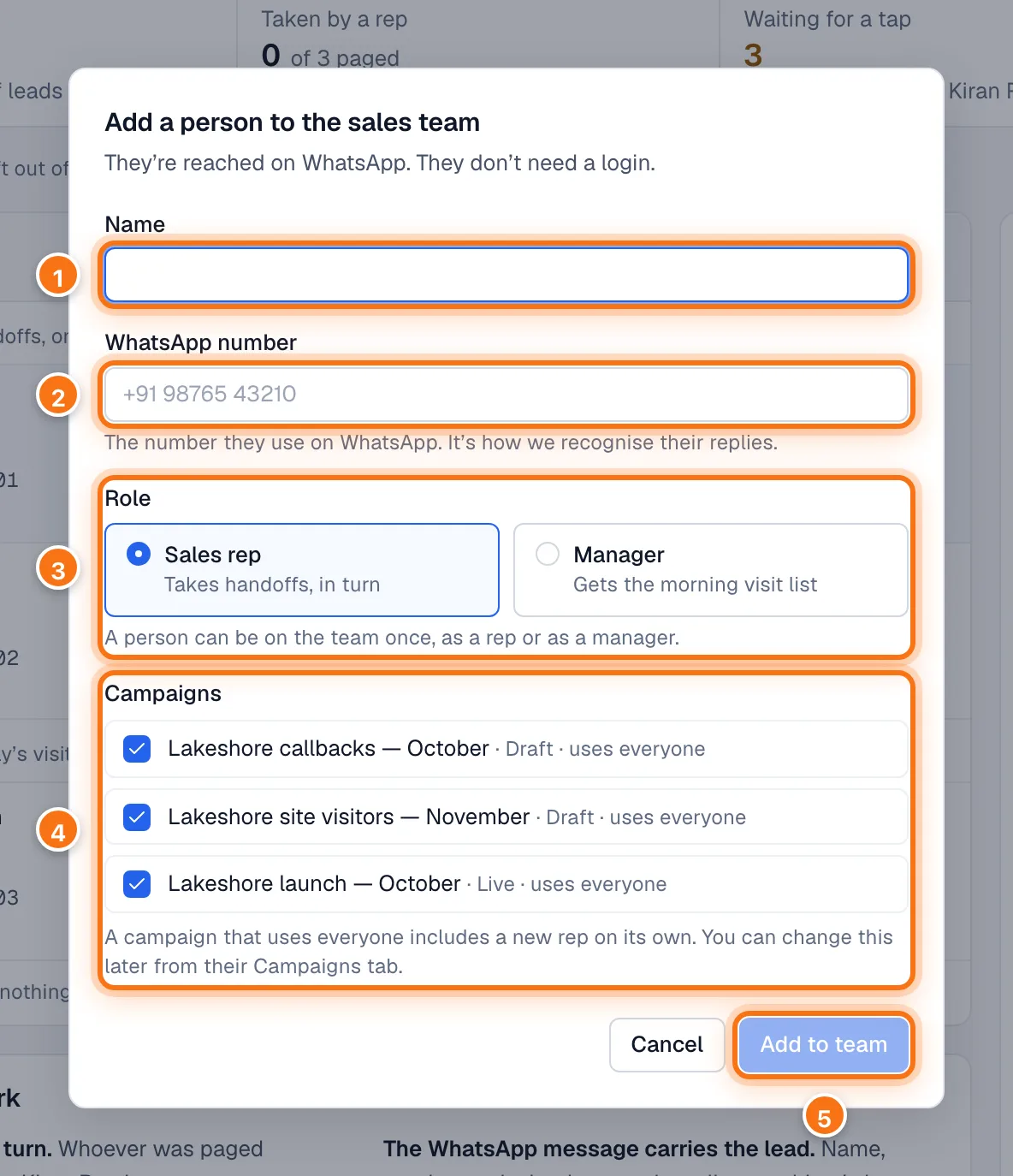
- Name.
- WhatsApp number: the number they use on WhatsApp. It's how we recognise their replies, and a message from it is never treated as a new buyer.
- Role: Sales rep or Manager.
- Campaigns: the campaigns they work on. A campaign that "uses everyone" includes a new person on its own. You can change this later from their Campaigns tab.
- Add to team.
Each person
Click someone in the list to see them on the right.
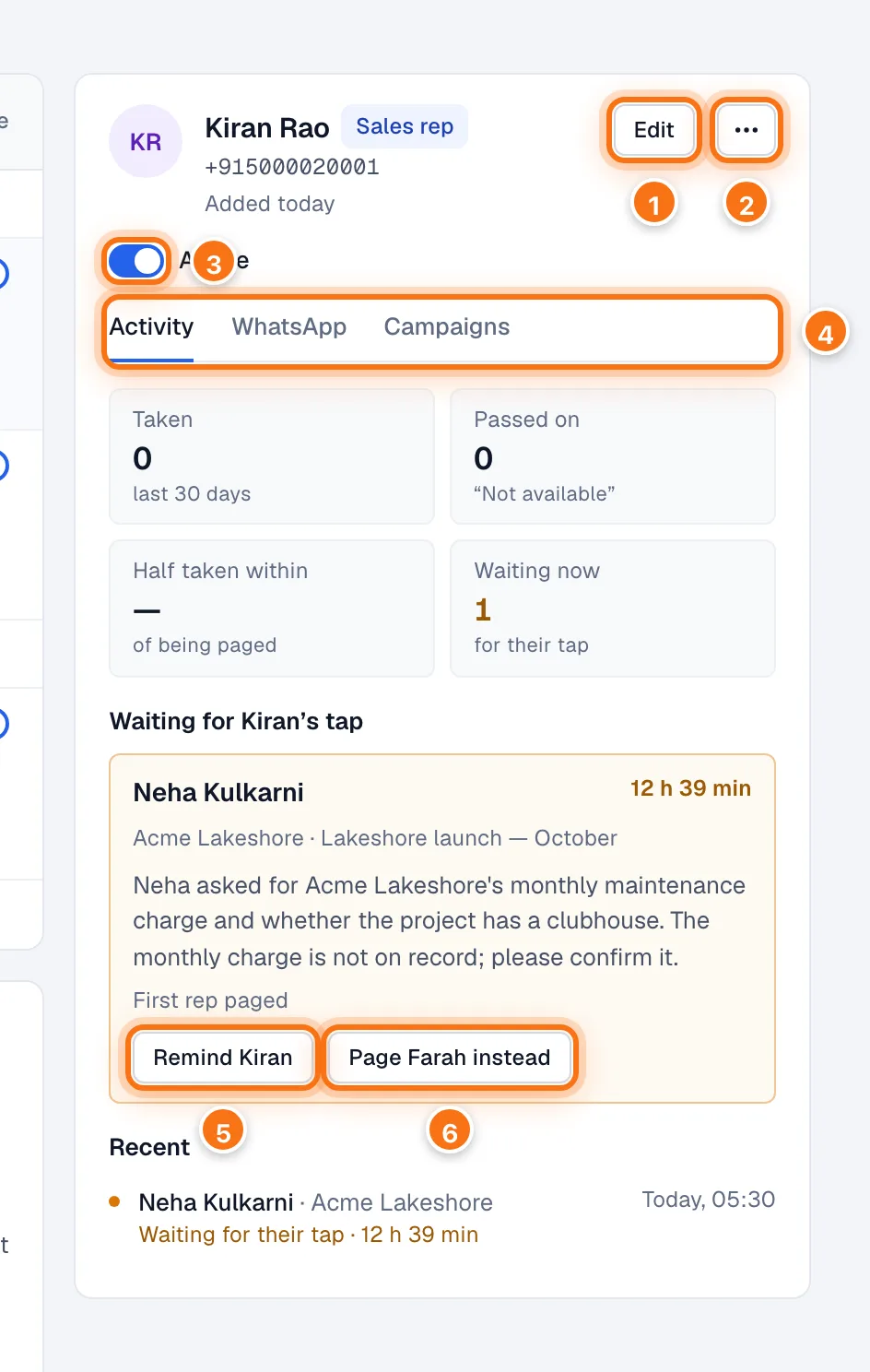
- Edit their name, number, role or campaigns.
- … has Remove from the team…. Their history stays, handoffs waiting for them go to the next rep, and adding the same number again brings them back. If they're only away, pause them instead.
- Active: on or paused.
- Three tabs:
- Activity: leads they took and passed on, how quickly, and what is waiting for them, with their recent handoffs.
- WhatsApp: everything sent to them and their replies. You can tap the buttons and type here as them to try the flow. A tap here counts as theirs.
- Campaigns: the campaigns they get leads from. Leads that didn't come from a campaign always go to every active rep.
- Remind them about a handoff still waiting for their tap.
- Page the next rep instead.
Choosing who works each campaign
Your sales team is one list. When you create a campaign, its Schedule & team step lists everyone; untick anyone not working that project.
- Reps take that campaign's handoffs in turn.
- Managers get that campaign's site visits on their morning list.
- If everyone chosen for a campaign is paused, its leads go to every active rep.
- Leads that didn't come from a campaign go to every active rep.
With nobody on the team, handoffs reach no one. Add at least one sales rep before you go live.