
Quickstart: your first campaign
Add a project, check its key facts, chat with the agent as a pretend buyer, then send a WhatsApp campaign to a list. It takes about 20 minutes, plus a few minutes while KonvoLead reads your brochure.
You'll need the project's brochure or price sheet, and a spreadsheet of people who agreed to hear from you. While you're trying it out, use colleagues who agreed to get a test message.
Step 1. Add a project
If you added a project from the welcome checklist, skip to step 2.
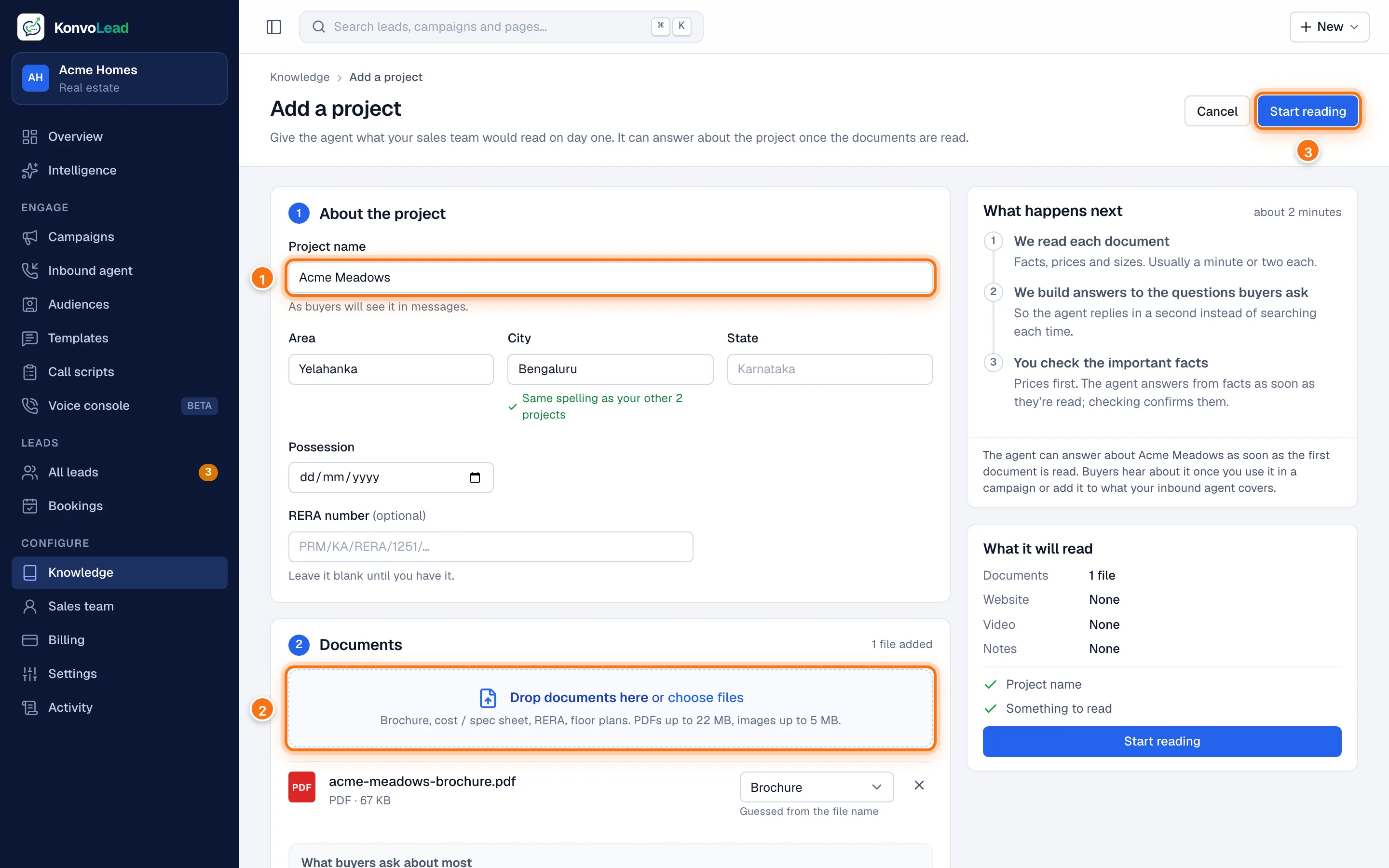
- In the menu, click Knowledge, then Add a project. Type the Project name (1), and its area and city.
- Drop the brochure and price sheet under Documents (2), or click choose files.
- Click Start reading (3).
The panel on the right follows the read, usually a minute or two per document. You can leave the page and carry on with the next steps: reading carries on, and the project shows where it's got to. Full details: Onboarding a project.
Step 2. Check the key facts
The agent quotes prices and rates word for word, so check those first.
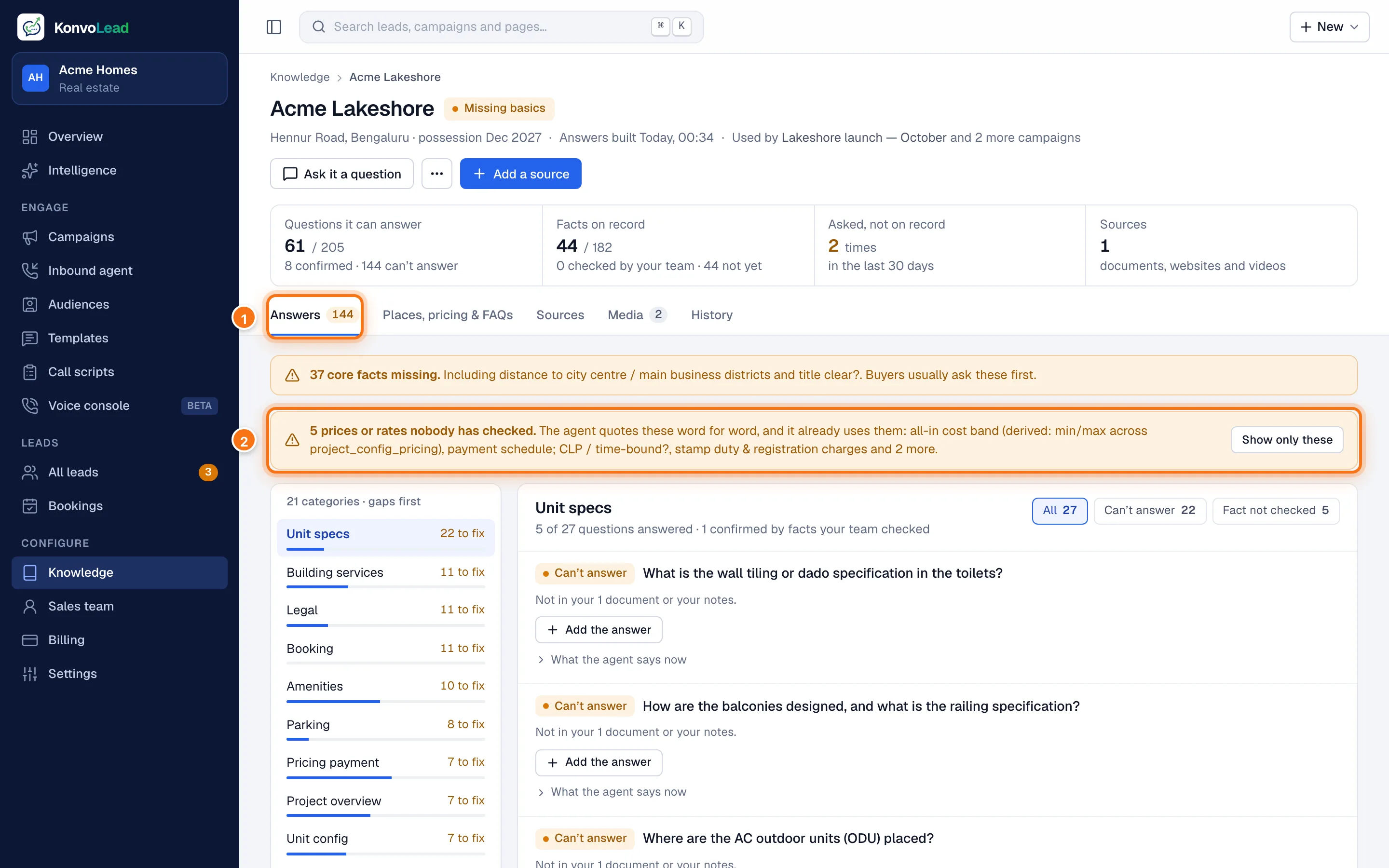
- On the project's page, open the Answers tab (1).
- A yellow box lists the prices or rates nobody has checked yet (2). Click Show only these.
- For each fact that's right, switch it to Checked. If it's wrong, click Edit, fix it, then switch it to Checked.
- Click Save and rebuild these answers, under the list.
The agent's answers rebuild in about a minute. Full details: Facts.
Step 3. Test the agent
A test lead is a pretend buyer. Nothing is sent to a real phone, and test leads are left out of your numbers.
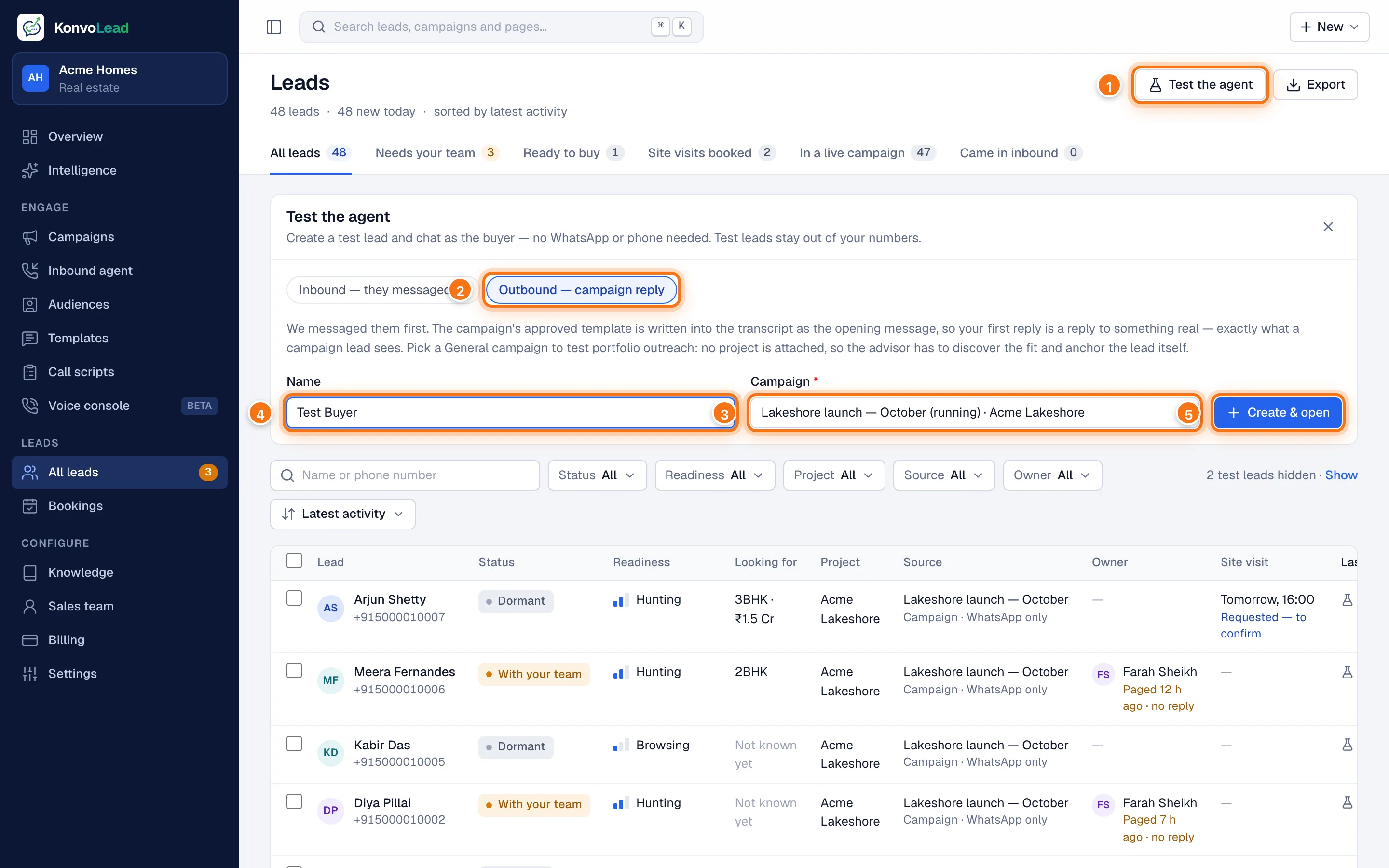
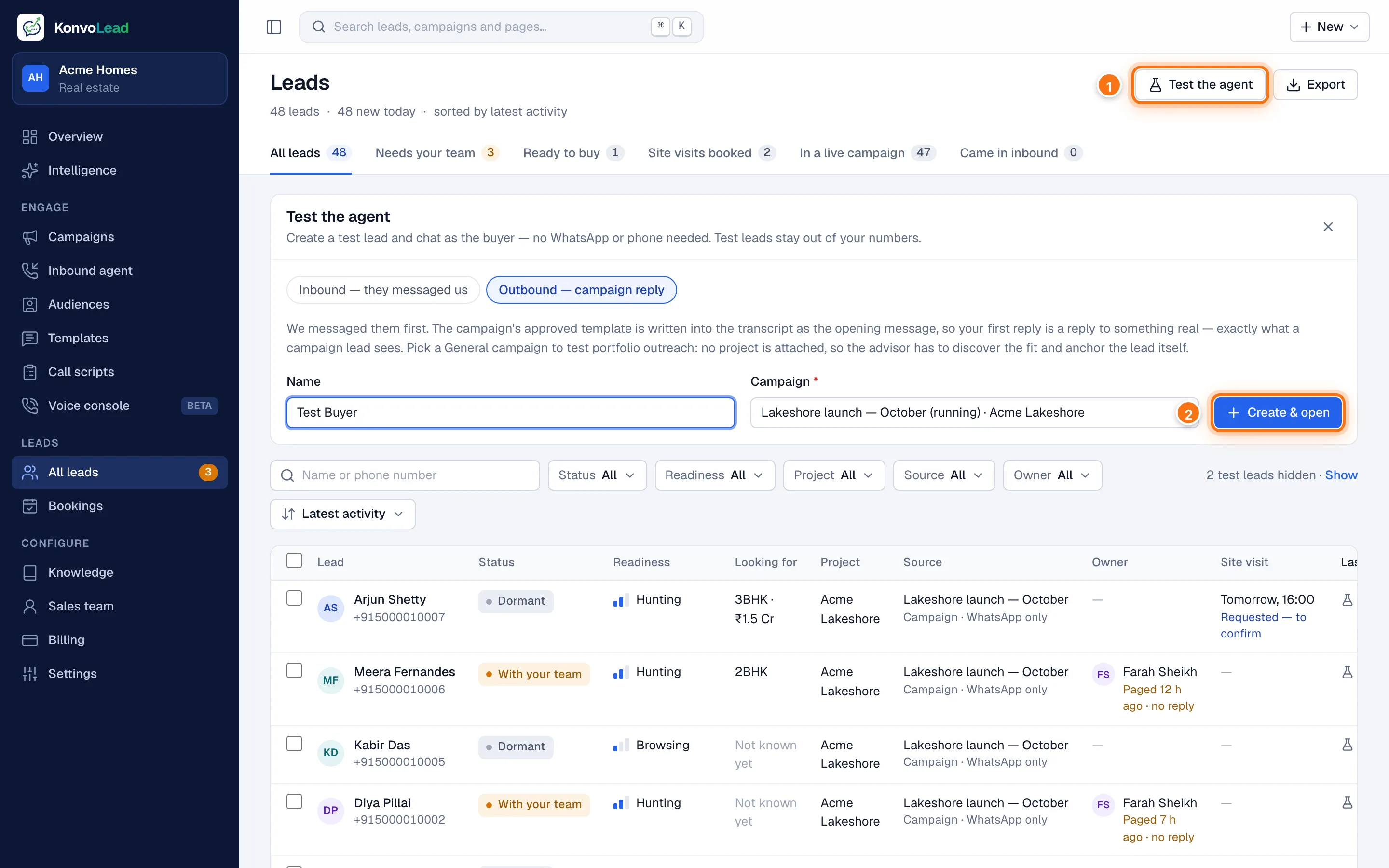
- In the menu, click All leads, then Test the agent (1).
- Pick Outbound — campaign reply (2). The pretend buyer then starts as a reply to one of your campaigns, as a real campaign lead would.
- Under Campaign (3), pick the campaign to reply to. If you have none yet, pick Inbound — they messaged us instead.
- Type a Name (4), for example "Test Buyer".
- Click Create & open (5).
Inbound needs the Inbound agent switched on. If it's off, the agent doesn't answer an inbound test lead. Use Outbound, or turn on the Inbound agent first: see Turning on Inbound.
You're on the test lead's page. Now chat as the buyer:
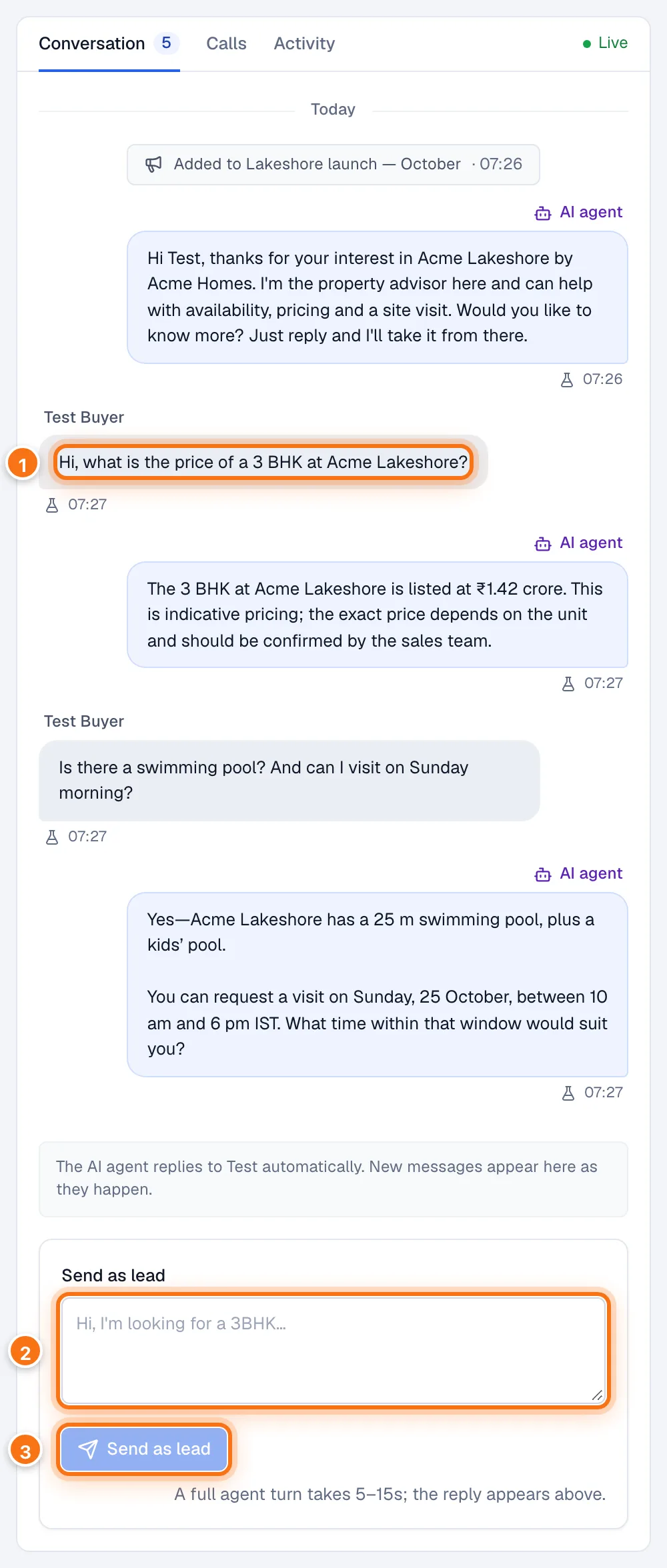
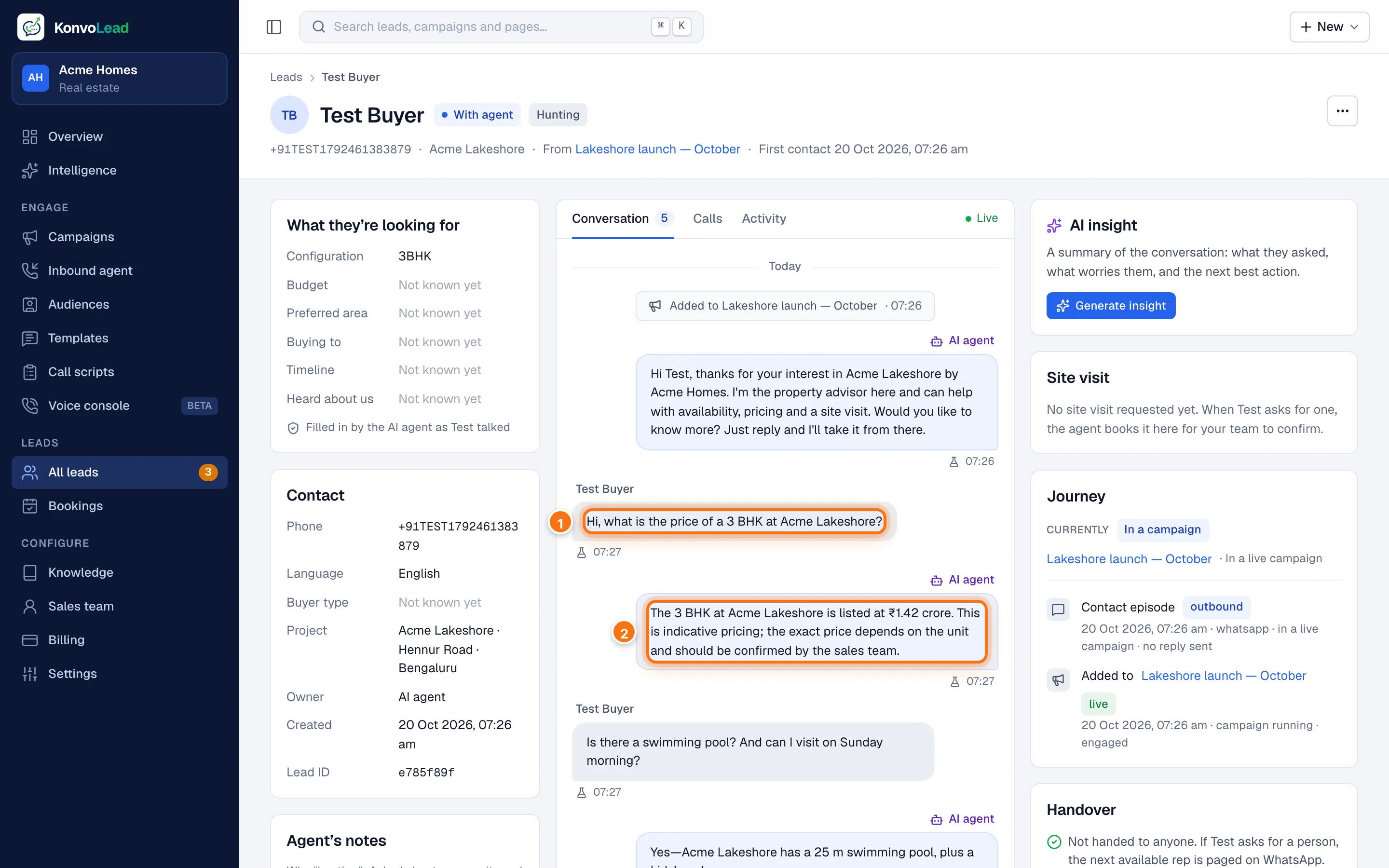
- Type what a buyer would ask in the Send as lead box (2), for example "What's the price of a 3 BHK?"
- Click Send as lead (3).
Your message appears in the conversation (1), and the agent's reply follows in 5 to 15 seconds. Keep going: ask about the location, amenities, or a site visit.
If an answer is wrong, fix the knowledge, not the chat: correct the fact on the project's Answers tab, wait a minute, and ask again.
Step 4. Import your list
- In the menu, click Audiences, then Import audience.
- Name the audience, add your Excel or CSV file, and say how these people agreed to hear from you.
- Check what each column holds and click Check the import. You see who will be added and who is left out, then click Import N leads.
Full details, step by step: Audiences.
Step 5. Add an opening message
WhatsApp only lets a business start a conversation with a message WhatsApp (Meta) has approved, called a template.
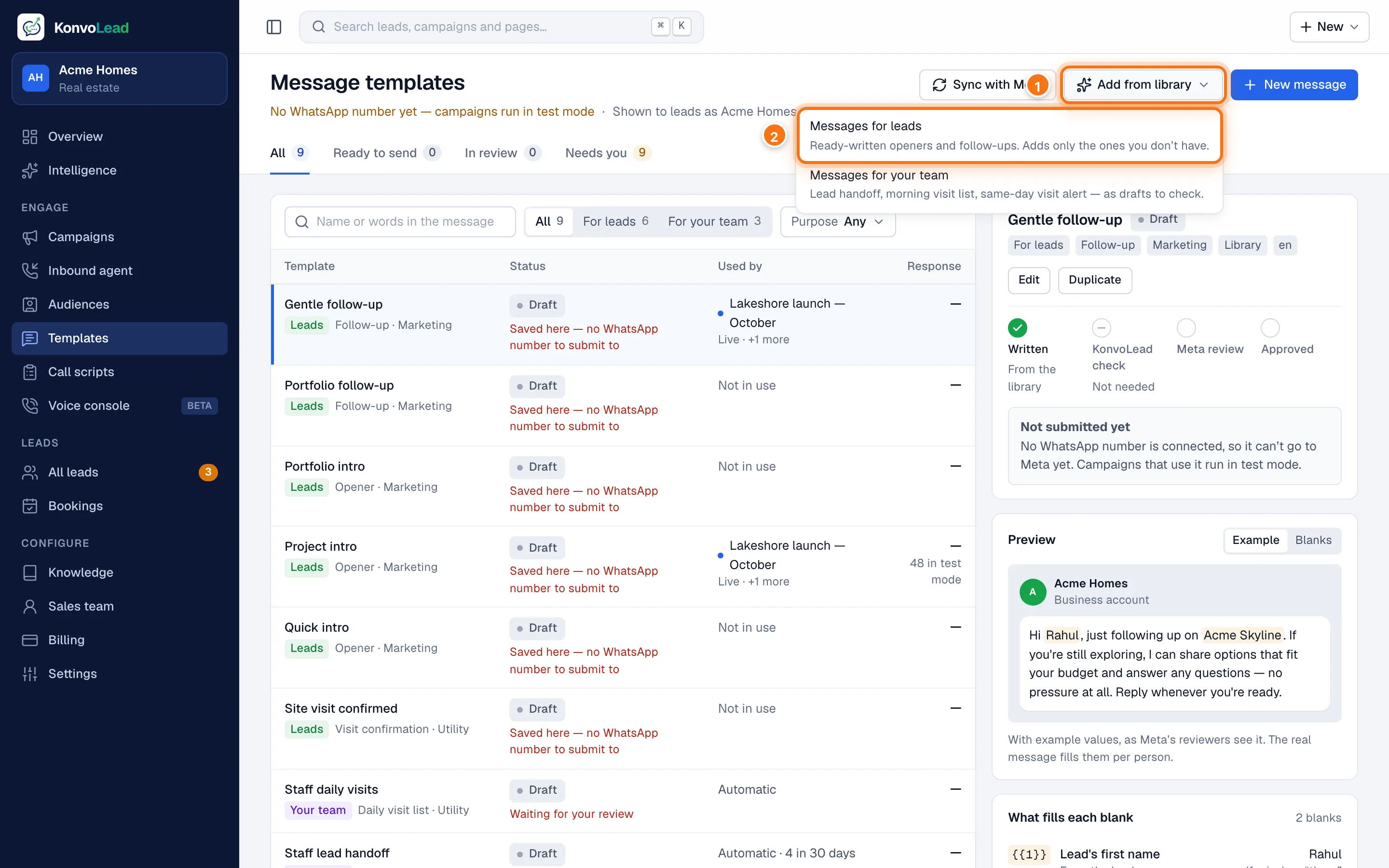
- In the menu, click Templates.
- Click Add from library (1), then Messages for leads (2).
This adds ready-written openers and follow-ups. Each one is sent to Meta for approval once your WhatsApp number is connected. Until then, campaigns run in test mode. Full details: Templates.
Step 6. Create and launch the campaign
- In the menu, click Campaigns, then Create campaign.
- Basics: type a name and pick your project.
- Audience: pick the list you imported.
- Channels & message: keep WhatsApp only and pick an opening message, such as Project intro.
- Schedule & team: under When to start, keep As soon as I launch.
- Review: check everything.
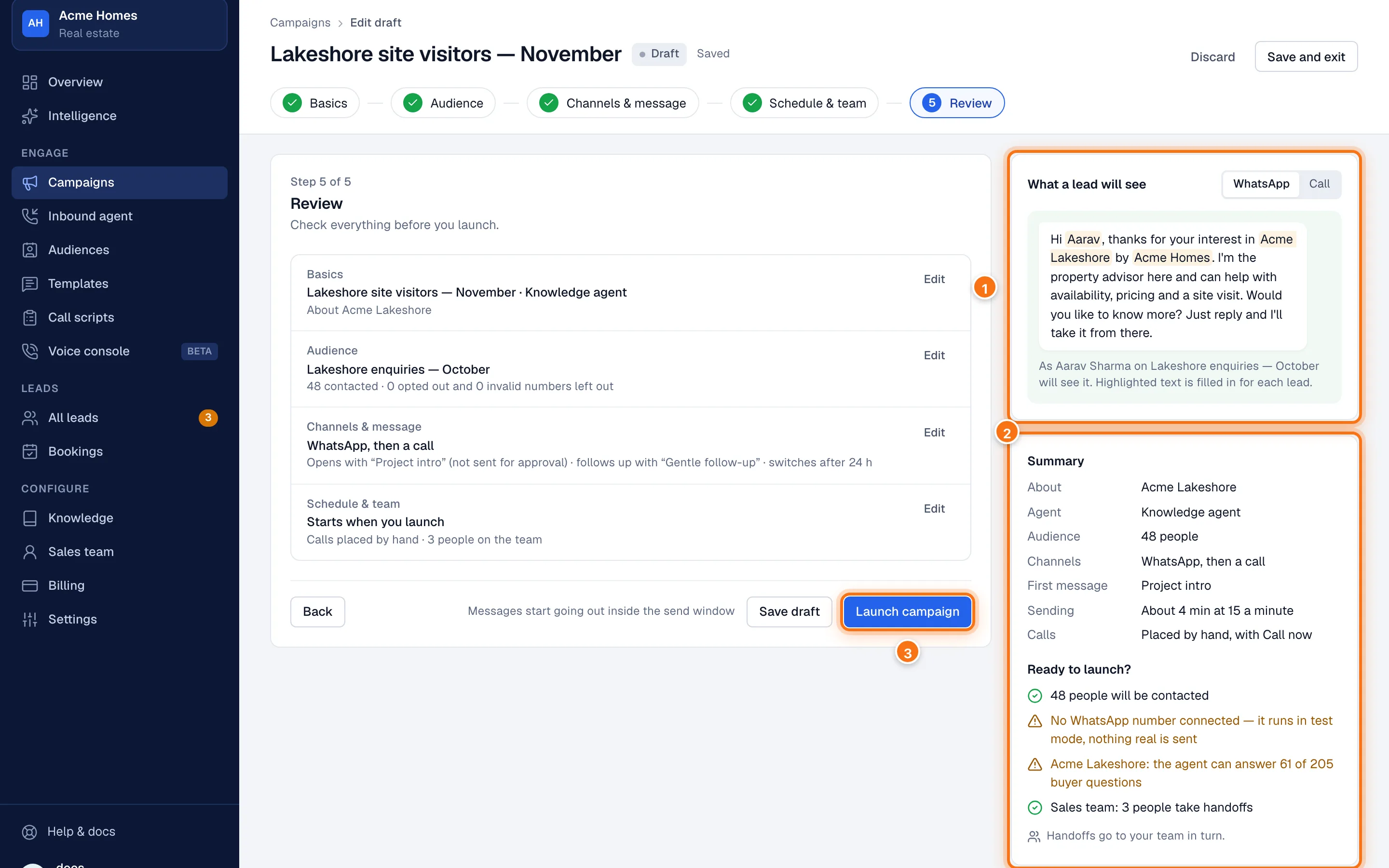
What a lead will see (1) shows the opening message filled in for the first person on your list. Ready to launch? (2) lists anything to look at first. Click Launch campaign (3).
Messages start going out within your send window. When someone replies, the agent takes over the conversation. Watch replies on the campaign's page, and open any lead to read the full chat. Full details: The campaign form.
No WhatsApp number connected yet? The campaign runs in test mode: you can see who it would reach, but nothing is sent. Ask your KonvoLead contact about your number, or connect your own.
What next
- Add your sales team under Sales team, so a buyer who asks for a person reaches one. See Adding your sales team.
- Learn how the agent decides what to say: How the agent answers.