
Following a campaign
How to read the Campaigns list and a campaign's own page: its numbers, its journey, what's coming up, and its leads.
The Campaigns list
Open Campaigns in the menu.
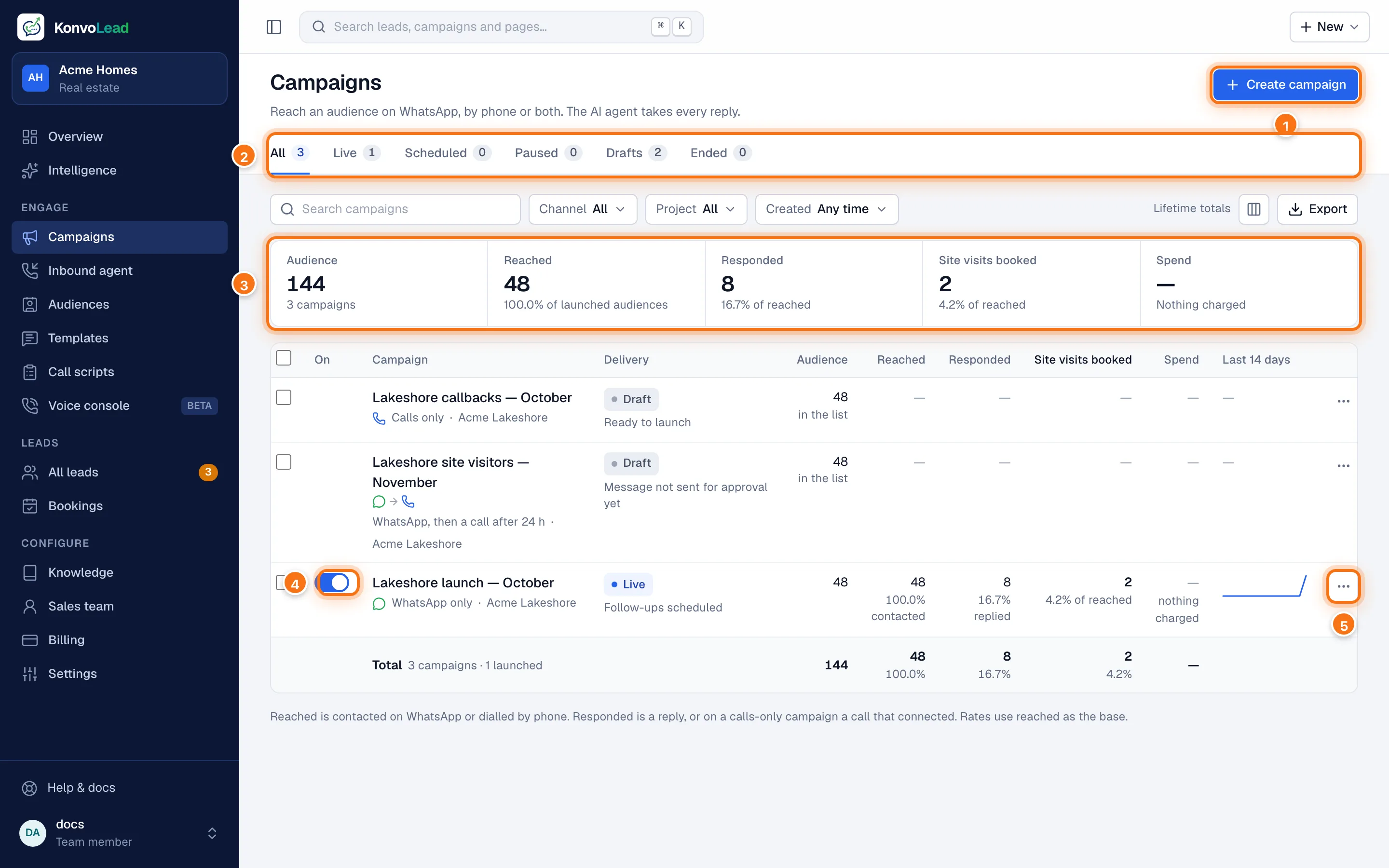
- Create campaign starts a new one. See Creating a campaign.
- Show All campaigns, or only those Live, Scheduled, Paused, Drafts or Ended. Below these you can search, filter by Channel, Project and when it was Created, choose which columns show, and Export the list as a spreadsheet.
- Totals across every campaign shown: the audience, how many were reached, how many responded, and site visits booked.
- The switch under On pauses or resumes a live campaign.
- … opens more actions for that campaign.
Under each campaign's status, a line says what it's doing now, for example Follow-ups scheduled, 3 calls to place by hand, 12 held by cooldown, Ready to launch or Ended 30 Oct.
Reached counts people contacted on WhatsApp or dialled by phone. Responded counts replies or, on a calls-only campaign, calls that connected. Both rates use reached as the base.
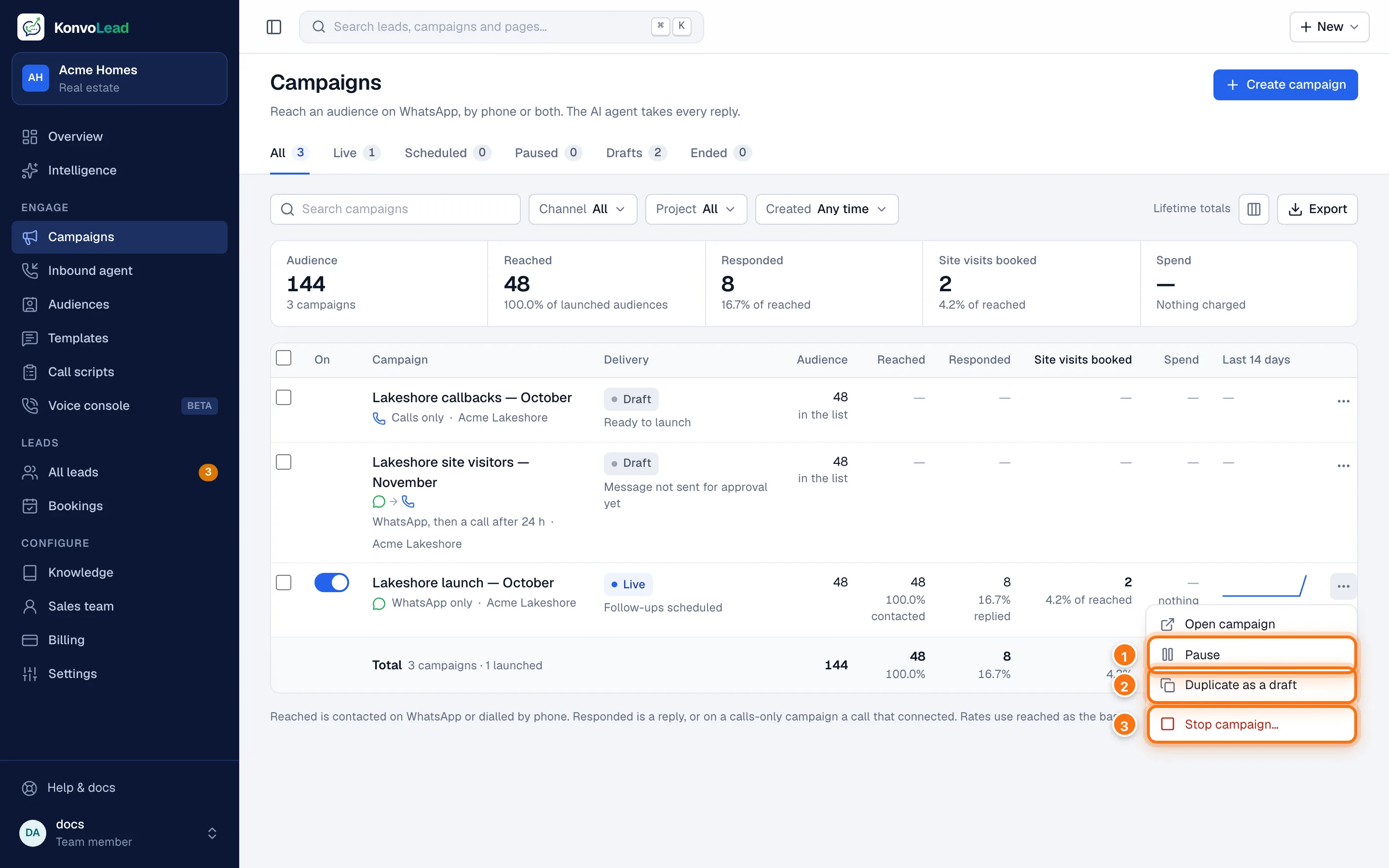
- Pause (or Resume).
- Duplicate as a draft: a copy with the same setup, to change and launch again.
- Stop campaign…: ends it for good. See Pausing, stopping and running again.
A campaign's page
Click a campaign's name.
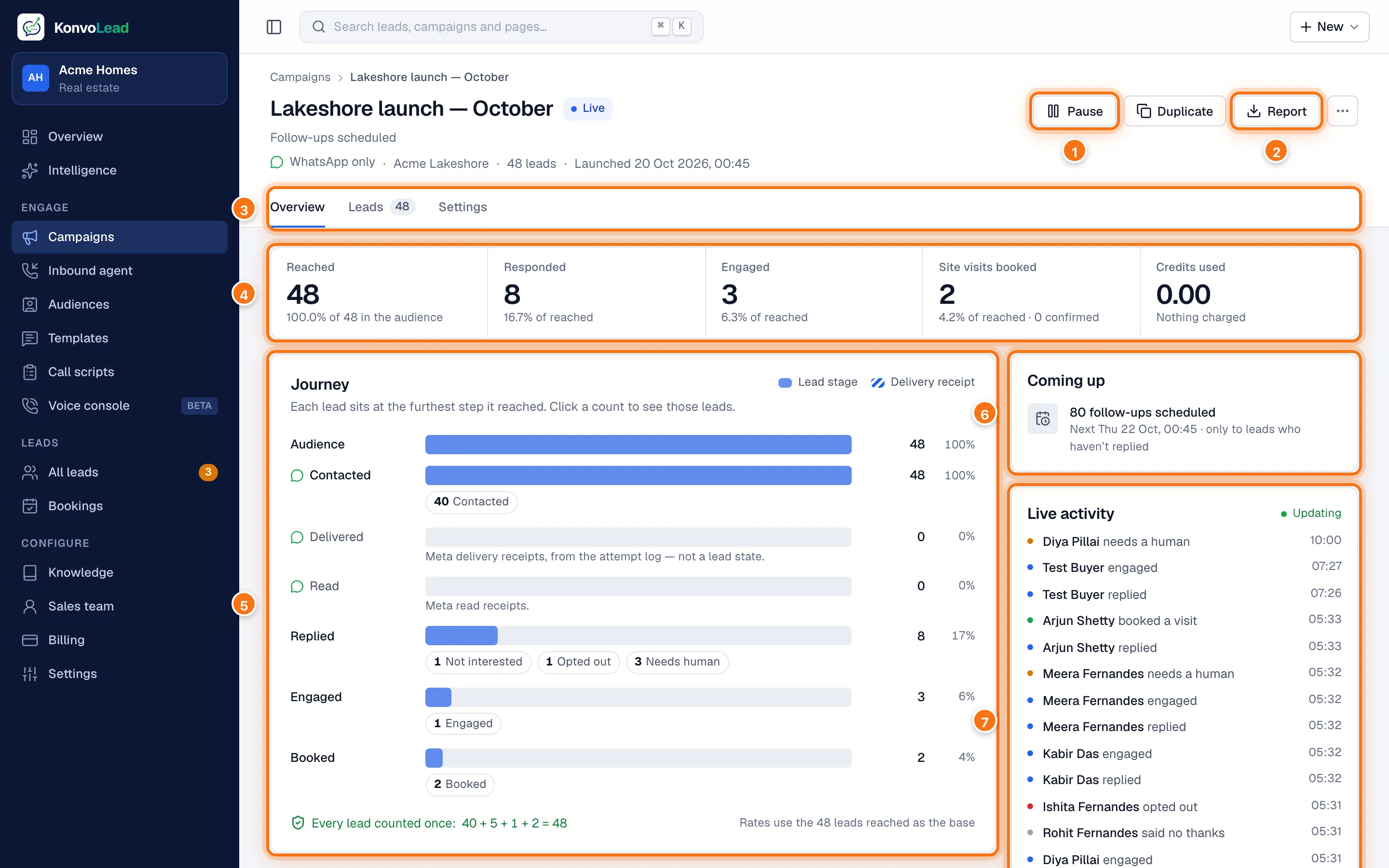
- Pause, Resume or Launch, depending on its status. Duplicate makes a copy as a draft, and … has Stop campaign….
- Report downloads every lead as a spreadsheet. See Reports and downloads.
- The tabs: Overview, Leads, Call queue (campaigns that call; see Calling) and Settings.
- The headline numbers: how many were Reached, Responded, Engaged, Site visits booked (and how many of those your team confirmed), and the Credits used.
- The Journey. See below.
- Coming up: what's still to go out.
- Live activity: the latest events, newest first.
The page updates by itself while the campaign runs.
The Journey
The Journey shows how far each person in the audience has got.
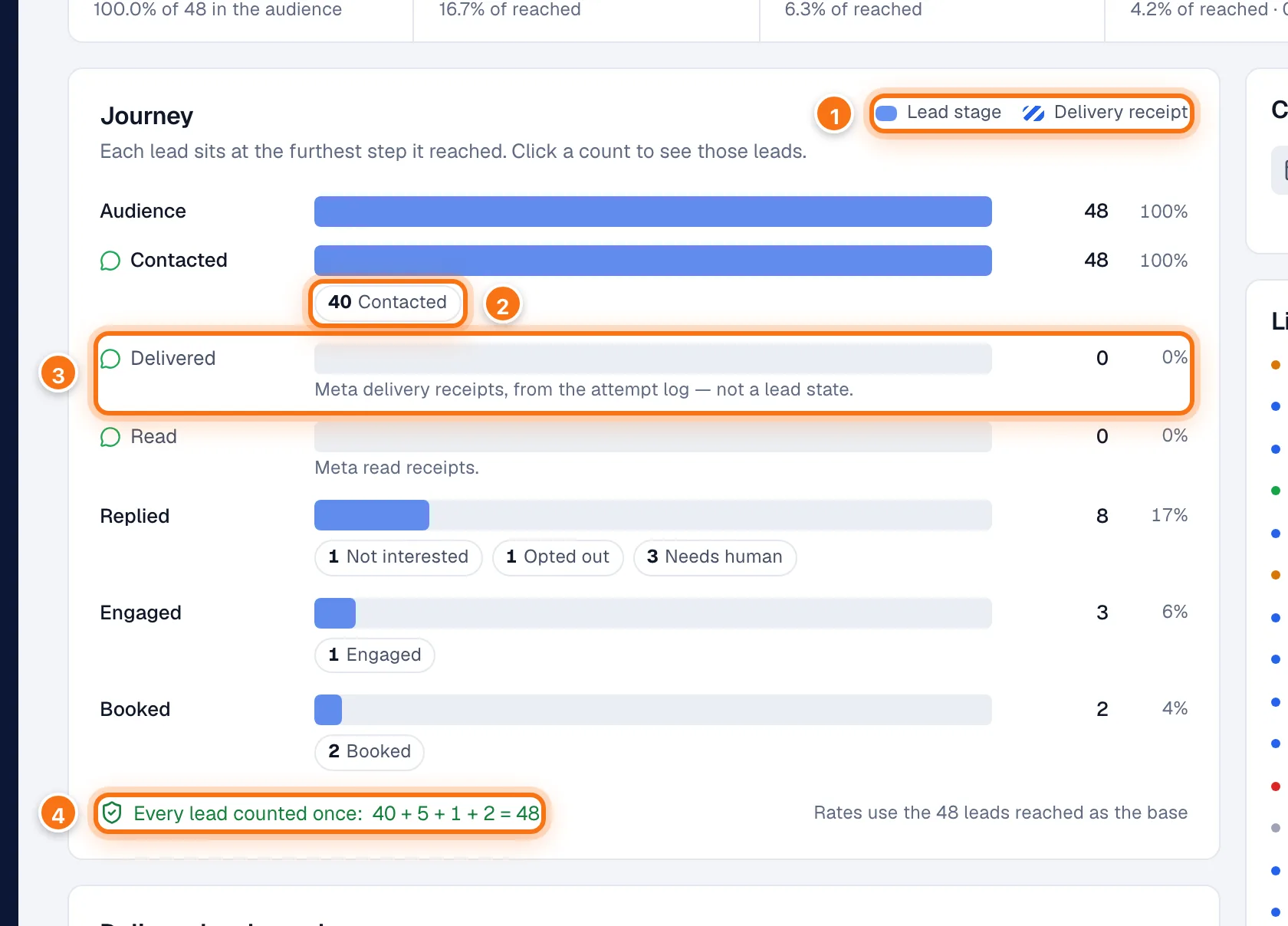
- Solid bars are lead stages: where people are. Striped bars are delivery receipts, not stages.
- Under a bar, the people who stopped there, split by why. Click one to see those leads.
- A receipt row: Delivered and Read come from WhatsApp, Answered from calls. Nobody "sits" at a receipt.
- Every lead counted once: the people under each bar add up to the whole audience.
Each bar includes everyone who got at least that far, so Replied includes people who went on to book.
| Stage | What it means |
|---|---|
| Audience | Everyone in the campaign. Under it: people not contacted yet (Pending), people the campaign gave up on (Not contacted; see cooldown), and people on your opt-out list (Suppressed). |
| Contacted (Dialled on a calls-only campaign) | We sent the opening message or placed the call. Under it: people still to reply, No response (no reply after every follow-up; Didn’t engage on a calls-only campaign), Not reached (calls nobody answered), and Not delivered or Call failed. |
| Replied | They responded. Under it: Not interested (they said no thanks), Opted out, and Needs human (handed to your team). |
| Engaged | They kept the conversation going. |
| Booked | They asked for a site visit. |
By campaign type:
- WhatsApp only: Audience, Contacted, Delivered and Read (receipts), Replied, Engaged, Booked.
- Calls only: Audience, Dialled, Answered (receipt), Replied, Engaged, Booked.
- WhatsApp, then a call and Call, then WhatsApp: the first channel's receipts, then a line saying how many crossed over to the second channel, then its receipts, then Replied, Engaged and Booked. Replied counts replies on both channels, so it can be higher than one channel's receipts.
In test mode Meta sends no receipts, so Delivered and Read stay at 0.
Delivery and replies
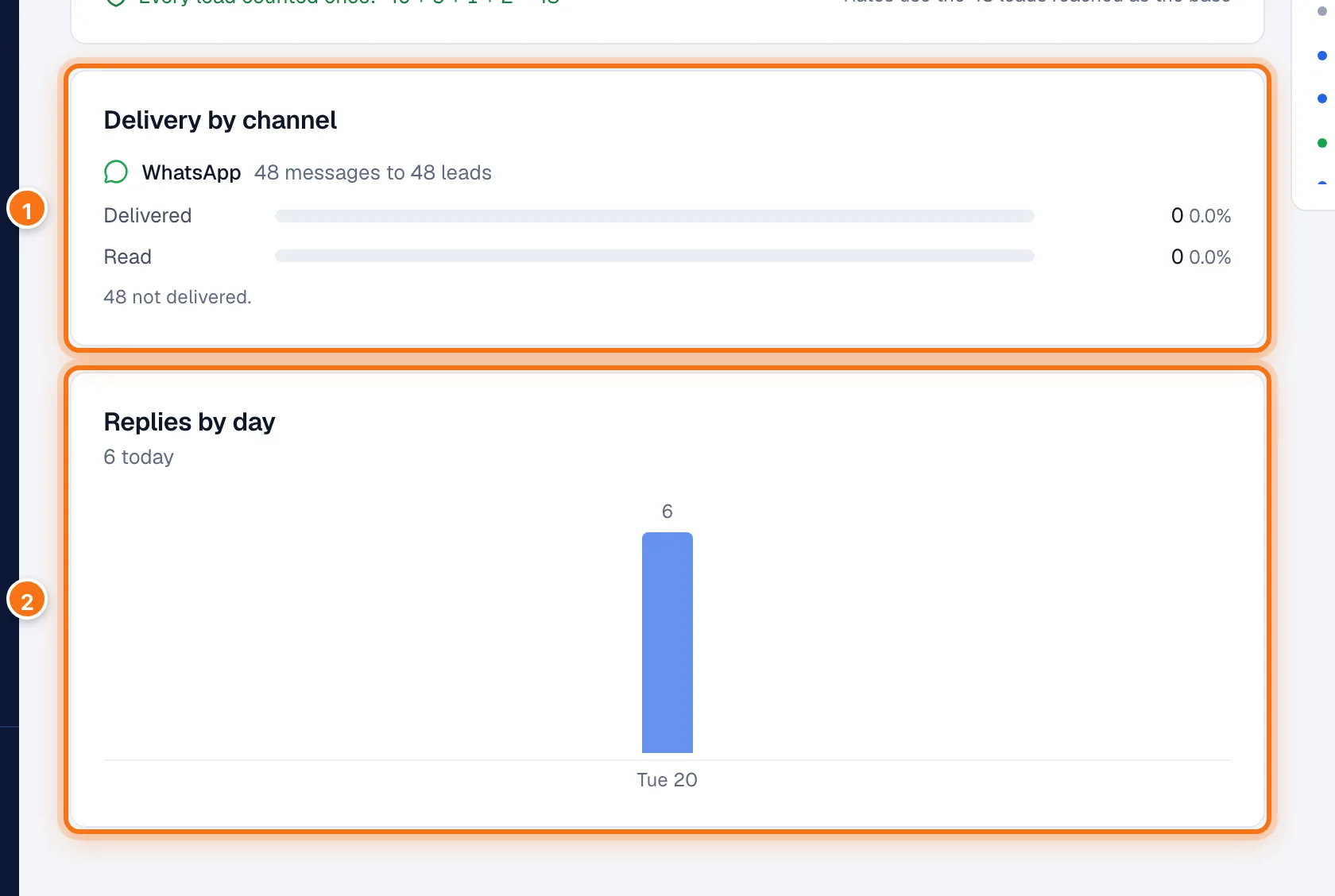
- Delivery by channel: for WhatsApp, how many messages went to how many leads, and how many were delivered and read. For calls, how they ended (for example Connected, No answer, Busy, Voicemail). If Meta held some messages back, it says Throttled by Meta: WhatsApp limits how many marketing messages one person gets from businesses. Each held message is tried once more after 48 hours. This isn't a fault in your campaign.
- Replies by day.
On a qualifying campaign, What the calls came to counts how calls ended, by the endings in your call script, and marks those that pass the lead to a person.
Coming up
What's still to go out, each with when the next one is due:
- WhatsApp messages queued, and the pace they go at;
- calls queued, and whether they're dialled automatically or wait for Call now;
- leads held by contact cooldown, why, and when they're tried again;
- leads who move to the second channel if they don't reply;
- follow-ups scheduled, which only go to leads who haven't replied.
Live activity
The latest events across the campaign, each with the lead's name (click it to open the lead), for example: message sent, follow-up sent, replied, engaged, booked a visit, needs a human, said no thanks, opted out, switched channel, no answer — will call again, not delivered, throttled by Meta — retrying, and contacted us again (a lead your team already has got in touch again).
The Leads tab
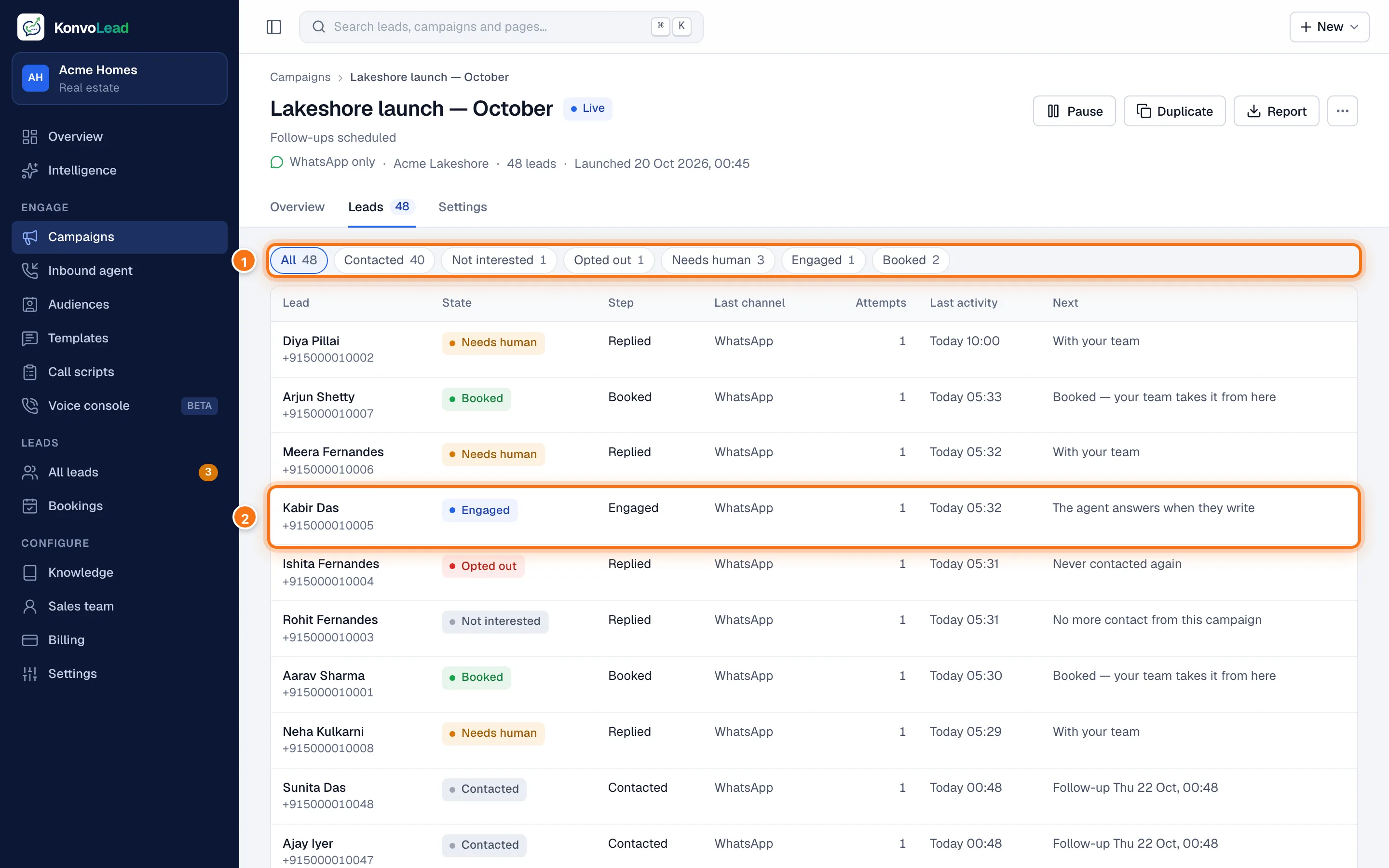
- Show everyone, or only the people in one state, for example Needs human.
- Each lead: their name and number (click to open the lead), their State in this campaign, the Step of the Journey that counts them, the Last channel tried, the number of Attempts, the Last activity, and what happens Next.
At the bottom, the arrows move between pages, and the link downloads the leads shown as a spreadsheet.
The Settings tab
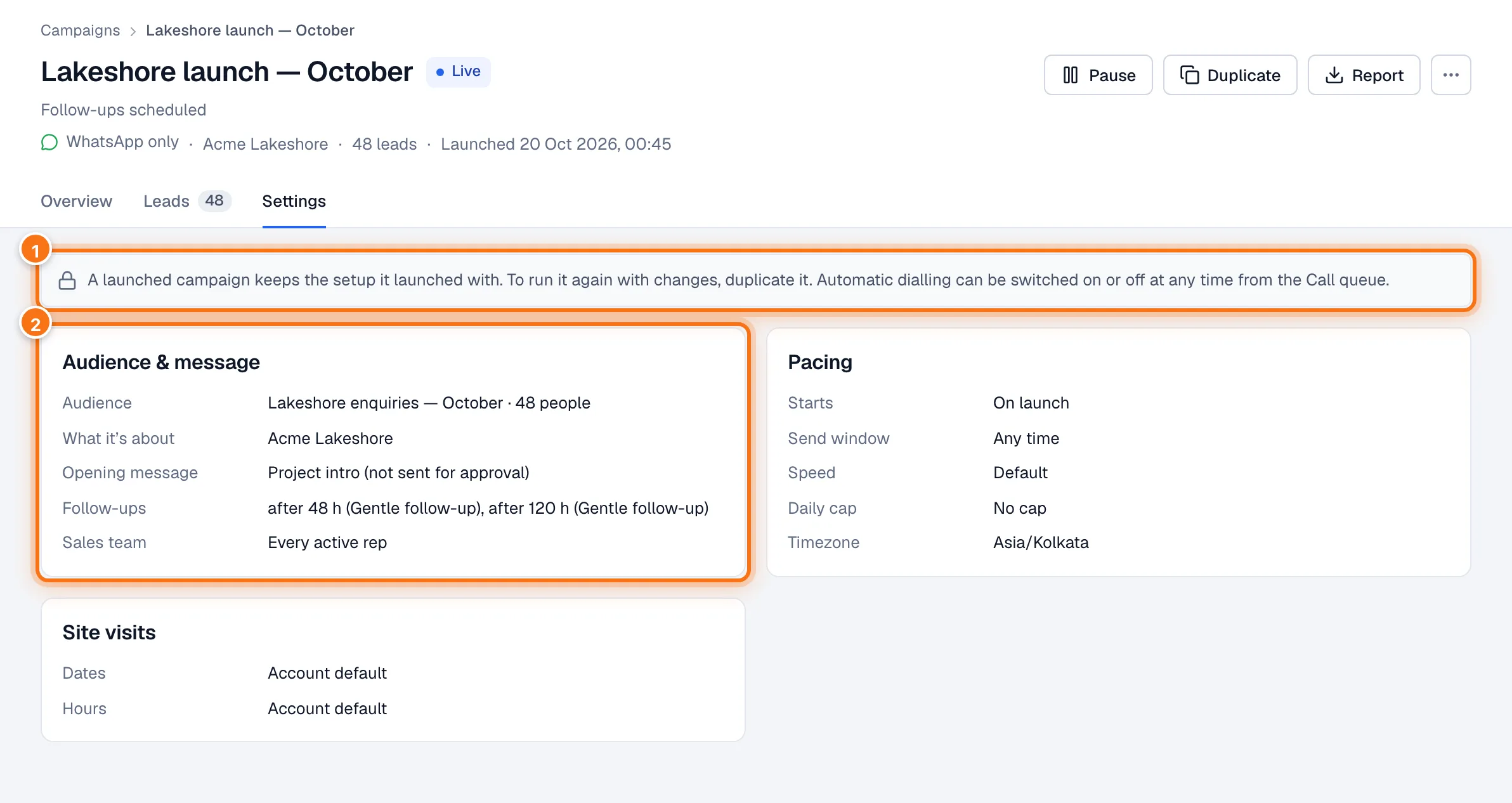
- A launched campaign keeps the setup it launched with. To run it again with changes, duplicate it. Automatic dialling is the one thing you can still switch, from the Call queue.
- Its audience and message, pacing, and site-visit window.