
Sources: adding, replacing and removing
Everything the agent knows about a project came from a source: a document, a website, a video or notes. Add new ones, upload a corrected version of a document, read a website again, or remove a source and everything it gave.
All of this is on the project's Sources tab.
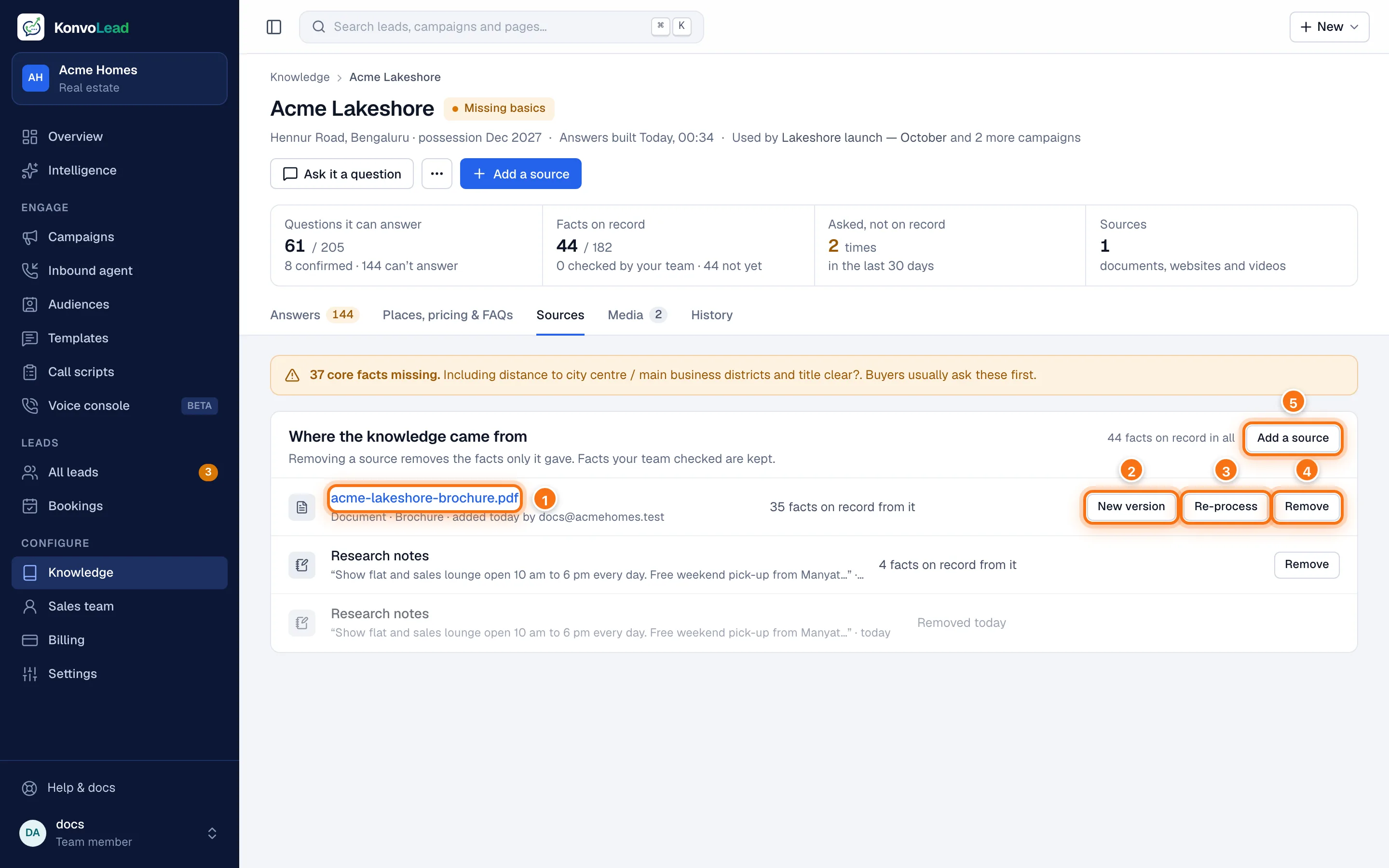
Each row is one source: what it is, when it was added (and by whom, for documents and notes), and what came from it.
- Click a document's name to open it.
- New version uploads a corrected or updated copy of the document.
- Re-process reads the same file again.
- Remove takes the source out, with everything it gave.
- Add a source adds a document, notes, a website or a video.
A removed source stays at the bottom of the list, greyed out, so you can see what fed the project.
Add a source
Click Add a source (on the tab, or at the top of the page).
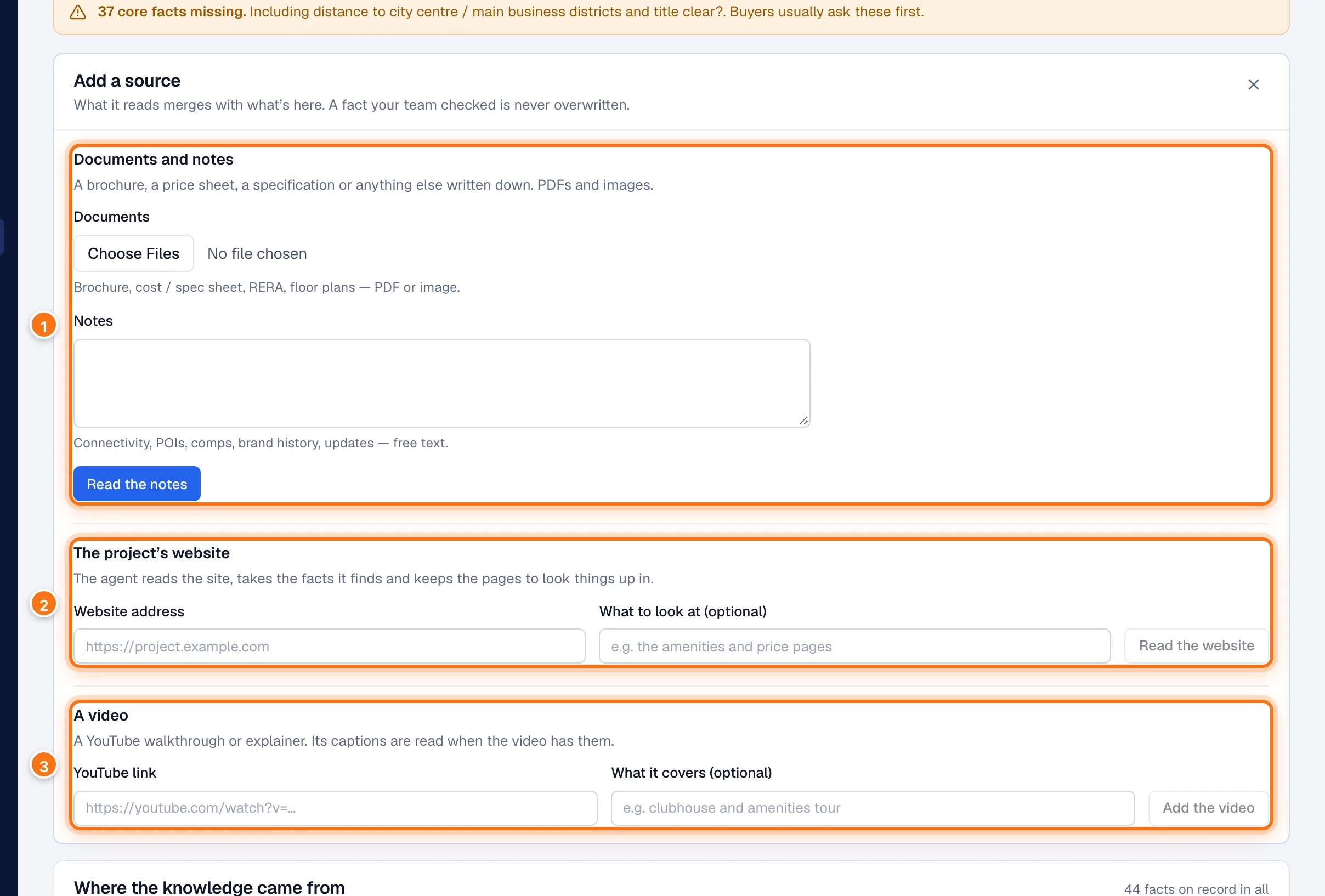
What's read is merged with what's already there: it fills in missing facts and updates facts nobody has checked. A fact your team checked is never overwritten.
Documents and notes (1)
- Under Documents, choose your files (PDFs or images), and check what each one is.
- Type any Notes.
- Click Read this document (or Read these N documents, or Read the notes).
While it reads, the project's label says Updating and a note at the top of the page shows how far it's got. The agent keeps answering meanwhile.
A website (2, real estate)
- Type the Website address.
- Optionally, say What to look at, for example "the amenities and price pages".
- Click Read the website.
KonvoLead reads up to 10 pages, takes the facts it finds, and keeps the pages to look things up in. Each website can be added once; to refresh it, use Read again (below).
A video (3, real estate)
- Paste the YouTube link.
- Optionally, say What it covers, for example "clubhouse and amenities tour".
- Click Add the video.
KonvoLead reads the video's captions when it has them, and writes a short summary. To send the video to buyers on WhatsApp, add it on the Media tab too.
Replace a document with a new version
When a brochure or price sheet changes, upload the new file with New version on the old one's row, not as a new document. That way, what the old version said and the new one doesn't is taken out.
- Click New version on the document's row.
- Choose the new file. Its name can differ from the old one.
KonvoLead reads it straight away. The row gets a v2 badge (then v3, and so on), and earlier versions fold away under N earlier versions.
When the new version has been read:
- Facts it states are added or updated, as with any upload.
- Facts only the old version stated are taken out, unless your team checked them.
- If the new version disagrees with a fact your team checked, your checked value is kept. The History page lists it under Disagrees with what your team checked, so you can decide which is right.
Each earlier version shows its state: replaced and the date, in use, or still in use, because v2 couldn't be read (the newest version failed, so the facts still come from the earlier one).
You can't start a new version while the previous one is still being read.
Re-process
Re-process reads the file on record again, without uploading anything. Use it if a read seemed to miss things.
Go back to an earlier version
Open N earlier versions and click go back to this version next to the one you want. KonvoLead reads that file again as the newest version, and what later versions said that it doesn't is taken out.
If a file couldn't be read
Its row says why, in red. Click Try again, or Upload a clearer copy if the file was a poor scan.
When a new version says too little
Sometimes a read comes back with far fewer facts than the version before, for example from a poor scan. Rather than take out everything the older version said, KonvoLead keeps it and marks the read Held back on the History page. If the new version really is right, click Retire them anyway there.
Read a website again
When the website changes, click Read again on its row. KonvoLead reads the site again: what it no longer says is taken out (unless your team checked it), and the answers rebuild. Read again is greyed out while the site is being read.
If the row says some facts from an earlier read are still on record, the latest read said much less than the one before, often because the site was down or only partly read, so the older facts were kept. If you're sure the latest read is right, click Retire them.
Remove a source
Removing a source takes out everything it gave: its facts, places nearby, prices and text.
- Click Remove on its row.
- A window shows exactly what will go before anything happens.
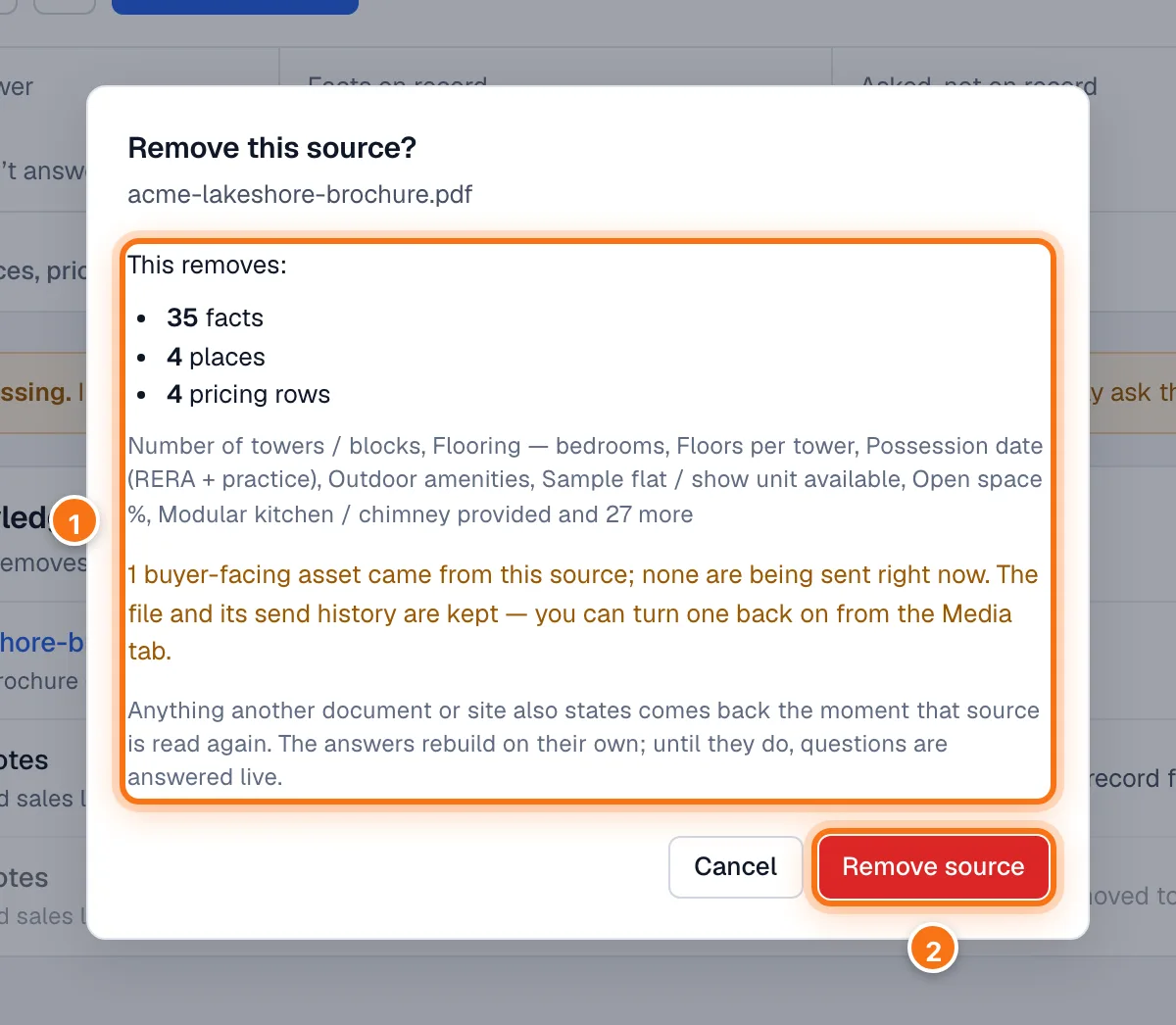
- What will go, with some of the facts named.
- Click Remove source to go ahead, or Cancel.
Facts your team checked are kept by default. To take those out too, tick Also remove N verified records.
After you remove it:
- The source stays in the list, greyed out and marked Removed. Its file can no longer be opened.
- The agent's saved answers are taken back and rebuilt. Until the rebuild finishes, usually a few minutes, the agent still answers; it just looks each question up, which is slower. The project shows Rebuilding answers meanwhile.
- A fact another source also states comes back the next time that source is read.
- If a floor plan or brochure the agent sends to buyers was made from this source, it stops being sent. The file and its history are kept, and you can switch it back on from the Media tab.
- Questions and answers written from a removed fact are kept, but worth a look.
You can't remove a source while it's still being read. A source added before sources could be removed one by one shows Can't be removed.