
Creating a campaign
The campaign form step by step, from a blank form to a launched campaign.
Before you start you need an imported audience and, for any campaign that uses WhatsApp, a message template. For a qualifying agent you also need a published call script.
Open Campaigns and click Create campaign. The form has five steps:
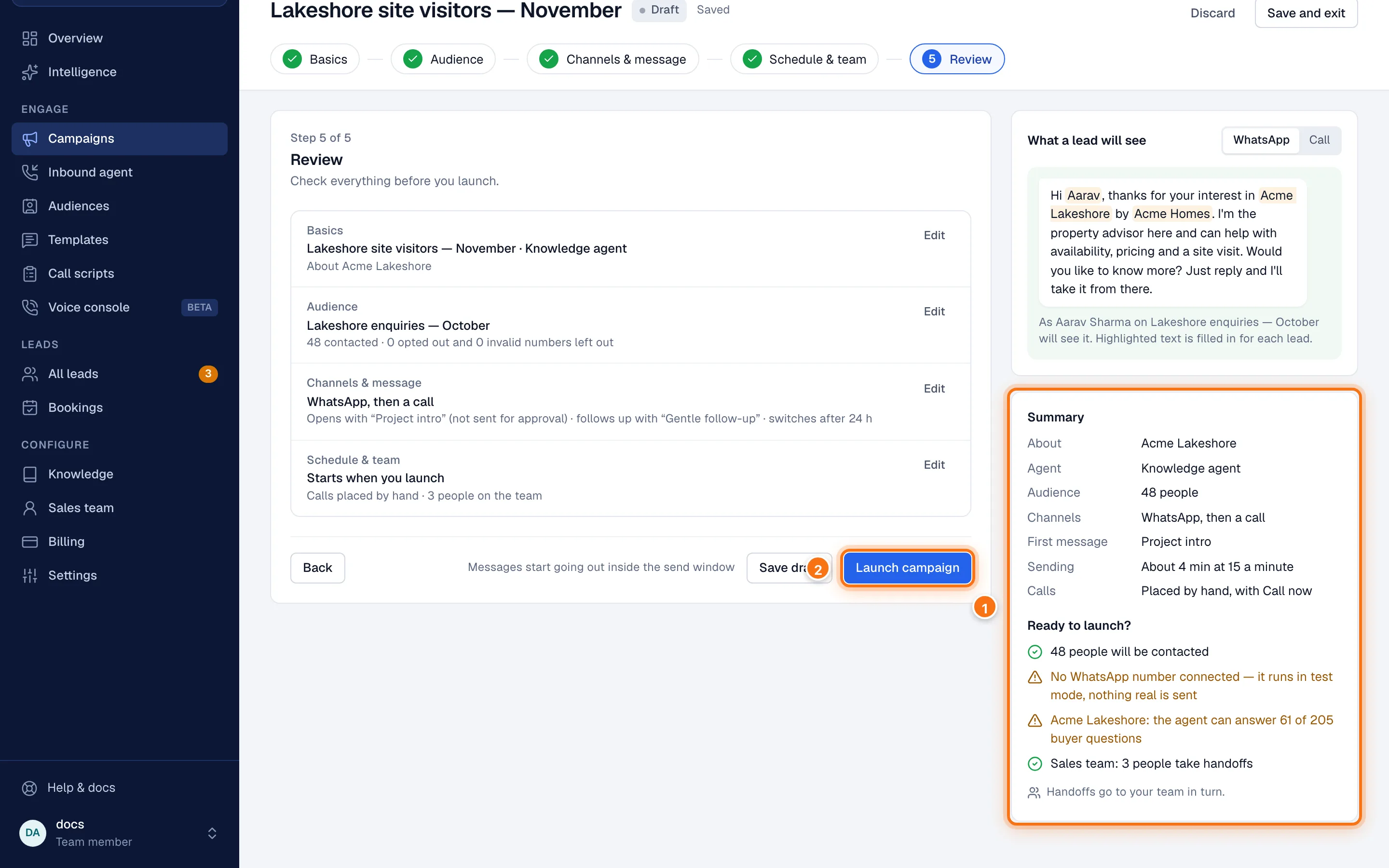
Nothing is sent until you launch. The campaign is saved as a draft as soon as it has a name, and every change after that saves by itself. The top of the form says when it last saved. On the right, What a lead will see previews the message or call, and Summary and Ready to launch? keep track of what's set and what's missing.
At the top right, Save and exit leaves the form and keeps the draft. Discard deletes the draft, and can't be undone.
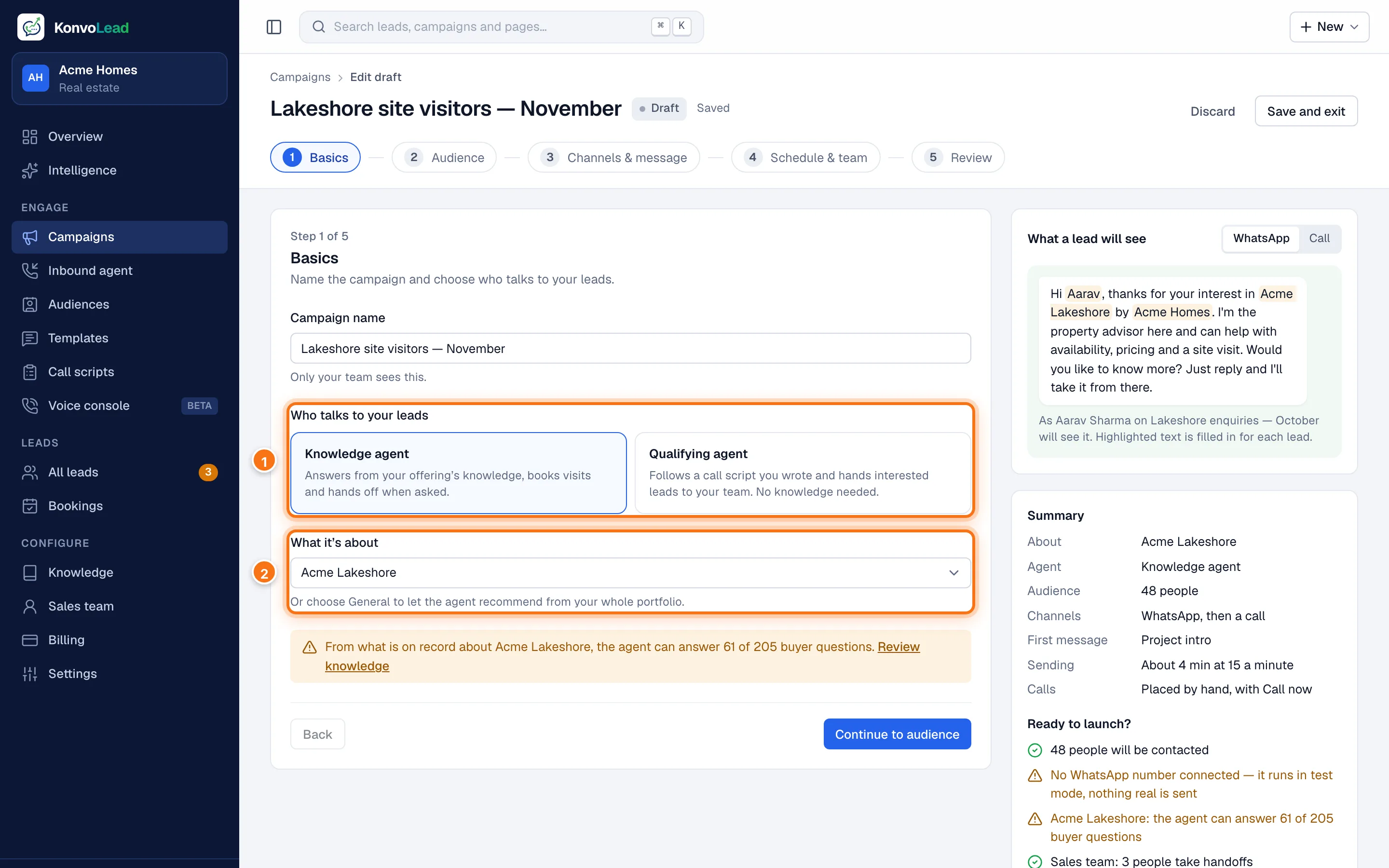
1. Basics
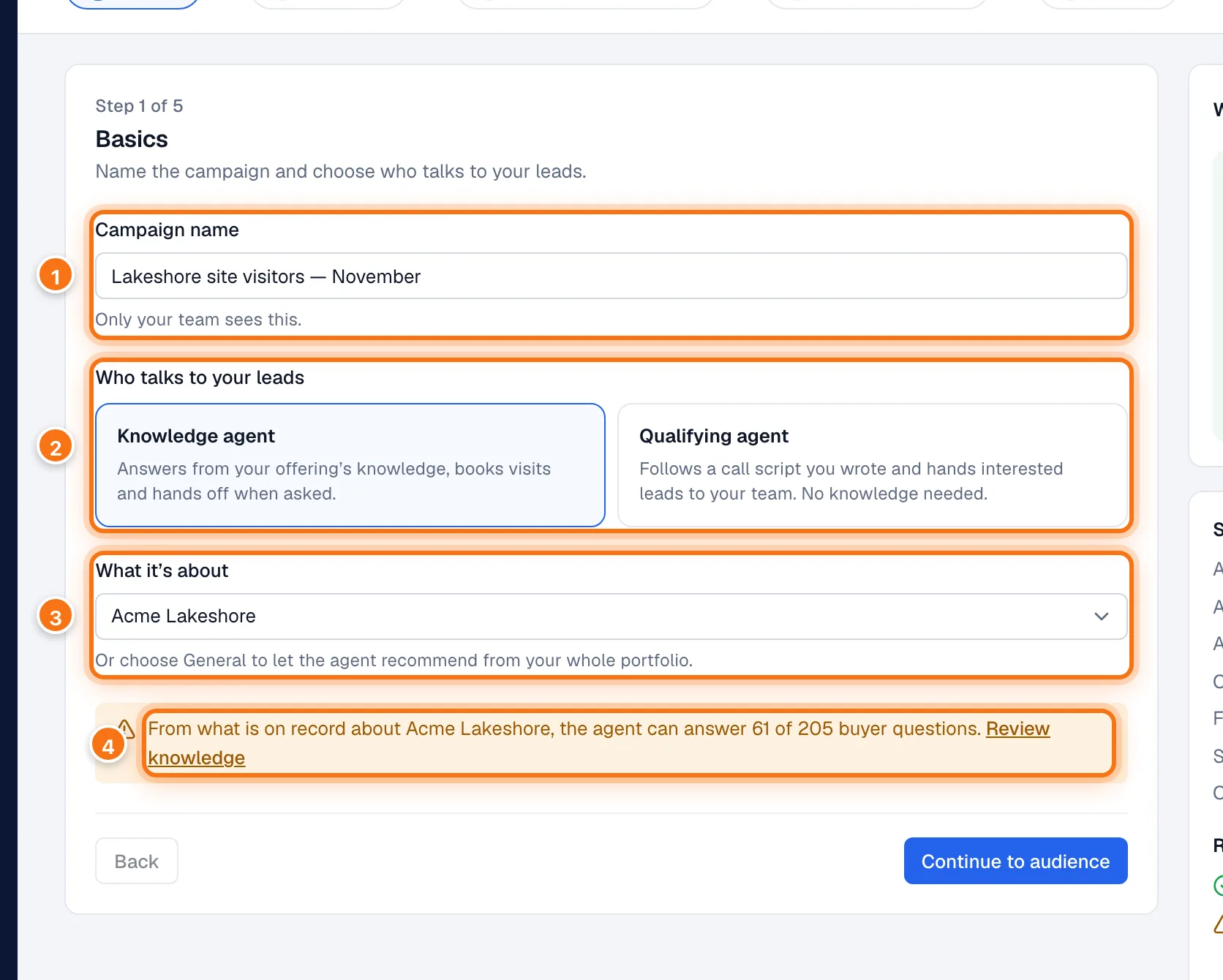
- Campaign name: for your own reference, for example "Lakeshore site visitors — November". Only your team sees it.
- Who talks to your leads:
- Knowledge agent: answers from your project's knowledge, books visits and hands off when asked.
- Qualifying agent: follows a call script you wrote and hands interested leads to your team. Choose the Call script; only published scripts are listed. If you publish a new version later, the next call uses it, with no change needed here.
- What it's about (knowledge agent): one project, or General — everything you sell. A general campaign pitches no single project: the agent learns the buyer's area, budget and needs in conversation, and recommends from what you sell. If you sell in more than one line of business, a general campaign also asks for its Line of business.
- How many buyer questions the agent can answer about this project. If it's low, click Review knowledge first. See What the agent can answer.
Click Continue to audience.
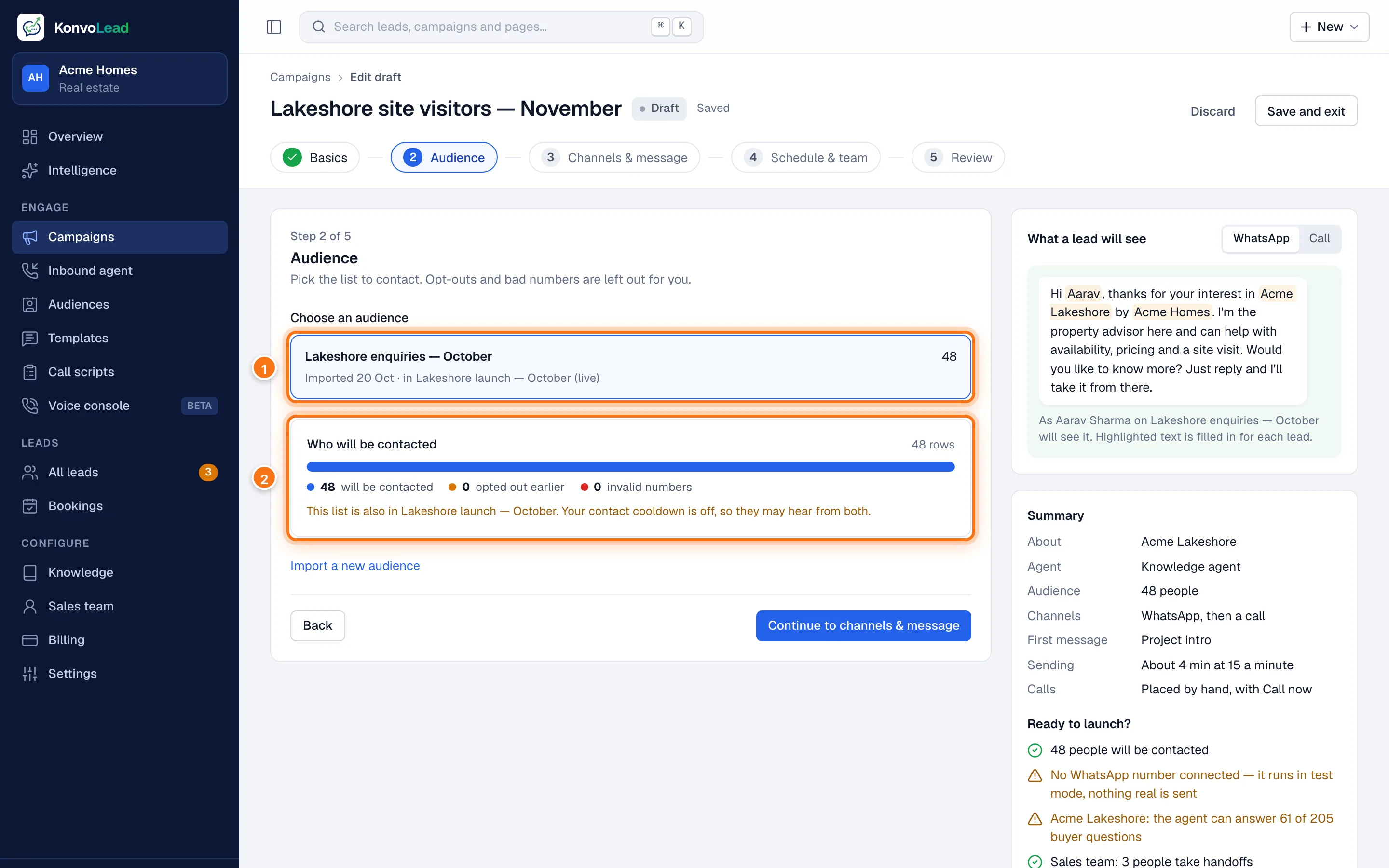
2. Audience
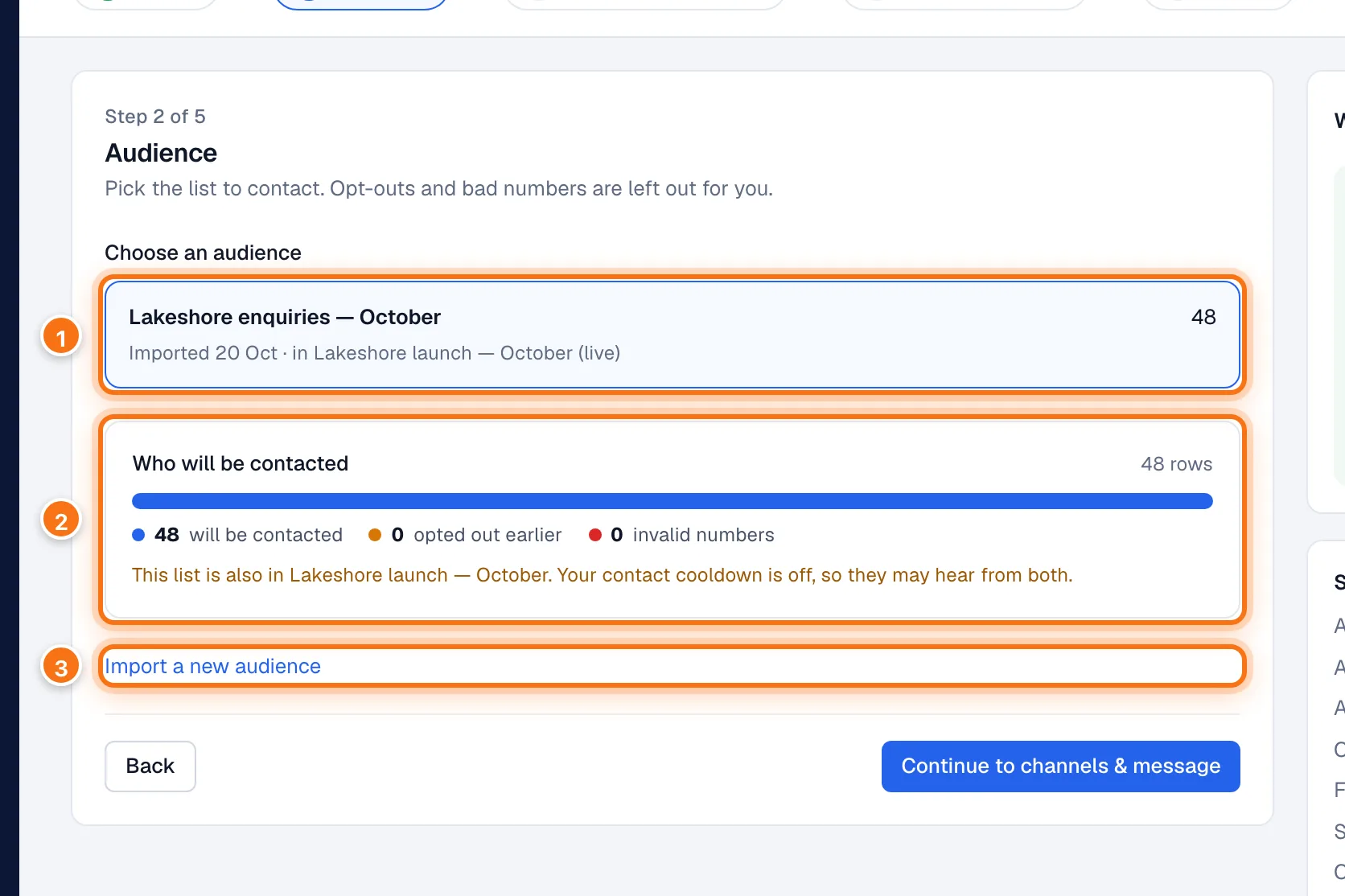
- Choose an audience. Each shows its size, when it was imported, and whether a live campaign already uses it.
- Who will be contacted: how many will be contacted, and how many are left out because they opted out earlier or have invalid numbers. If another live campaign uses the same list, it says so, along with how your contact cooldown applies.
- Import a new audience if the list you need isn't here yet.
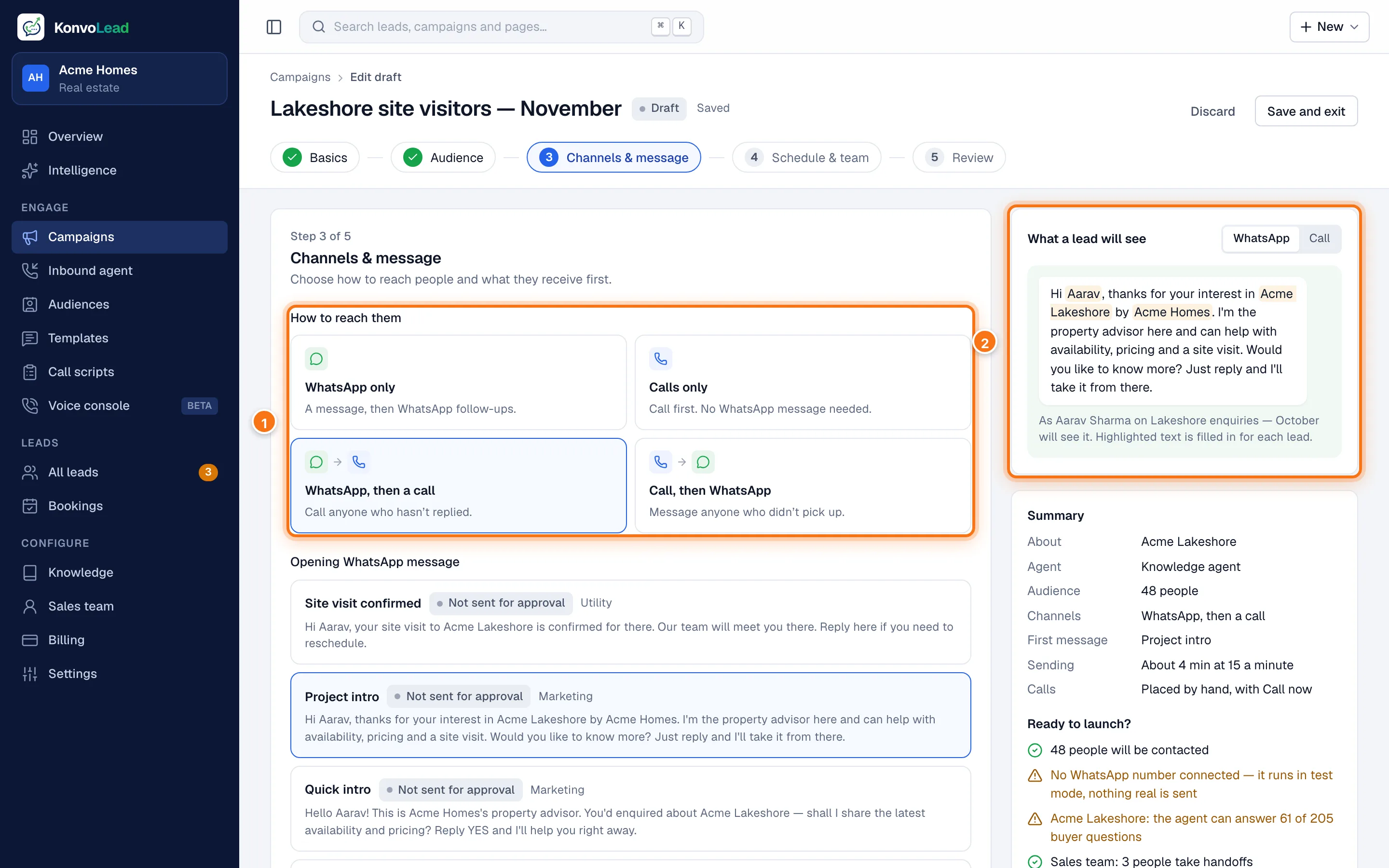
3. Channels & message
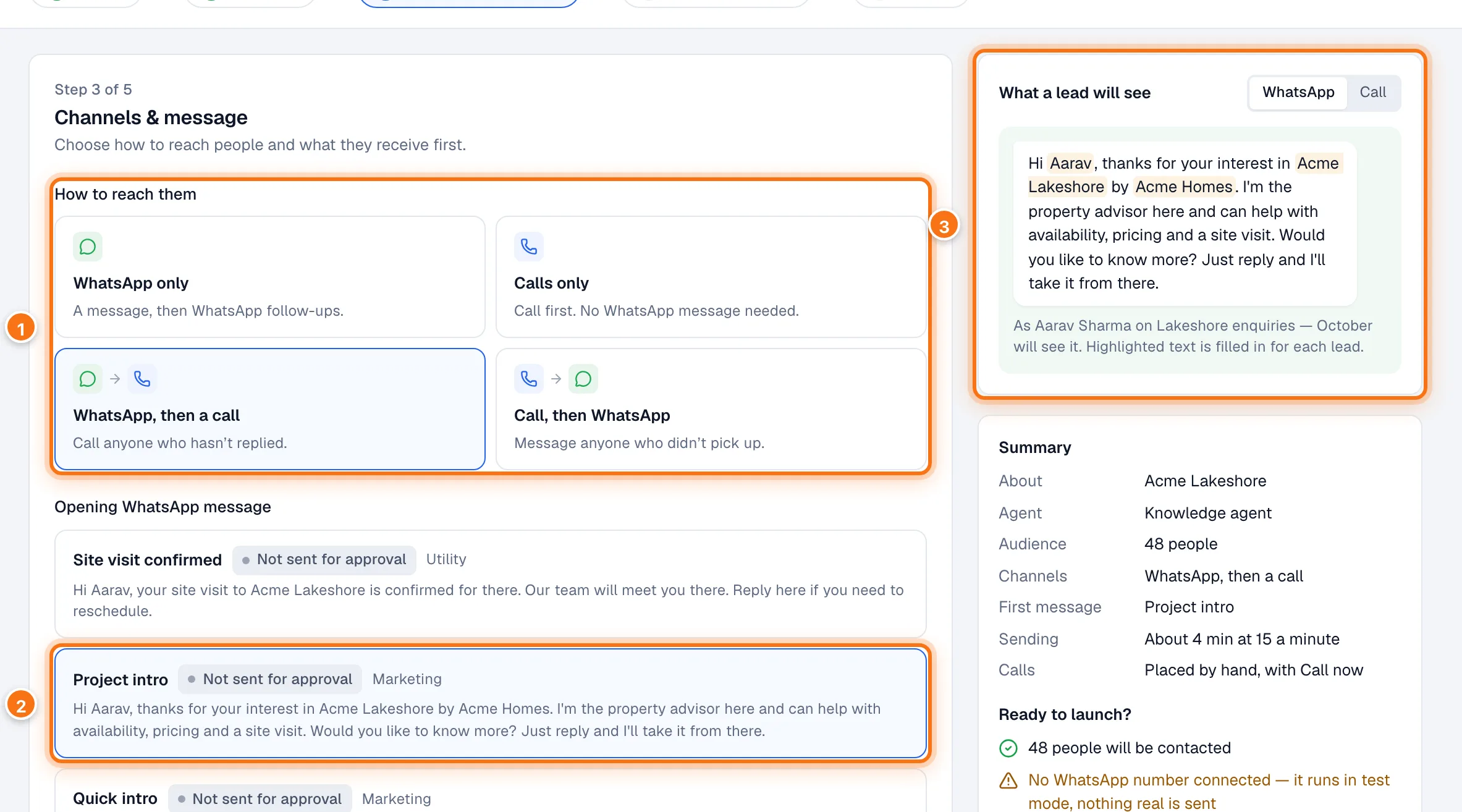
- How to reach them: WhatsApp only, Calls only, WhatsApp, then a call, or Call, then WhatsApp. See Campaign types.
- Opening WhatsApp message: the template sent first. Each shows its status, for example Approved or Not sent for approval. A message marked names a project can't be used in a general campaign. Click Create a new message if you need another.
- What a lead will see: the message as the first person on your audience will get it. Highlighted words are filled in for each person. Switch to Call to see how the call opens.
If no WhatsApp number is connected, or the message isn't approved yet, a note says the campaign will run in test mode.
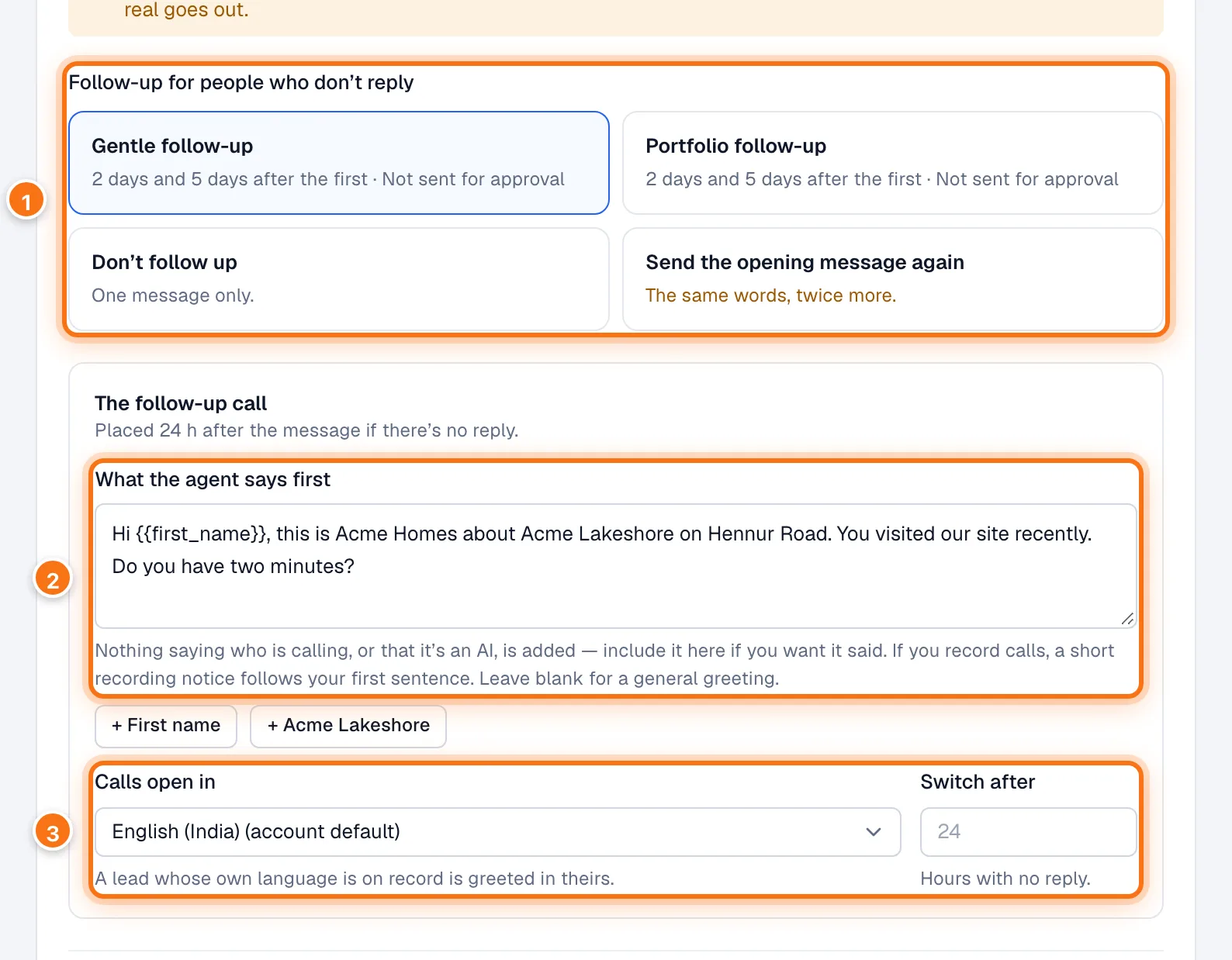
Follow-up for people who don't reply:
- a follow-up message, sent at the times shown on it (by default 2 days and 5 days after the first, or your timing from Settings);
- Don't follow up: one message only; or
- Send the opening message again: the same words, twice more. Better to choose a follow-up message.
Anyone who replies gets no more follow-ups.
For a campaign that calls: What the agent says first when the call is answered. Nothing about who is calling, or that it's an AI, is added, so if you want callers told, write it here. If you record calls, "This call is recorded for quality purposes." is added after its first sentence. + First name puts in the lead's first name (it's left out cleanly if we don't have it). Write it in any language: it's translated into the call's language. Leave it blank for a general greeting.
Calls open in: the language calls start in. A lead whose own language is on record is greeted in theirs. For the two "then" choices, Switch after is the hours to wait for a reply before the second channel (blank is 24).
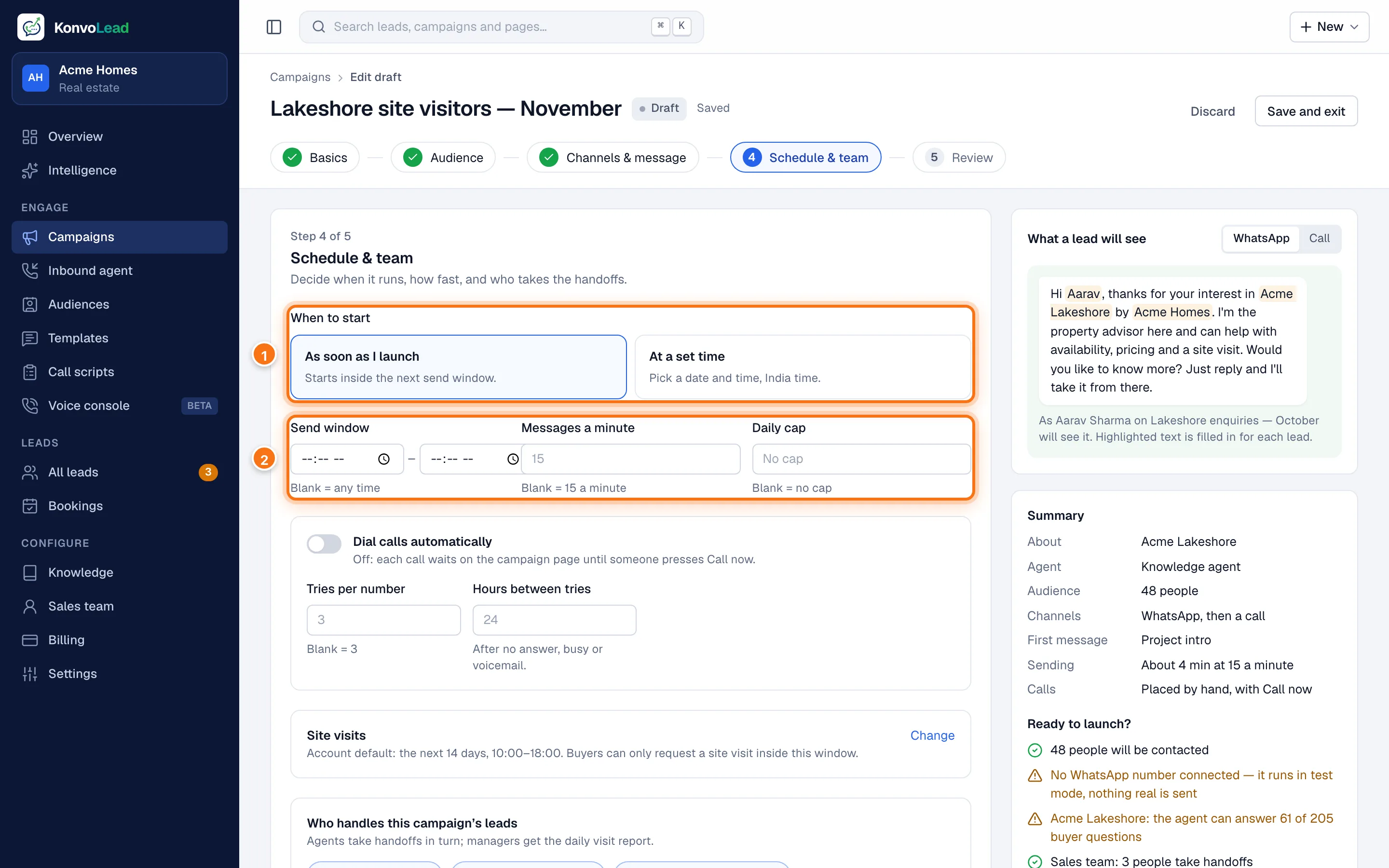
4. Schedule & team
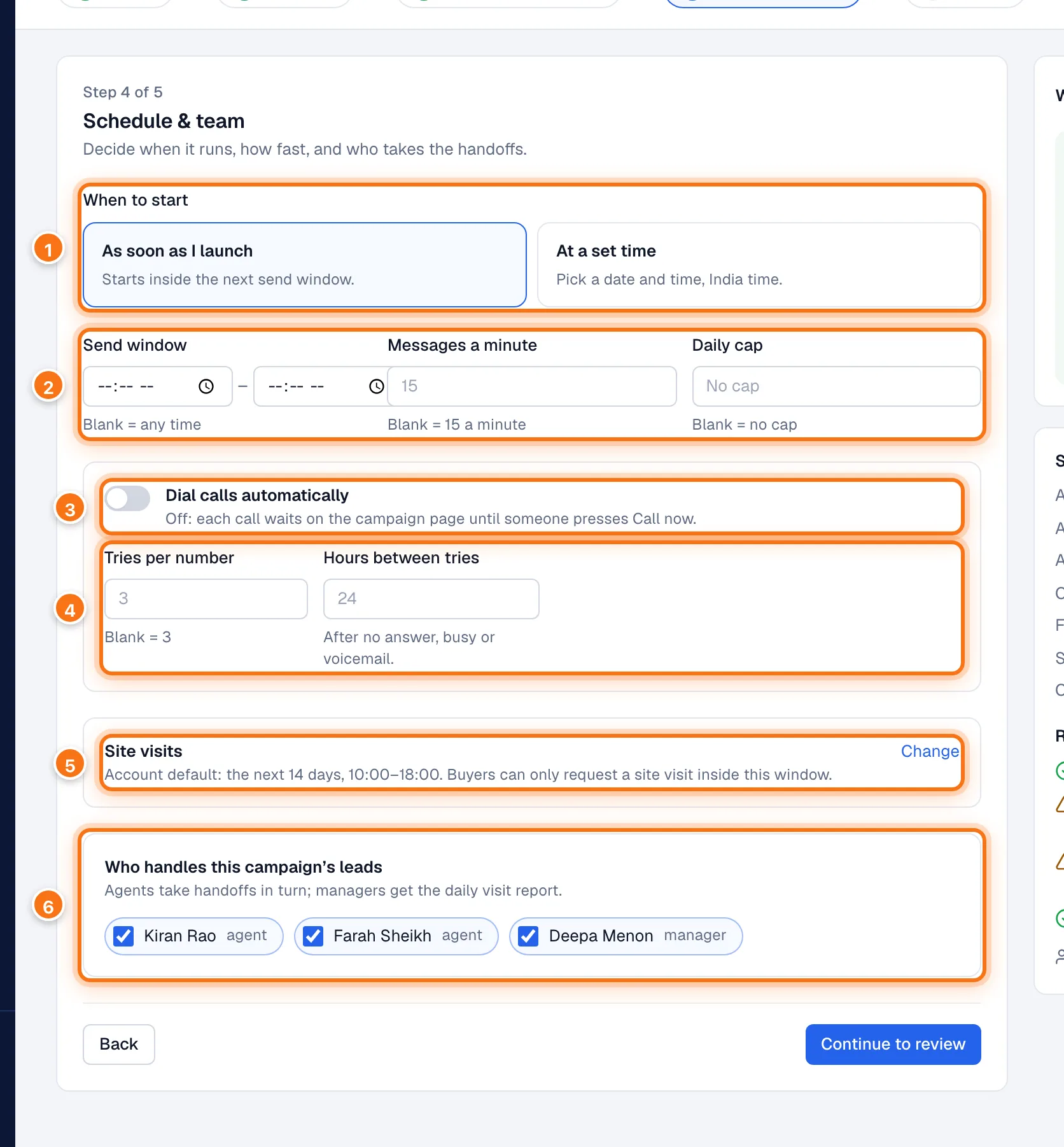
- When to start: As soon as I launch, or At a set time (India time).
- Send window: the hours of the day messages may go out, for example 10:00 to 19:00 (blank is any time). Messages a minute: how fast opening messages go out (blank is 15). Daily cap: the most opening messages a day (blank is no cap). With a cap, a large audience is spread over several days. Your defaults from Settings are filled in for you.
- Dial calls automatically (campaigns that call): off by default. Off, each call waits on the campaign's Call queue until someone presses Call now. On, calls are placed for you between 9:00 and 21:00 (inside your send window if it's narrower). See Calling.
- Tries per number and Hours between tries: how often to call again after no answer, busy or voicemail. Blank uses your default (3 tries, 24 hours apart, unless changed on Settings).
- Site visits: buyers can only request a visit inside this window. Click Change to set Dates and Hours for this campaign; leave them blank for your account default.
- Who handles this campaign's leads: everyone on your sales team is ticked. Agents take handoffs in turn; managers get the daily visit report. Untick anyone not on this project. With nobody ticked, the whole team takes this campaign's leads.
5. Review
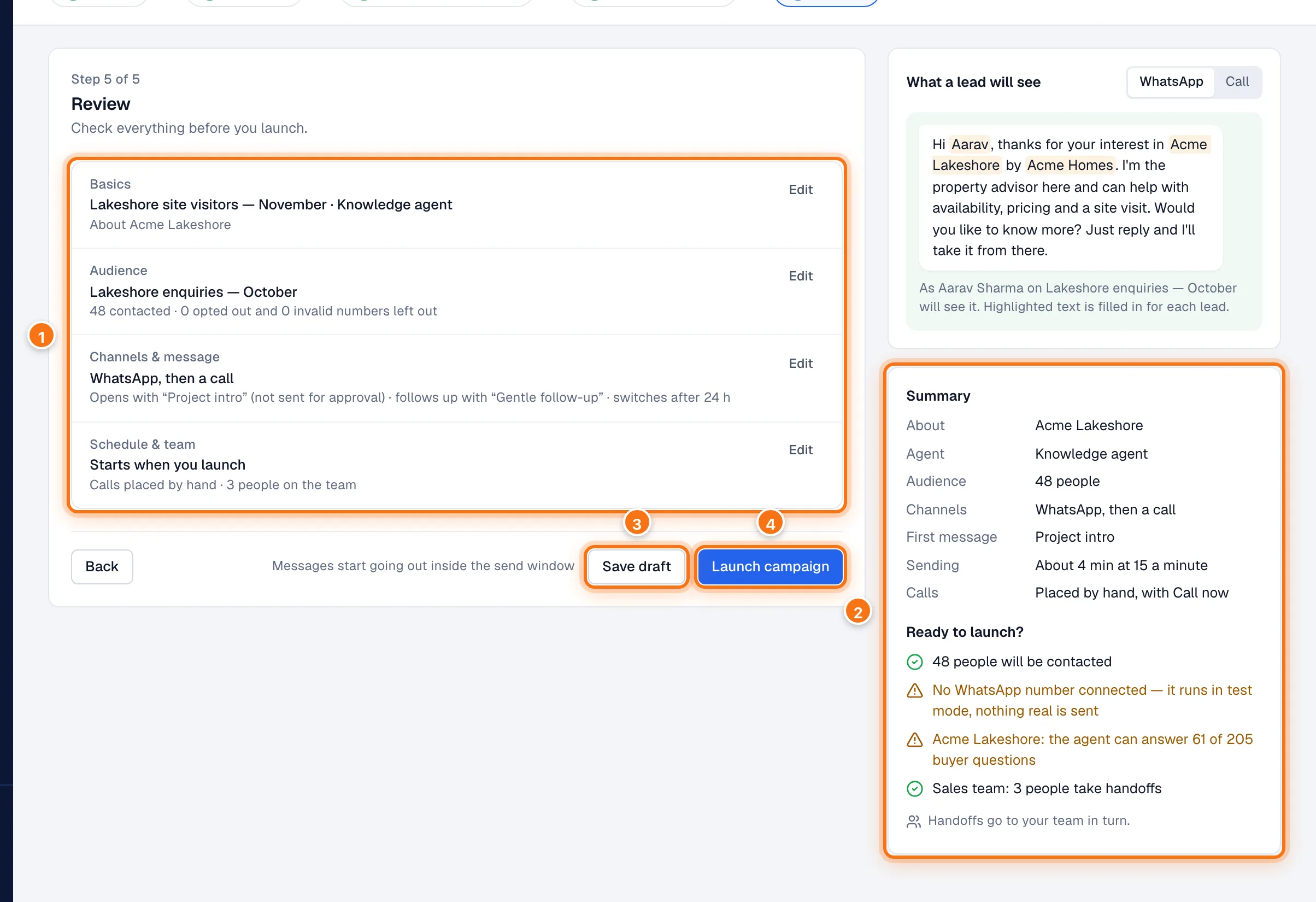
- Each step's settings, with Edit to go back to it.
- Summary, and Ready to launch?: what's ready (a green tick) and what needs a look (a warning). If something must be fixed first, the button says how many.
- Save draft keeps it as a draft for later.
- Launch campaign starts it.
Your draft
A saved draft opens on its own page.
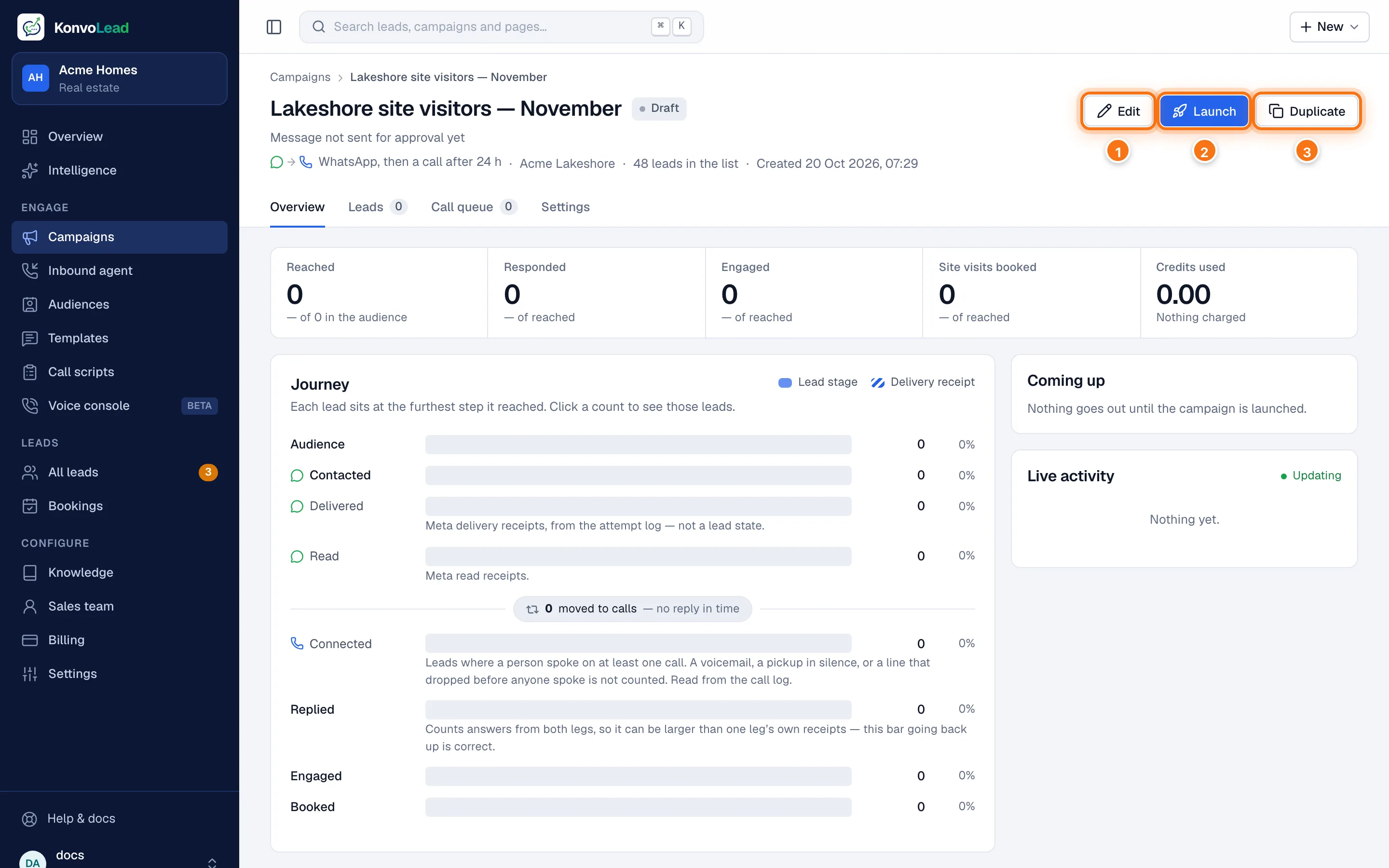
- Edit opens the form again.
- Launch starts it.
- Duplicate makes a copy as a new draft.
Launch
Click Launch campaign (on the form) or Launch (on the draft's page), and confirm. You'll see a note such as "Launched — 48 scheduled, 3 skipped (opted out)". The campaign is now Live.
At launch, anyone who has opted out is left out. Opening messages then go out at your pace, inside your send window. Just before each one goes, it's checked again: opt-outs, the contact cooldown, and leads your team has taken over.
A launched campaign keeps the setup it launched with. To run it again with changes, Duplicate it. See Pausing, stopping and running again.
Test mode
If no WhatsApp number is connected, or the opening message isn't approved by Meta yet, the campaign runs in test mode: nothing real is sent. Messages appear in each lead's conversation as if they had been sent, and the launch note ends "in test mode, nothing real is sent".
In test mode there are no delivery or read receipts from Meta, so Delivered and Read stay at 0 on the campaign's page.
To see how the agent handles a reply, chat with it yourself as a buyer with Test the agent on All leads. See Testing the agent yourself.