
Turning Inbound on
Switch the Inbound agent on, choose which projects it covers, and follow its setup steps.
Inbound is for buyers who contact you first: someone sees your number on your website, a hoarding or a listing and sends you a WhatsApp message or rings you. With Inbound on, the AI agent answers them straight away, in their language, from your knowledge.
Inbound is sold and metered separately from campaigns.
The Inbound agent page
Open Inbound agent in the menu, under Engage.
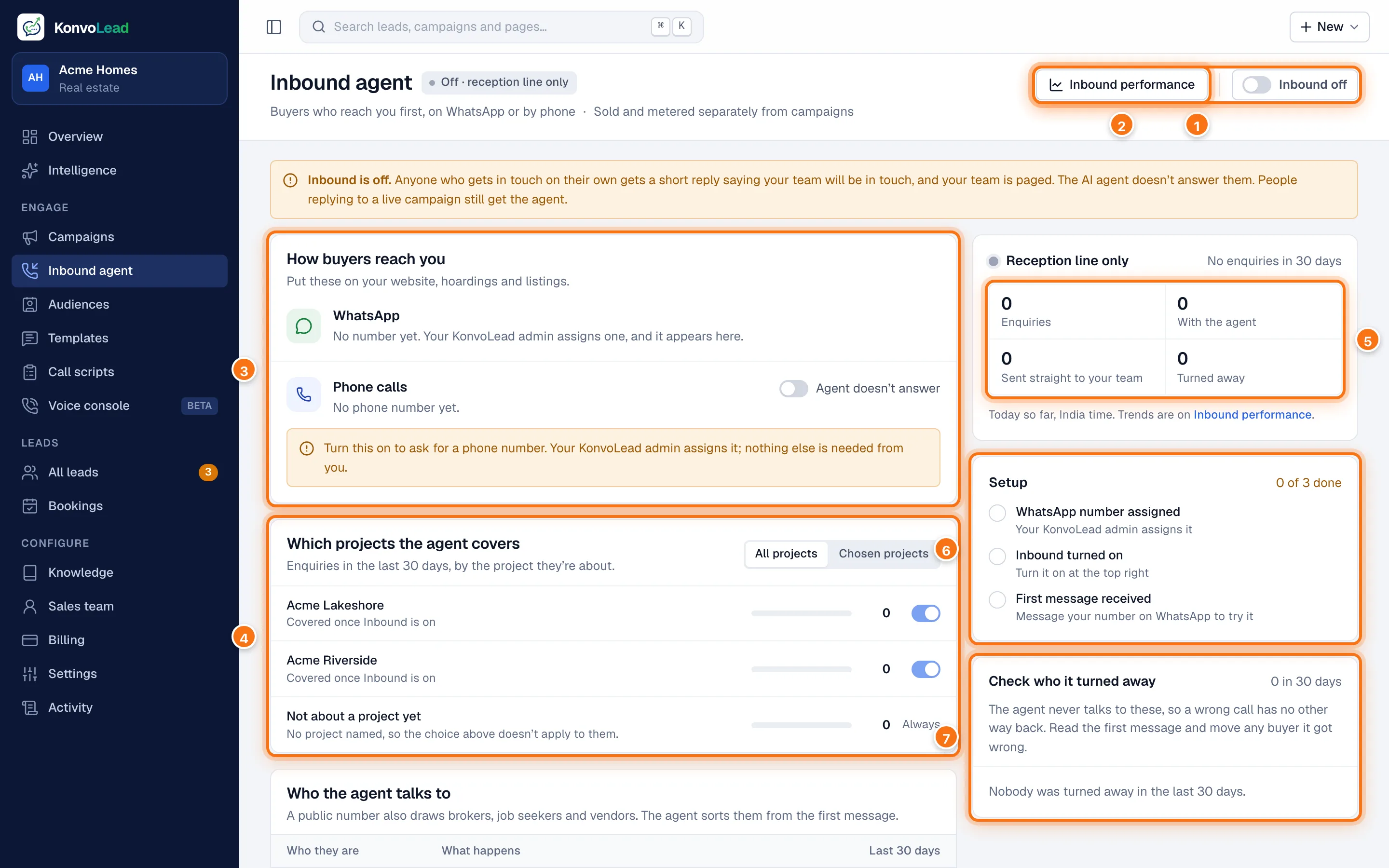
- The switch that turns Inbound on and off. The badge beside the page title says where it stands: Off · reception line only, or on.
- Inbound performance opens the inbound figures on Overview. See Reading inbound analytics.
- How buyers reach you: your WhatsApp and phone numbers, and whether the agent answers calls. See Your numbers.
- Which projects the agent covers. See below.
- Today so far: enquiries, how many the agent took, how many went straight to your team, and how many it turned away.
- Setup: the steps left before Inbound is live.
- Check who it turned away: people the agent judged not to be buyers. See Who the agent serves.
Once you have a WhatsApp number, a Send a test message button appears at the top too. It opens WhatsApp on your device with a message to your number.
On or off
- On: everyone who messages your WhatsApp number, or calls when the agent answers calls, is answered by the full AI agent.
- Off: the page shows "Inbound is off". Anyone who gets in touch on their own gets a short reply saying your team will be in touch, and your team is paged. The AI agent doesn't hold a conversation with them. This is the reception line. People replying to one of your live campaigns still get the agent.
A change takes effect from the buyer's next message. You don't need to reset any lead.
Setup
Until everything is in place, the Setup card lists three steps and ticks each one off by itself:
- WhatsApp number assigned: your KonvoLead admin assigns it, or you connect your own. See Your numbers and Connecting your own WhatsApp number.
- Inbound turned on: the switch at the top right.
- First message received: message your WhatsApp number from your own phone and check the reply. Messages typed in Test the agent don't count: they never reach your number.
Which projects the agent covers
By default the agent covers All projects. Choose Chosen projects and switch off any project the agent shouldn't answer about. A buyer asking about a project that isn't covered gets a short reply and goes to your team.
Each row shows how many enquiries were about that project in the last 30 days. Not about a project yet is always covered: a new enquiry that hasn't named a project has nothing to check against, so the agent always answers it.
Limit per person
Near the bottom of the page, Limit per person caps how many messages one person can send the agent in a day. It stops a runaway conversation from running up your costs. Past the limit, they get a short reply and your team is paged. Leave it blank for no limit.
The gap between campaigns, which stops two campaigns contacting the same person back to back, is a different setting, on Settings. See Settings.