
Media: floor plans and brochures the agent may send
Choose which floor plans, brochures, images and walkthrough videos the agent may send to buyers on WhatsApp, and when.
Media is available for real-estate projects, on the project's Media tab.
Documents and media are different
- Documents on the Sources tab are what the agent learns from. Buyers never receive them.
- Media on the Media tab is what a buyer may be sent.
Nothing is sent until you switch it on. Everything you add starts as Not shared.
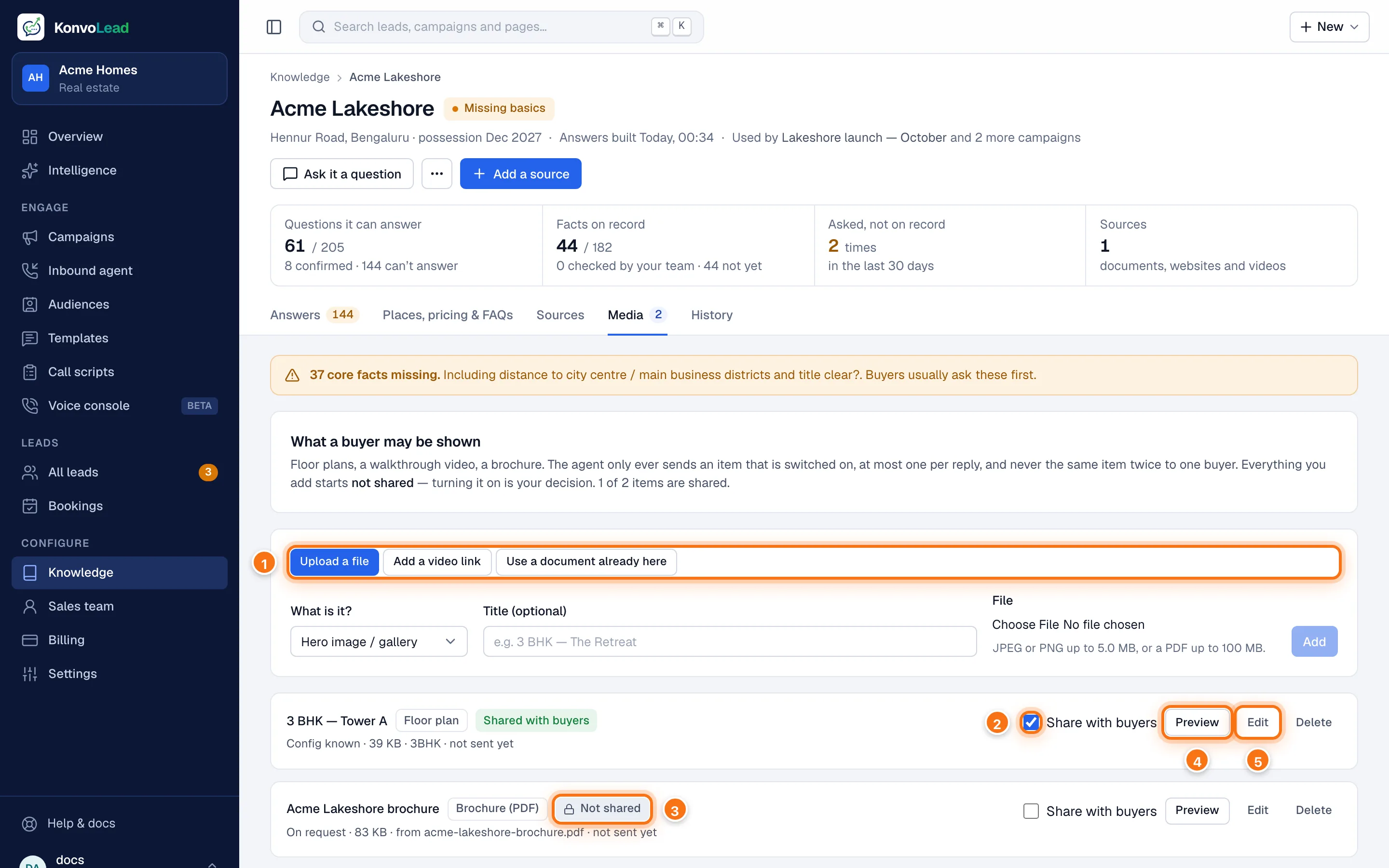
- Add media: Upload a file, Add a video link, or Use a document already here.
- Share with buyers switches an item on or off.
- Not shared: this item is never sent.
- Preview opens the file or link, to check it first.
- Edit decides when it may be sent.
Under each item's title: when it may be sent, its size, and how many buyers it has been sent to.
Add media
Upload a file
- Click Upload a file.
- Pick What is it?, for example Floor plan, Brochure (PDF), Cost sheet, Site plan or Location map.
- Type a Title (optional), for example "3 BHK — Tower A".
- Choose the File: a JPEG or PNG up to 5 MB, or a PDF up to 100 MB. These are WhatsApp's limits.
- Click Add.
Add a video link
- Click Add a video link.
- Pick A video this project already has, or paste a Link (YouTube or another web address). It's sent as a link, with a preview.
- Type a Title (optional) and click Add.
Use a document already here
- Click Use a document already here.
- Pick the Document you uploaded, and how to Share it as.
- Type a Title (optional) and click Make it shareable material.
KonvoLead makes a copy, so what a buyer was sent stays the same even if you later upload a new version of the document.
Once it's added you'll see "Added "…". It is not shared yet — switch it on below when you are ready."
Switch sharing on
Tick Share with buyers on the item. Its label changes from Not shared to Shared with buyers. Untick it to stop sending it.
Decide when it's sent
Click Edit on an item.
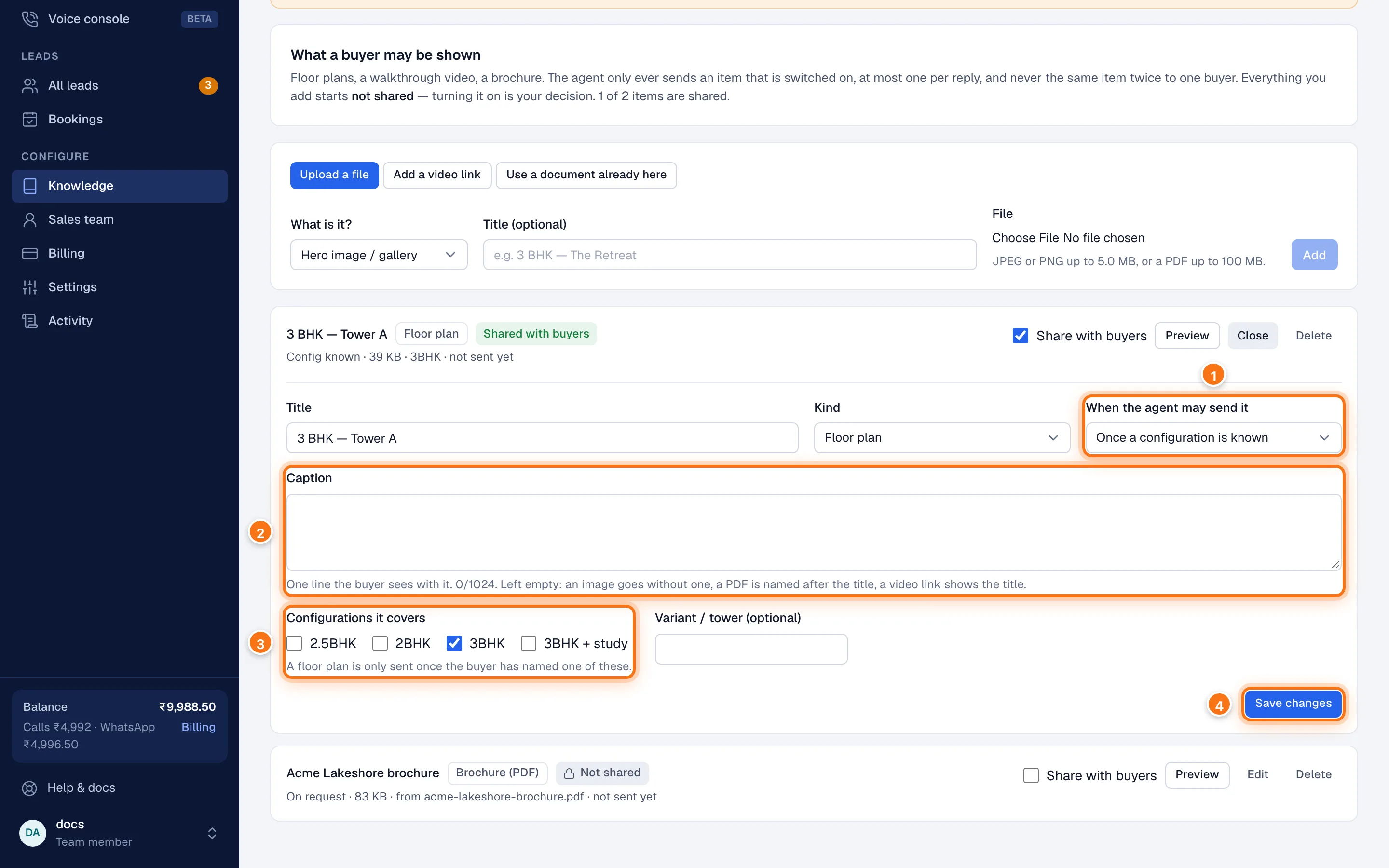
- When the agent may send it:
- Early — first real exchange
- Once a configuration is known, for example after the buyer says "3BHK"
- Once pricing is discussed
- Only when the buyer asks
- Caption: one line the buyer sees with it. Leave it empty and an image goes without a caption, a PDF is named after the title, and a video link is sent with the title.
- Configurations it covers: a floor plan is only sent once the buyer has named one of these, so a 3BHK plan doesn't go to someone asking about a 2BHK.
- Click Save changes.
You can also change the Title and Kind, and set a Variant / tower. Each kind starts with a sensible setting: floor plans once a configuration is known, brochures only when the buyer asks.
What the buyer gets
On WhatsApp, the agent sends its reply first, then the file with your caption, or the video link with a preview. It follows these rules:
- Only items switched on with Share with buyers.
- At most one item per reply.
- Never the same item twice to the same buyer.
- A limit on how many items one buyer gets in total and per hour, so nobody is flooded.
- WhatsApp only. Nothing is sent on phone calls.
Sent items show in the conversation on the lead's page.
Remove media
Click Delete, then Delete for good.
If you remove the document or video an item was made from (on the Sources tab), the item stops being sent. The file and its send history are kept, and you can switch it on again here.