
Site visits and bookings
How the agent arranges site visits, and how your team confirms them, declines them and records who came.
This page is about real-estate projects. Visits a call script books, and test drives for car dealers, appear on the same Bookings page and work the same way.
How a visit is requested
When a buyer wants to see the project, the agent:
- checks the days and hours visits are allowed (your visit hours on Settings, or the campaign's own, if it has them);
- agrees a time with the buyer;
- records a visit request and tells the buyer your team will confirm it.
The agent says a visit is requested, never booked, because a person on your team confirms it. If the buyer later wants to move or cancel it, they can tell the agent, and it updates the request.
Who is told
- Managers on your Sales team get the day's visits on WhatsApp at the start of your team's day.
- A visit requested for the same day is sent to managers straight away, so it isn't missed.
See The daily site-visit report.
The Bookings page
Open Bookings in the menu, under Leads. It lists the visits for one week at a time, starting today.
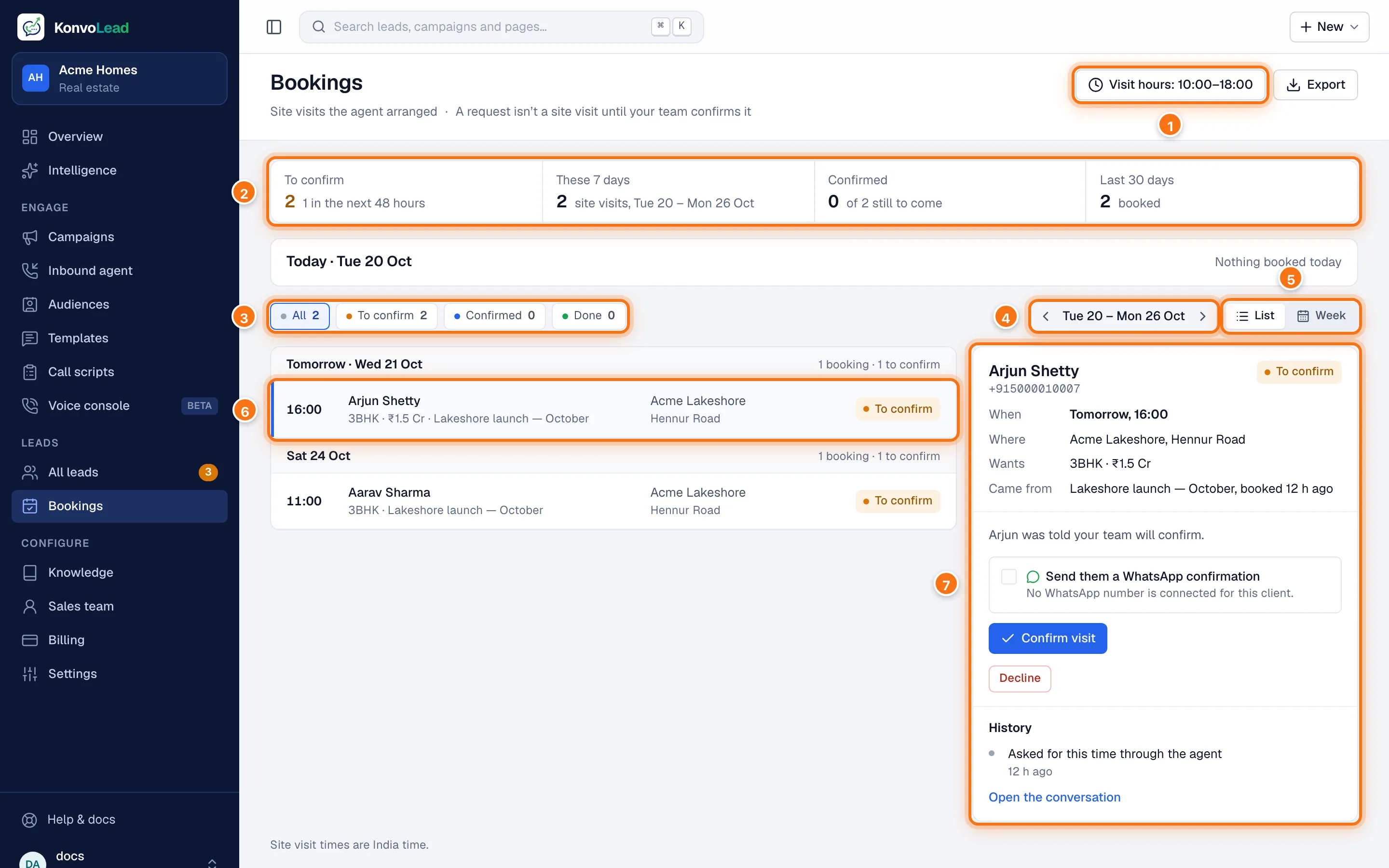
- Your visit hours. Click to change them on Settings. Export, beside it, downloads the visits as a spreadsheet.
- The counts: visits To confirm (and how many of those are in the next 48 hours), visits in the week shown, how many still to come are Confirmed, and how many were booked in the last 30 days.
- Show All visits, or only those To confirm, Confirmed or Done (and Cancelled, when there are any). With more than one project, you can also pick a project here.
- Move a week back or forward.
- Show the week as a List or a Week calendar.
- A visit. Click it to see it on the right.
- The visit you clicked, with what you can do about it. See Confirming a visit.
Above the list, Today shows today's visits at a glance. Times are India time.
The Week view lays the same visits out as a calendar, inside your visit hours. Click a visit to open it on the right.
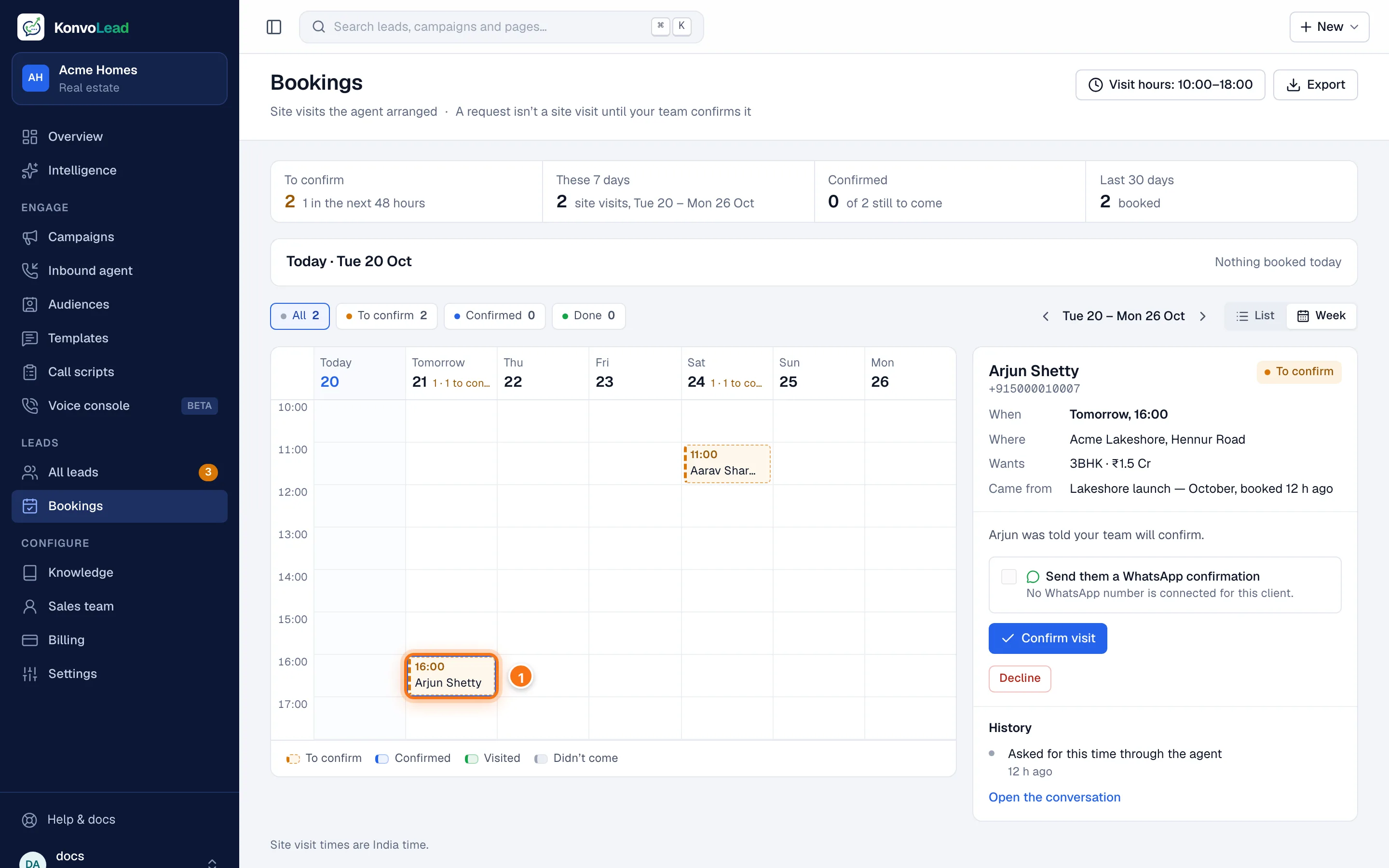
- A visit waiting to be confirmed. The key under the calendar shows the other states.
Statuses
| Status | Meaning |
|---|---|
| To confirm | The buyer asked for this time. Your team still needs to confirm it with them. |
| Confirmed | Your team confirmed it. |
| Visited | They came. |
| Didn't come | They didn't turn up. |
| Cancelled | Declined or cancelled. Left out of All and of the leads table. |
Confirming a visit
Call or message the buyer to agree the time, then confirm it here.
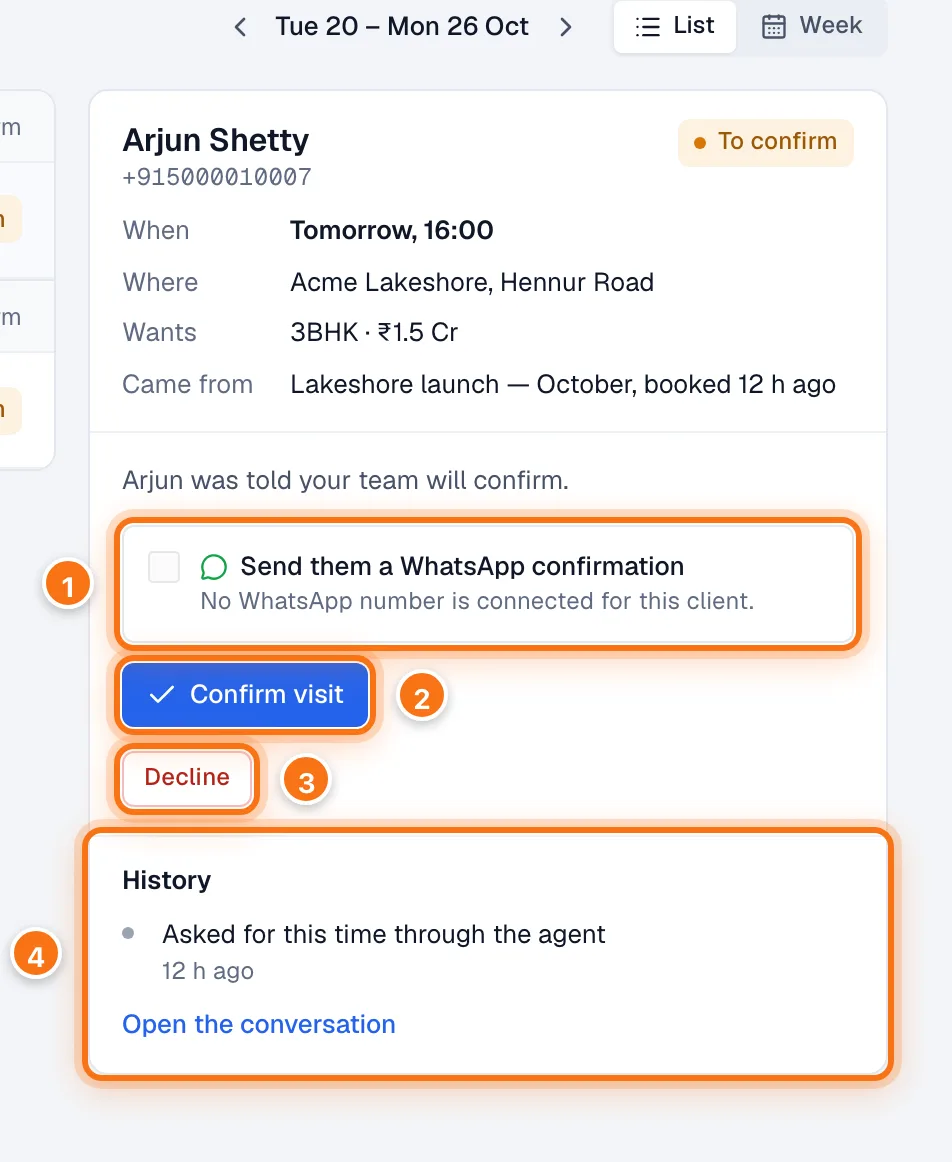
- Send them a WhatsApp confirmation: tick it to send the buyer a confirmation message when you confirm. It uses one of your approved WhatsApp templates whose purpose is Visit confirmation, filled in for this buyer and this visit, and shows you the message first. If you have more than one, choose which. If it can't send, it says why, for example when no WhatsApp number is connected or you have no approved confirmation message yet. See Message templates.
- Confirm visit records it as confirmed, and sends the message if you ticked the box. If you didn't, the buyer isn't sent anything; if they ask, the agent tells them it's confirmed.
- Decline turns the request down. See below.
- History: when the visit was asked for and every change your team made. Open the conversation goes to the lead's page.
You can also confirm a visit from the lead's page or the leads list's side panel. Those record it without sending a message.
Confirming a visit moves the lead to Booked on the leads list. Cancelling it, or recording that they didn't come, moves them back to With agent. See Statuses.
Declining or cancelling
Decline asks before it does anything.
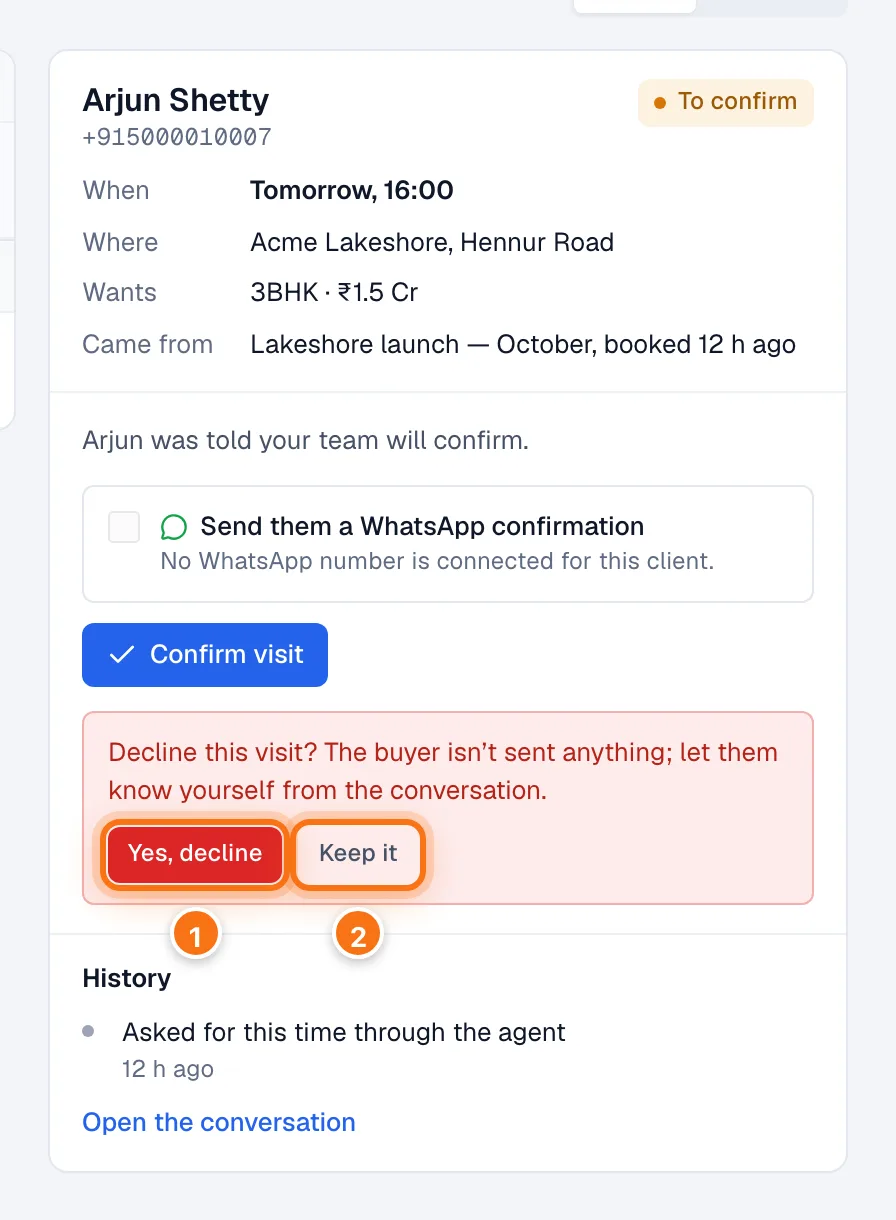
- Yes, decline cancels the request.
- Keep it leaves it as it was.
The buyer isn't sent anything when you decline, so let them know yourself from the conversation. A confirmed visit that is still to come has Cancel visit instead, which works the same way. A request whose time passed without anyone confirming it has Clear it from the list.
After the visit
From an hour before the visit, the panel asks Did they come? Click They came or Didn't come. Your answer moves the visit to Done and shows on the lead's page. If they didn't come and write in later, the agent can help them pick a new time.