
Adding a project
Add a project, give it its documents, websites, videos and notes, and follow the reading as it happens.
Before you start
Gather the best sources you have. The better the sources, the better the agent's answers.
| Your industry | Upload these | Notes are good for |
|---|---|---|
| Real estate | Brochure, cost sheet, spec sheet, RERA certificate, floor plans | Connectivity, nearby places, comparable projects, the builder's history, updates |
| Loans | Key Facts Statement, schedule of charges, eligibility grid, product sheet | Rates, charges, eligibility, the lender's background |
| Credit cards | MITC, schedule of charges, rewards terms, product sheet | Fees, rewards, eligibility, the issuer's background |
| Automotive | Variant / price list, brochure, spec sheet | Waiting periods, current offers, showroom details |
Documents must be PDFs or images: PDFs up to 22 MB, images up to 5 MB. A file that's too big or the wrong type is listed with the reason and left out.
The screens use your industry's word: a lender sees Add a loan product, a dealership Add a model. This page says project.
Add the project
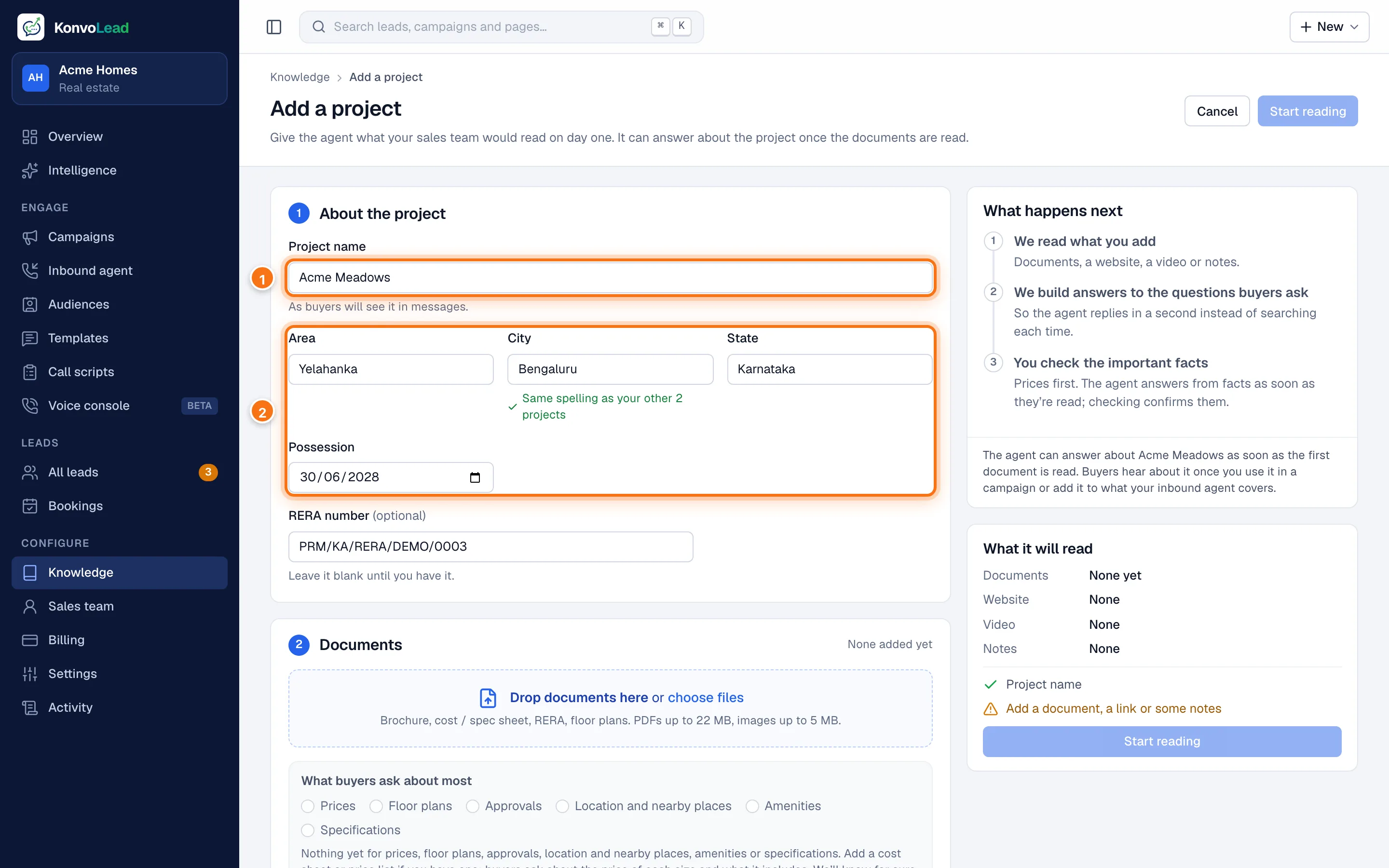
In the menu, click Knowledge, then Add a project.
1. About the project
- Type the Project name (1), as buyers will see it in messages. Names must be unique in your account. If you already have a project with that name, you're told so: add documents to the one you have instead.
- Fill in Area, City and State (2). As you type a city, KonvoLead suggests the spelling you used before, so "Mangaluru" and "Mangalore" don't end up as two cities.
- Real estate also has Possession and RERA number. Leave the RERA number blank until you have it.
Some industries also ask What it is, for example a home loan or a personal loan. It decides which buyer questions apply. Leave it unset if the product is a mix.
2. Documents
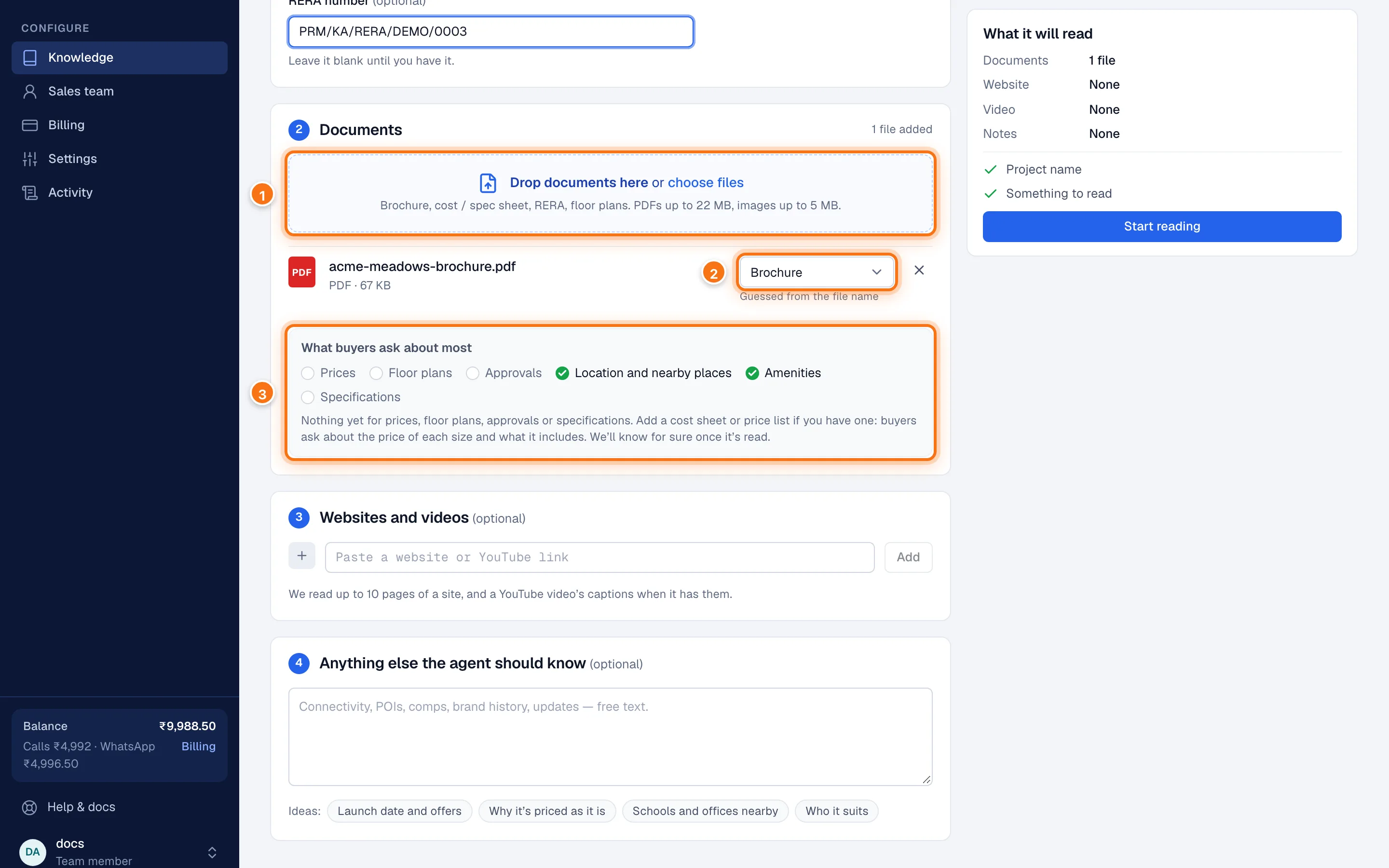
- Drop your files on the box, or click choose files (1).
- Check what each file is (2), for example Brochure or Cost sheet. KonvoLead guesses from the file name. Click × to take a file off.
- What buyers ask about most (3) shows which common topics your files probably cover, and suggests what to add for the rest. For example, if no cost sheet is listed, it says buyers ask about the price of each size. You'll know for sure once the files are read.
3. Websites and videos (optional)
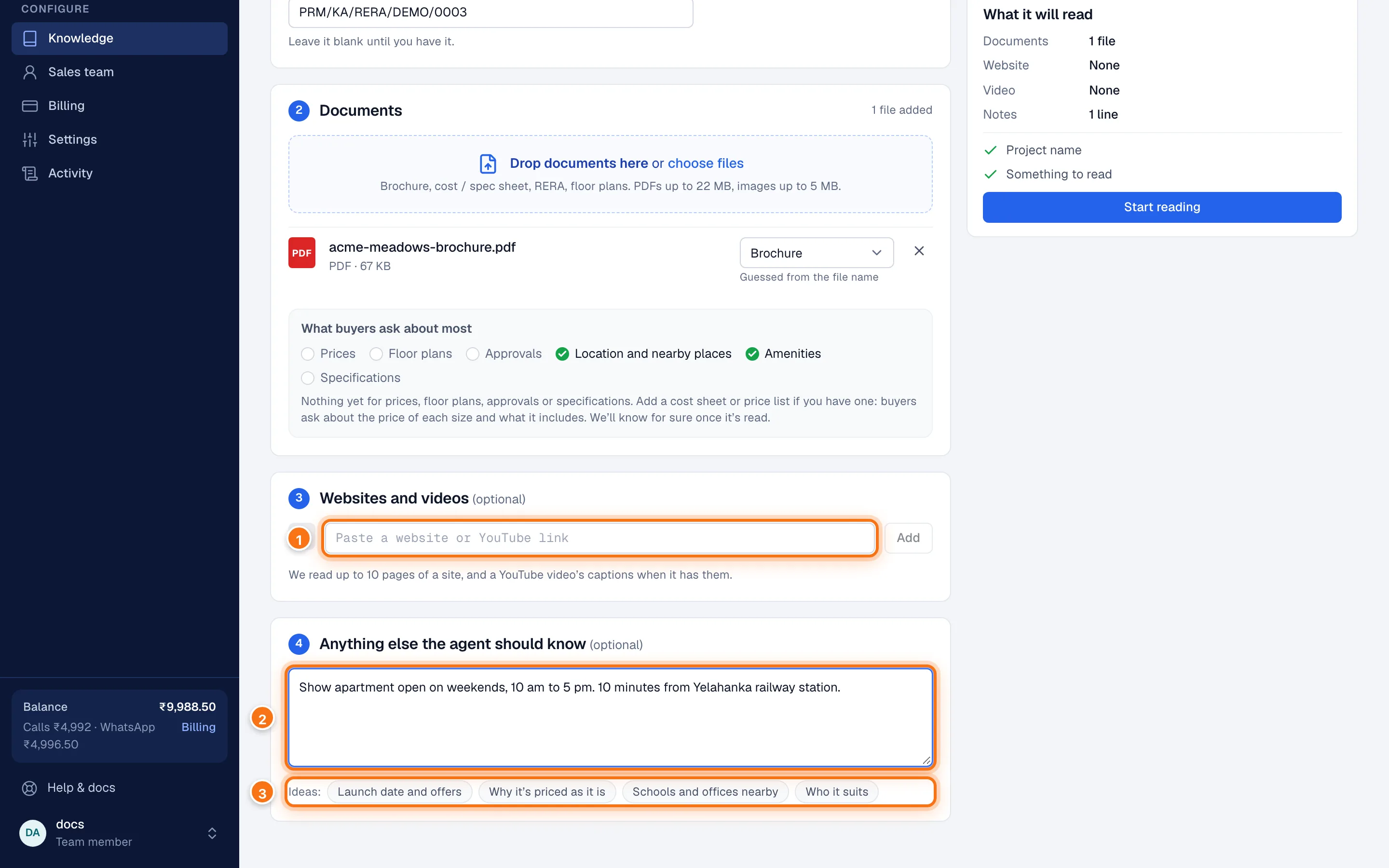
Paste a website or YouTube link (1) and click Add, or just paste it. Each link is checked as you add it. KonvoLead reads up to 10 pages of a website, and a YouTube video's captions when it has them. Websites and videos are available for real estate.
4. Anything else the agent should know (optional)
Type notes in plain sentences (2), for example: "Show flat open every day 10 am to 6 pm. 5 minutes from Wipro SEZ. Metro line opens 2027." Click an idea under the box (3) to get started on a topic.
If your notes mention a price, a warning says so: the agent will quote it, so you'll be asked to check it once it's read.
Start reading
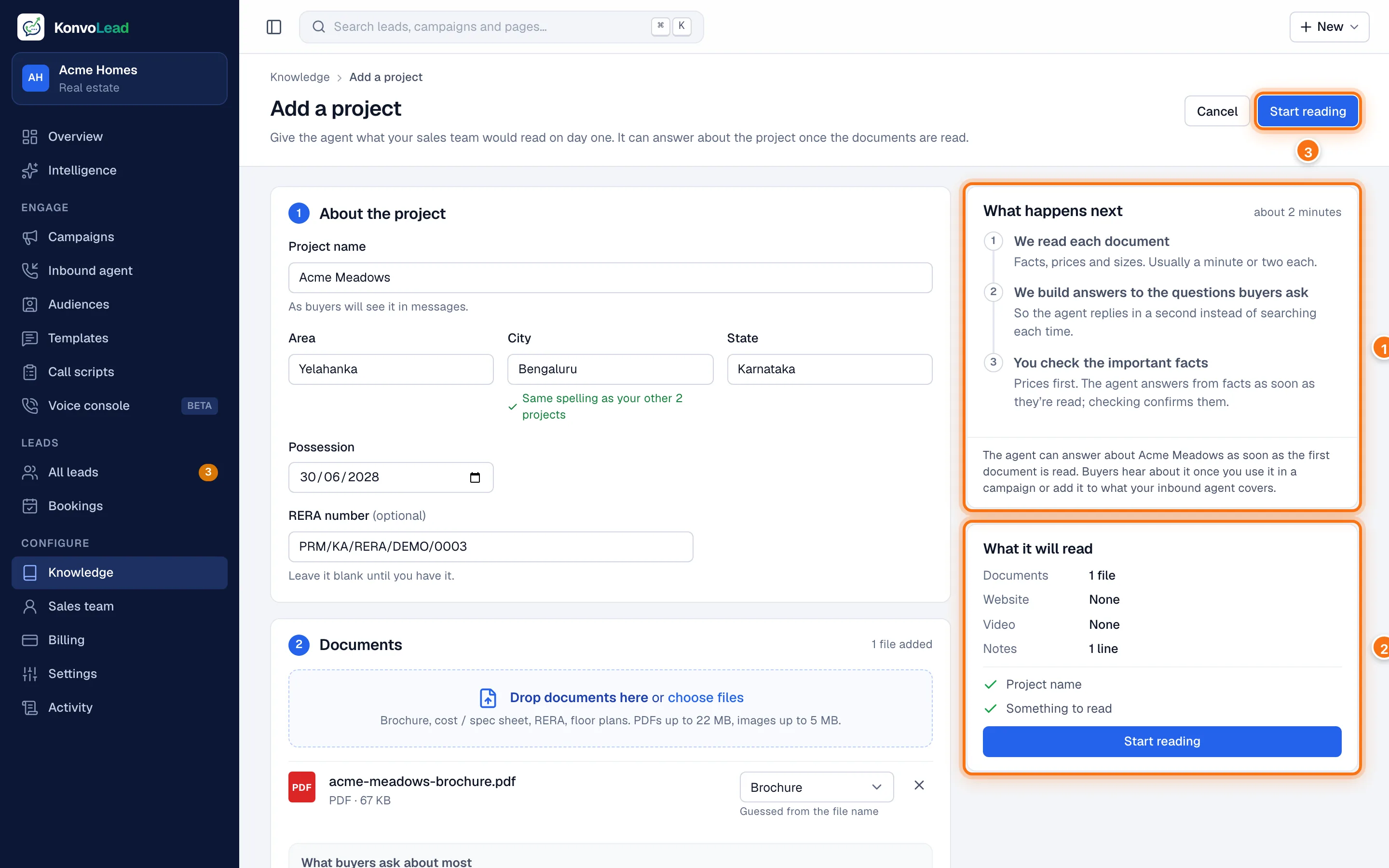
The panel on the right says what happens next (1) and lists what will be read (2), with anything still missing. When it's ready, click Start reading (3).
While it reads
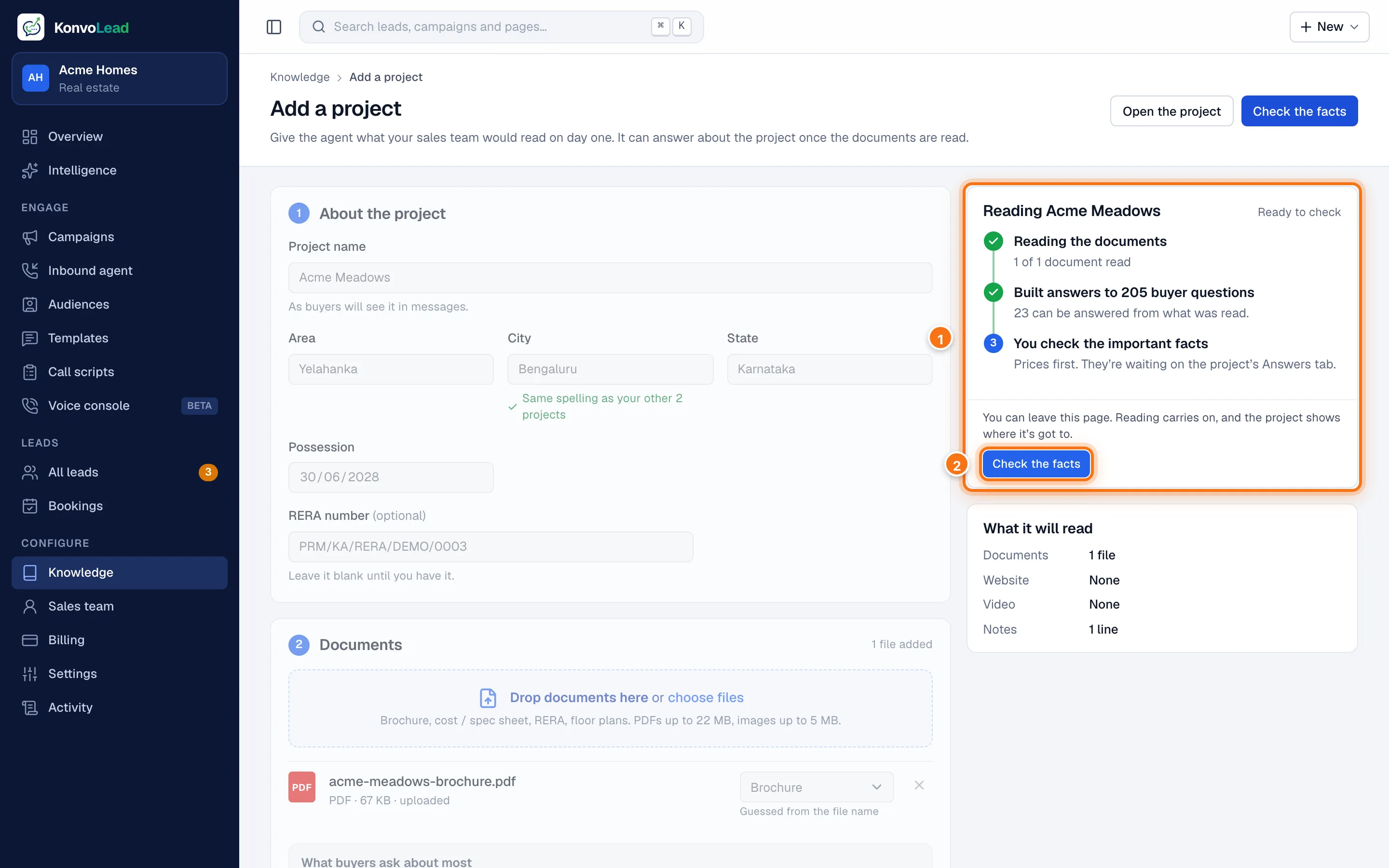
The panel (1) follows the read, step by step:
- Reading the documents: each file in turn, usually a minute or two each.
- Reading the websites and videos, if you added any.
- Building answers to the buyer questions: usually a few minutes.
- You check the important facts: when this step is ready, the panel says Ready to check. Click Check the facts (2).
You can leave the page: reading carries on, and the project shows where it's got to. The agent can answer about the project as soon as the first document is read. Buyers hear about it once you use it in a campaign or add it to what your Inbound agent covers.
If a file can't be read, the panel says why. The rest of the read carries on.
After it's read
- Check the facts, prices first. See Checking facts.
- Ask the agent a few questions with Ask it a question on the project's page, or chat with it as a buyer with Test the agent. See the Quickstart.
Adding more later
Don't add the project again. Open it and click Add a source. What's read is merged with what's already there, and a fact your team checked is never overwritten. See Sources.