
Connecting your own WhatsApp number
How to connect your business's own WhatsApp number through Meta, finish setting it up, and what changes once it's connected.
Once your own number is connected, buyers see your business's name and number on WhatsApp. Your message templates live on your own WhatsApp Business account, and Meta bills that account directly for its message charges.
Until then, your messages go out from a number KonvoLead provides. With no number at all, campaigns run in test mode.
Before you start
Have these ready. It takes about fifteen minutes.
- A Facebook login that is an admin of your business on Meta. Your business on Meta is its business portfolio in Meta Business Suite. If someone else is its admin, do this with them. Meta lets only your business's own admin finish it, so your KonvoLead contact can't do it for you.
- The phone number, with the phone nearby. Meta sends a code to it, by text message or phone call.
- A number that isn't on the WhatsApp app or the WhatsApp Business app. KonvoLead can't share a number with those apps yet. If it's on one, delete its account in that app first, under Settings → Account. Its chats on that phone are lost.
- Your business's details: your website, and the name buyers should see on WhatsApp (its display name). Meta reviews the display name, so use your business's name as it appears on your website.
- Afterwards, a payment method. Meta bills your account directly, and you add a card in WhatsApp Manager.
Step 1: Open the WhatsApp page
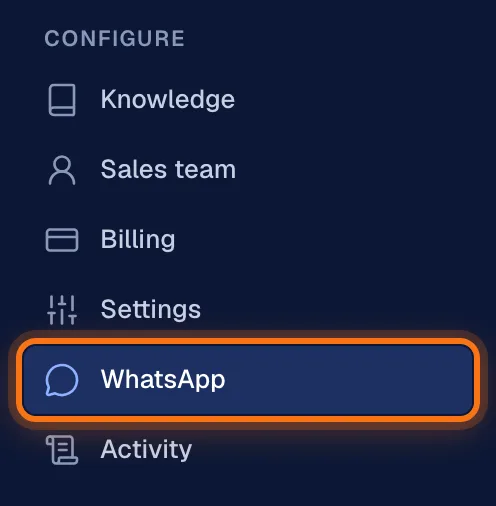
In the menu, under Configure, click WhatsApp.
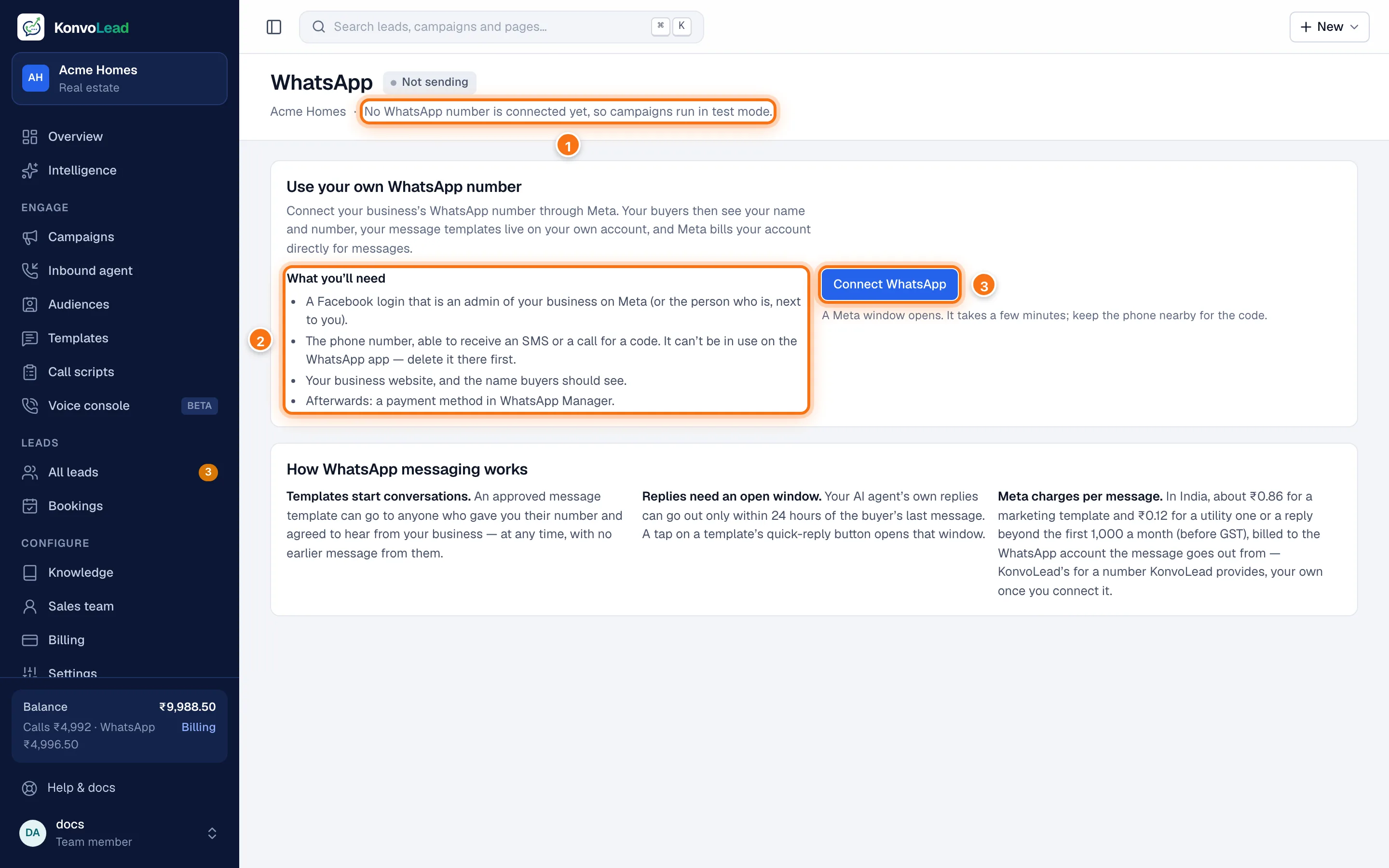
- Where your messages go out from now. With no number, it says campaigns run in test mode.
- What you'll need for Meta's window.
- Connect WhatsApp opens Meta's window.
If you sell in more than one line of business (homes and loans, say), first choose under Buyers on this number ask about which one the number is for. The agent then answers its buyers for that business straight away.
Step 2: Finish Meta's window
Connect WhatsApp opens a Facebook window. If nothing opens, allow pop-ups for app.konvolead.com and click it again.
Meta's window takes you through these steps. Meta sometimes asks for your business details before your phone number, so the order can differ a little.
- Sign in with the Facebook login that is an admin of your business.
- Review what KonvoLead can do: send and receive WhatsApp messages, and manage message templates, for your business.
- Add your phone number: type it with its country code, or pick it if Meta already lists it.
- Verify it: choose a text message or a phone call, and type the code Meta sends.
- Choose your business and WhatsApp account: pick your business portfolio and WhatsApp Business account, or create new ones. Creating them asks for your business's name, website, country and category, and the display name buyers will see.
- Review the permissions KonvoLead gets, then click Finish.
The window then closes by itself, and the WhatsApp page says "Setting up your number with Meta…" for a few seconds. Leave the page open meanwhile.
If you close Meta's window part-way, nothing is connected. The page says where you stopped, for example "You stopped before verifying the number". Click Connect WhatsApp to start again.
Step 3: Check your account
When it's done, the page says Connected with your account's name, and lists anything left to do under it. Your account then appears on the page.
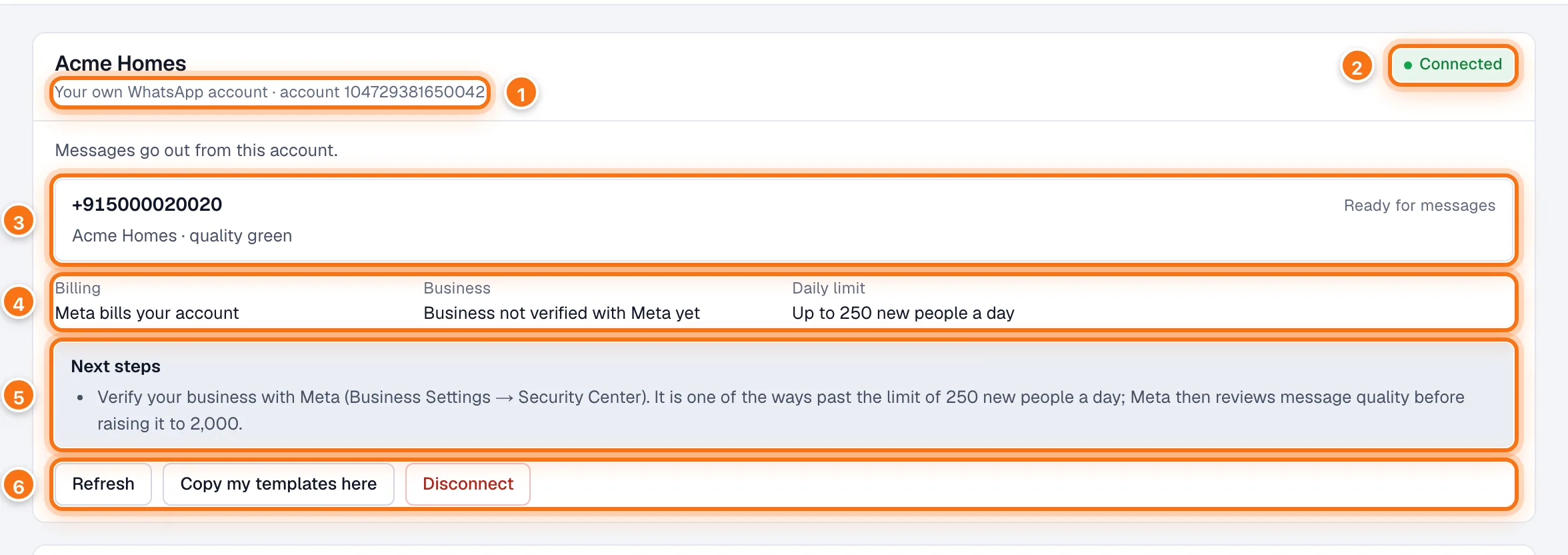
- Your own WhatsApp account, and its account number at Meta.
- Its state. Connected means messages go out from it. See If something goes wrong for the others.
- Your number. It says Ready for messages once it is set up for messaging, with the display name buyers see and Meta's quality rating.
- Billing: whether Meta has a payment method. Business: whether Meta has verified your business. Daily limit: how many new people your account can message a day.
- Next steps: anything left to do. See below.
- Refresh checks with Meta again and finishes any step that didn't. Copy my templates here copies your approved messages to this account. Disconnect stops KonvoLead using it.
The top of the page then says your messages go out from your number, on your own account.
Finishing the setup
Anything still to do is listed under Next steps. Do each one, then click Refresh.
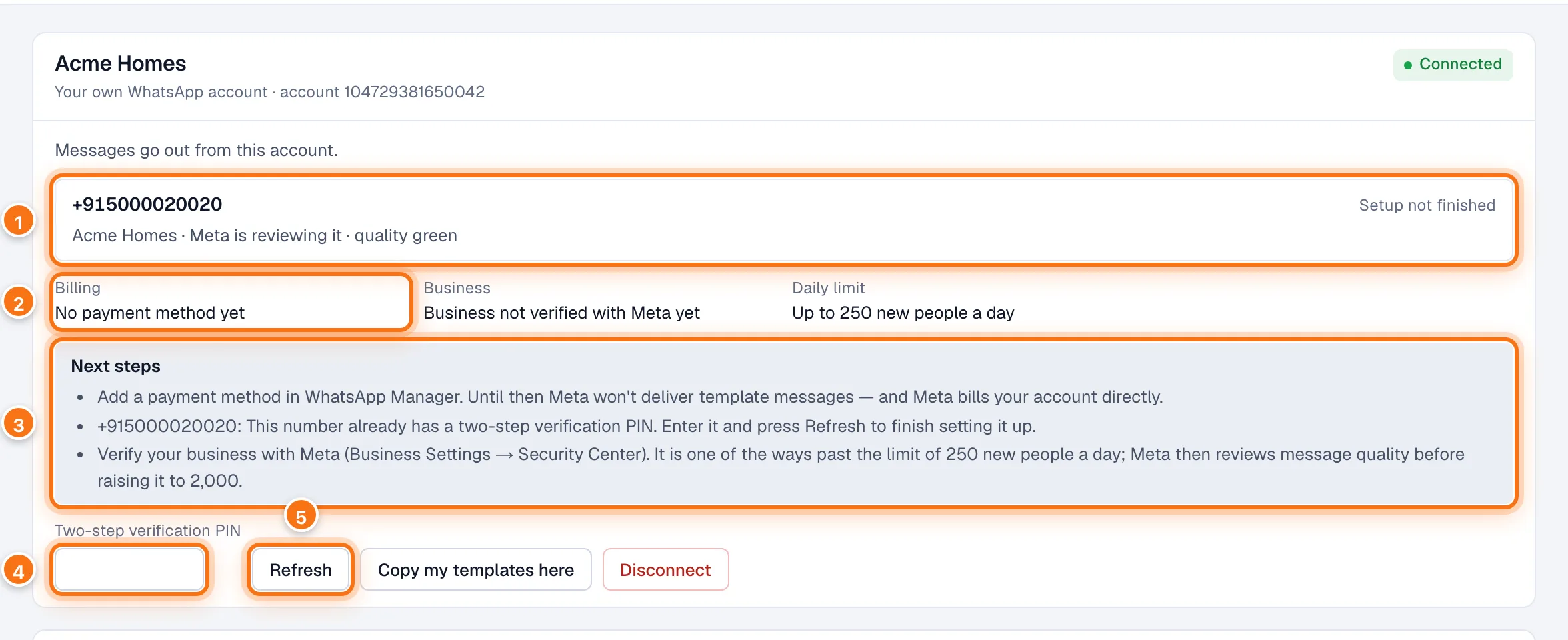
- The number says Setup not finished until Meta has set it up for messaging. "Meta is reviewing it" next to the display name means Meta hasn't approved the name yet.
- No payment method yet: Meta hasn't got one for your account.
- Next steps says what to do about each.
- Two-step verification PIN appears when the number needs its PIN.
- Refresh tries the setup again.
Add a payment method
Meta won't deliver template messages from your account until it has a payment method. Add a card in WhatsApp Manager at business.facebook.com/wa/manage, then click Refresh. The Billing line then says Meta bills your account.
Enter your two-step verification PIN
If the number had a two-step verification PIN before (on WhatsApp, or with another provider), Meta needs that PIN to set it up. Type its 6 digits under Two-step verification PIN, and click Refresh.
- If nobody knows the PIN, set a new one in WhatsApp Manager, under the number's settings, then enter it here.
- After wrong tries, Meta makes you wait. The page says when you can try again, and the PIN box stays off until then: another try only makes the wait longer.
Wait for the display name
Meta reviews the name buyers see. Until it's approved, buyers may see your number instead of the name. If Meta declines it, change it in WhatsApp Manager.
If Meta approves a new name for a number that's already set up, buyers see it only after the number is set up again, within 14 days. Next steps says so: click Refresh before the date it gives.
Verify your business with Meta
A new WhatsApp account can message up to 250 new people a day. Verifying your business with Meta, under Business Settings → Security Center in Meta Business Suite, is one of the ways past that. Meta then reviews your messages' quality before raising the limit to 2,000.
When a campaign reaches the limit, its messages wait for room and go out as soon as there is some. Messages to your sales team and booking confirmations always have room.
Step 4: Copy your message templates
A message template belongs to the WhatsApp account Meta approved it on, and Meta only sends it from that account. Your new account starts empty. If you have approved messages on another account (a number KonvoLead provided, say), click Copy my templates here.
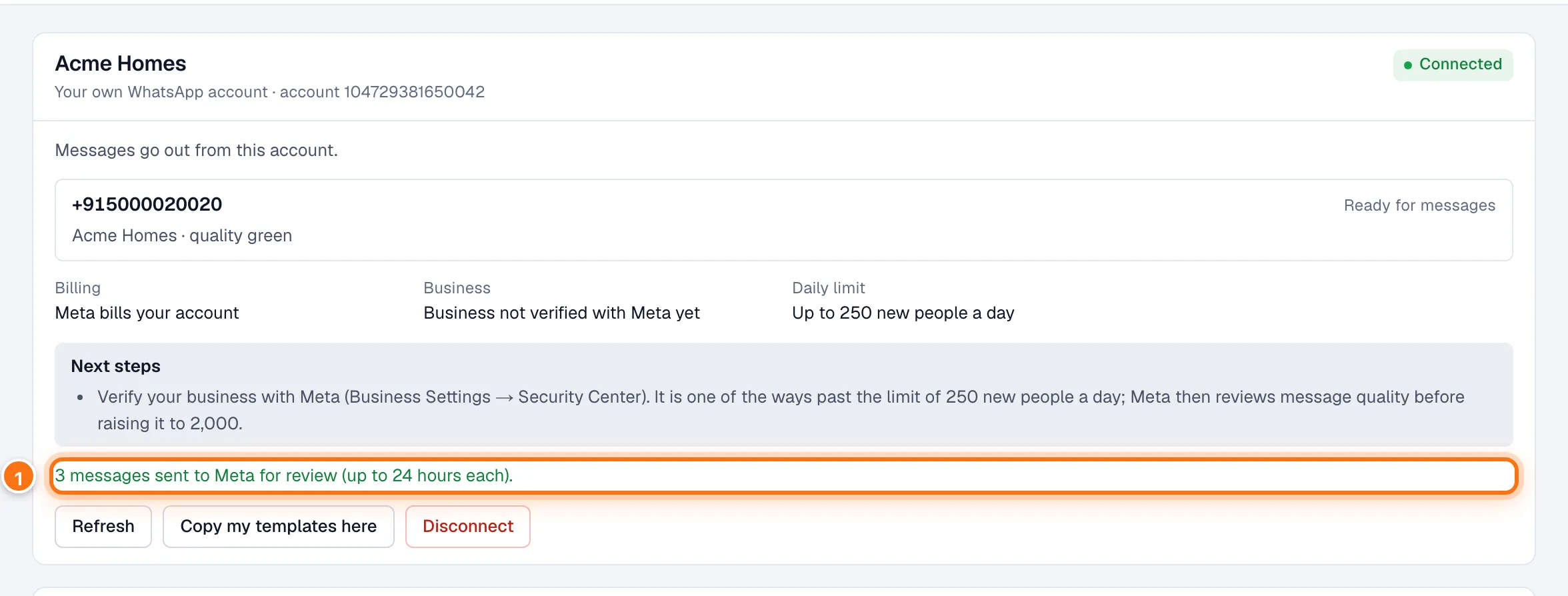
- How many messages went to Meta. Each is reviewed again for this account, which takes up to 24 hours each.
- Copying again is safe: messages already on this account are skipped.
- A message with an image or document header isn't copied, because its file has to be uploaded again for this number. Make it again on the Templates page.
- Once a copy is approved, use Send a test on the Templates page to see it on your phone. See Message templates.
What changes once you're connected
- Replies to a buyer always go from the number the buyer wrote to.
- Campaign messages go from the account their template is approved on. Choose messages approved on your own account for new campaigns.
- Messages to your sales team and booking confirmations go from your own number once their templates are approved there. Until then, they keep going from your KonvoLead number.
- A number KonvoLead provided stays yours until KonvoLead takes it back, and buyers who message it are still answered. Tell your KonvoLead contact when you want it released. After that, a message approved only on its account says Approved on an account you no longer send from on the Templates page.
- Meta's charges go to your own WhatsApp account. In India that is about ₹0.86 for a marketing template, and ₹0.12 for a utility template or for a reply beyond the first 1,000 a month, before GST. Your KonvoLead WhatsApp wallet is still charged for the agent's messages. See Wallets and billing.
If something goes wrong
Your account's state is at the top right of its card.
| State | What it means | What to do |
|---|---|---|
| Connected | Messages go out from this account. | Nothing. |
| Restricted by Meta | Meta has limited part of what the account can do, often the messages your business starts. Replies to buyers still go out. | WhatsApp Manager says what is limited and until when. |
| Paused by Meta | Meta has paused the account for now. | Wait: it usually clears within minutes. |
| Disabled by Meta | Meta disabled the account for a policy reason. Nothing can be sent until Meta reinstates it. | Read Meta's notice in WhatsApp Manager, and appeal there. |
| Connect again | KonvoLead's access to the account stopped working. | Click Connect again, and sign in with the same Facebook login. |
| Can't send | The account looks connected, but KonvoLead's access to it can't be used. | Click Connect again. |
| Disconnected | KonvoLead no longer sends from the account. | Connect it again to use it. |
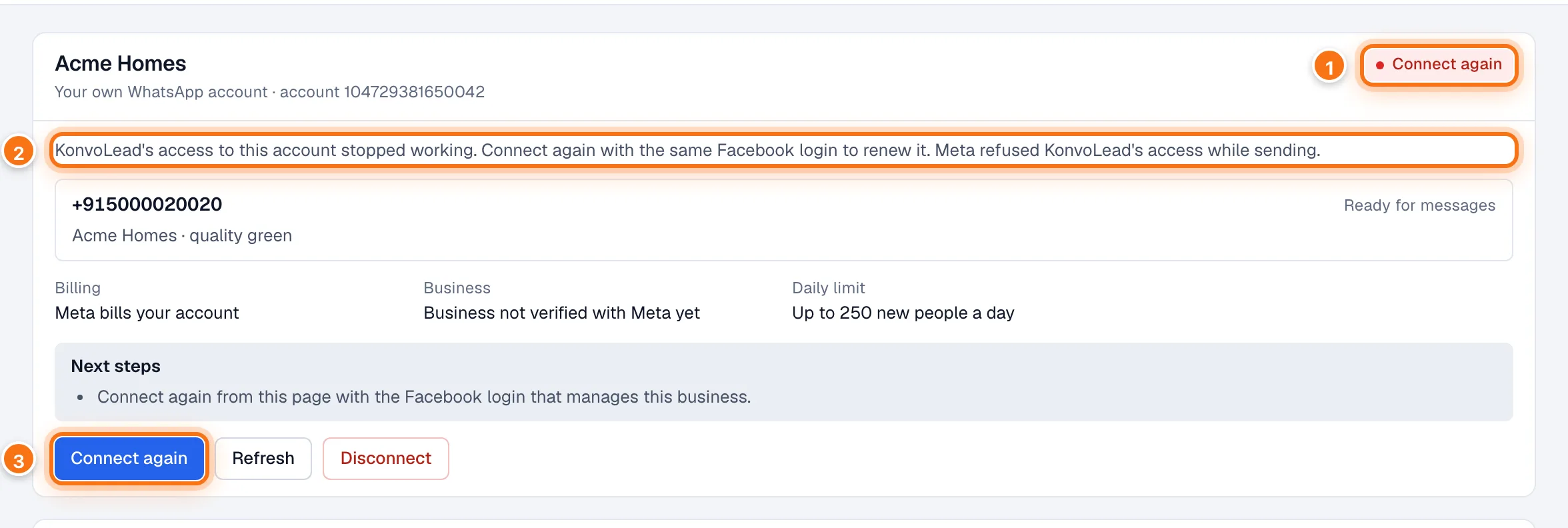
- Connect again: KonvoLead's access stopped working.
- Why, in words.
- Connect again opens Meta's window. Use the same Facebook login.
While your account can't send:
- A campaign that only sends WhatsApp messages is paused, with the reason in your Activity. Once the account is fixed, open the campaign and click Resume.
- A campaign that also calls keeps calling. Its WhatsApp messages wait, and are tried again every hour for up to a day.
- Buyers who message you aren't answered. Messages that still reach KonvoLead show on their lead's page, so your team can pick them up.
Messages you might see when connecting
| It says | What to do |
|---|---|
| "Connecting your own WhatsApp number isn't switched on yet." | Ask your KonvoLead contact to turn it on. |
| "The Facebook sign-in could not load." | Something in your browser is blocking facebook.com, often an ad blocker. Allow facebook.com and click Try again. |
| "That number is still on the WhatsApp Business app…" | Delete its account in the app first, or connect another number. |
| "That WhatsApp account has several numbers." | Click Connect WhatsApp again, and pick the one number to use. |
| "KonvoLead needs both WhatsApp permissions." | Connect again, and allow both permissions Meta asks for. |
| "That WhatsApp account wasn't shared with KonvoLead in the sign-in." | Connect again, and pick the same business and account all the way through. |
| "That WhatsApp account is already connected to another KonvoLead account." | Each WhatsApp account can be connected to one KonvoLead account. Ask your KonvoLead contact. |
| "Meta didn't answer just now." | Wait a minute and try again. |
Disconnecting
To stop using your own account, click Disconnect on its card. The card asks "Stop sending from this account?". Click Disconnect to confirm, or Keep it to cancel.
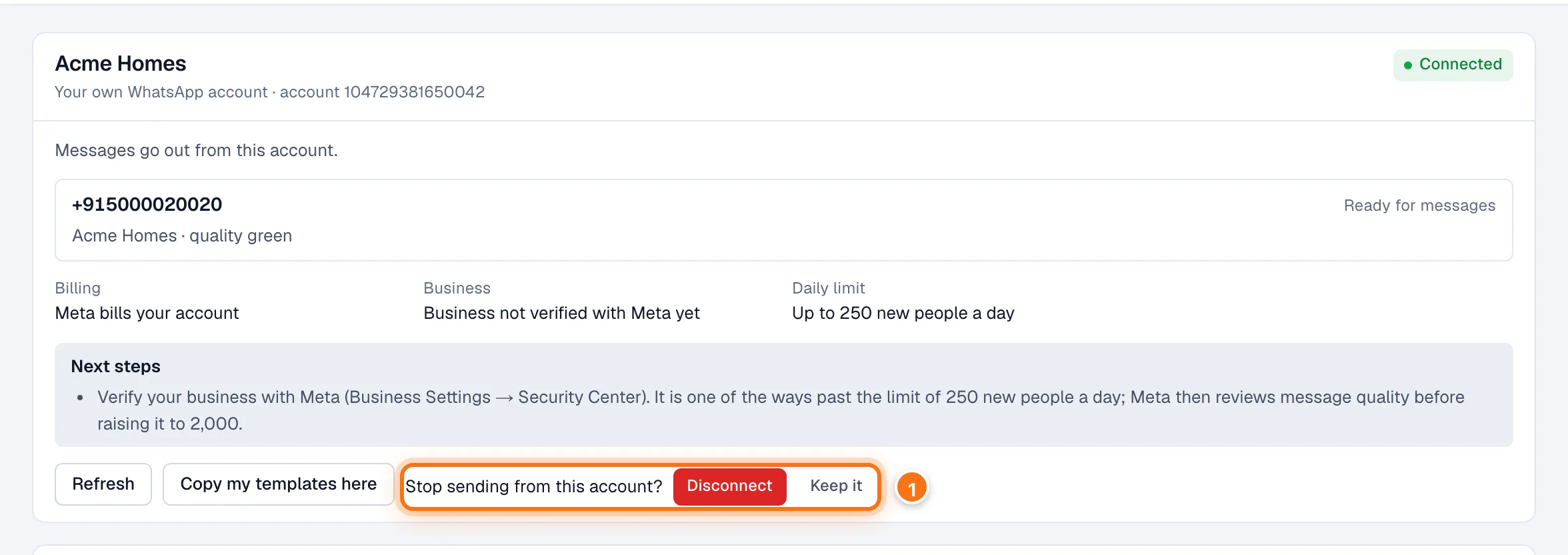
- Confirm, or keep it.
What happens:
- KonvoLead deletes its access to the account straight away, and stops sending and receiving messages on it.
- Nothing changes at Meta. Your number stays registered, your templates stay on your account, and you can keep using them in WhatsApp Manager or with another provider.
- Campaigns that send from the account are paused, as above.
- To use it again, connect it again from this page.
You can also remove KonvoLead from Meta's side: in Meta Business Suite, open Business settings → Integrations → Connected apps, choose KonvoLead and remove it. The card then shows Disconnected within moments. To have the data we hold deleted, see konvolead.com/data-deletion.
If your number is provided by KonvoLead
If KonvoLead gave you a number, the page shows it like this.
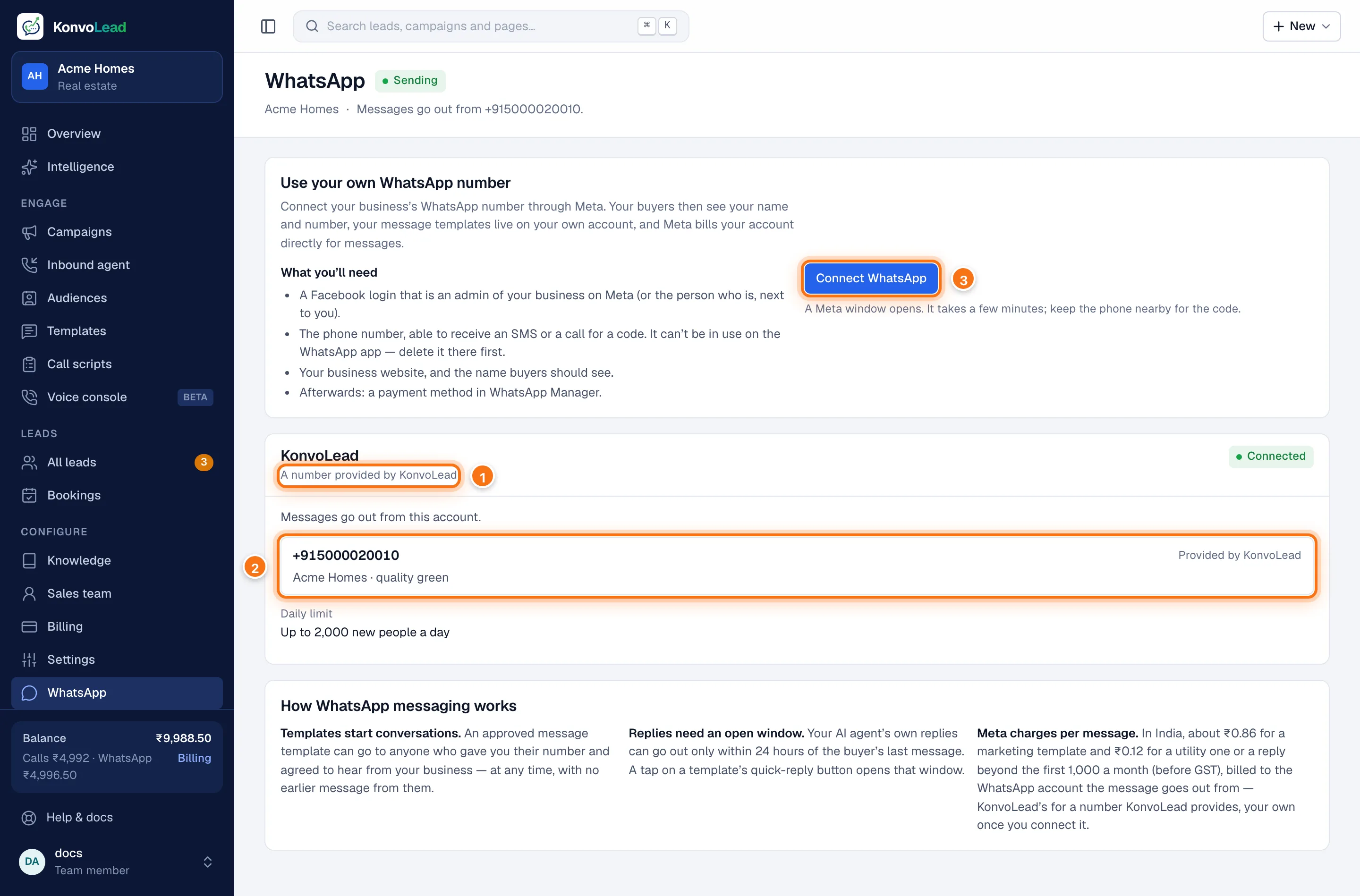
- A number provided by KonvoLead: it is on KonvoLead's WhatsApp account. KonvoLead looks after it, and Meta bills KonvoLead for its messages. You have nothing to set up.
- Your number, and the display name buyers see.
- Connect WhatsApp, if you'd rather use your own number. Your KonvoLead number keeps working meanwhile.
If its state isn't Connected, KonvoLead fixes it: contact your KonvoLead contact.